XPath in Selenium: Complete Guide with Syntax, Types & Examples
By Sriram
Updated on Jul 22, 2026 | 12 min read | 4.42K+ views
Share:

All courses
Certifications
More
By Sriram
Updated on Jul 22, 2026 | 12 min read | 4.42K+ views
Share:
Table of Contents
Quick Overview
This blog covers everything you need to know about XPath in Selenium. You will learn the syntax, the different types of XPath, how to write and generate XPath expressions, common axes and functions, dynamic XPath handling, and how XPath compares to CSS selectors.
If topics like network security and building systems that can detect threats in real time interest you, upGrad's Data Science courses can help you build the skills to work with the systems and data behind them.
Popular Data Science Programs
XPath stands for XML Path Language. It is a query language used to select nodes in an XML document. Since HTML follows a similar tree structure, XPath works just as well for locating elements on a web page.
In Selenium, XPath lets you find an element based on its tag name, attributes, text content, or its position relative to other elements. This makes it far more flexible than locators like ID or class name, which only work when those attributes exist and are unique.
Here's why testers rely on XPath in Selenium:
A basic example:
driver.findElement(By.xpath("//button[@id='submit']"));
This line tells Selenium to find a button element whose id attribute equals submit. The core idea behind XPath in Selenium is to describe where the element sits in the page structure and let Selenium locate it for you.
Testers often turn to XPath when other locators fail. A login button might not have an ID. A table row might repeat the same class name a hundred times. XPath handles these situations by letting you combine tags, attributes, and text into one precise expression.
Free Courses
Understanding XPath syntax in Selenium is the first real step toward writing accurate locators.
Every XPath expression follows a predictable pattern, and once you know the pattern, writing new expressions becomes much easier.
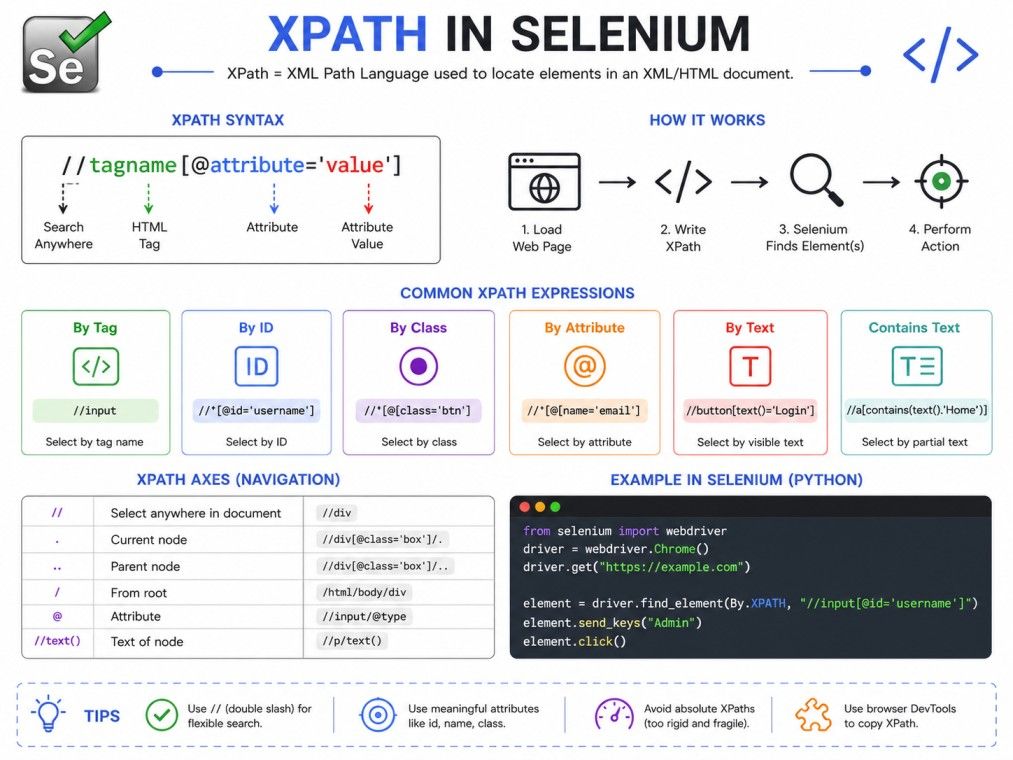
A typical XPath syntax looks like this:
//tagname[@attribute='value']
Here's what each part means:
Syntax |
Meaning |
| / | Selects from the root node |
| // | Selects nodes from anywhere in the document |
| @ | Selects an attribute |
| * | Matches any element node |
| . | Refers to the current node |
| .. | Refers to the parent of the current node |
A few working examples:
The first line finds an input field with the name attribute set to email.
The second finds a link with a specific class.
The third simply finds the first h1 tag on the page.
These small variations are the building blocks of XPath syntax in Selenium, and mastering them makes every other locator technique easier to pick up.
Getting comfortable with XPath syntax in Selenium pays off quickly. Once you understand how tags, attributes, and operators fit together, you can build locators for almost any element, no matter how the page is structured.
This foundation also makes it easier to understand XPath types, axes, and functions, which build directly on this syntax.
If you're looking to break into this space or move up in your career, the Master of Science in Data Science from Liverpool John Moores University, offered in collaboration with upGrad, gives you the credentials and skills to get there.
Data Science Courses to upskill
Explore Data Science Courses for Career Progression
IIIT Bangalore
Executive Post Graduate Certificate in Data Science & AIPlacement Assistance
There are two main types of xpath in Selenium: absolute and relative. Knowing when to use each one is one of the most practical skills for writing stable automation scripts.
Absolute XPath starts from the root node and follows the exact path down to the target element.
/html/body/div[1]/div[2]/form/input
This path works, but it has a serious downside. If even one element in that hierarchy shifts, the entire path breaks. Absolute XPath is fragile and not recommended for real-world test automation.
Relative XPath starts from anywhere in the document using // and searches for the element based on its tag and attributes, without depending on the full page hierarchy.
//input[@type='submit']
This is shorter, more readable, and far less likely to break when the page layout changes slightly. Most experienced testers use relative XPath almost exclusively.
Feature |
Absolute XPath |
Relative XPath |
| Starting point | Root node (/html) | Anywhere (//) |
| Path length | Long and rigid | Short and flexible |
| Stability | Breaks easily with layout changes | Stays stable through minor changes |
| Recommended use | Rarely, for one-off scripts | Preferred for real automation projects |
Relative XPath covers the vast majority of elements you need to locate, and it keeps your test scripts easier to maintain over time.
Understanding both types of XPath in Selenium also makes it easier to read locators written by other testers on your team.
Before you can use XPath in Selenium, you need to identify the correct expression for the element you want to interact with. There are a few practical ways to do this.
Most browsers let you generate XPath directly through Inspect Element.
This gives you a working XPath expression instantly. Copy XPath usually returns a relative path, while Copy full XPath returns the absolute version.
Copied XPath expressions work, but they're often longer and more fragile than they need to be. Many testers prefer writing their own expressions using visible attributes like id, name, class, or visible text.
For example, instead of a generated path like:
/html/body/div[3]/div/form/div[2]/input
You can write:
//input[@name='username']
This is shorter, easier to read, and less likely to break.
Before adding an XPath expression to your script, test it in the browser console using:
$x("//input[@name='username']")
This returns the matching elements directly in DevTools, so you can confirm your expression works before running your Selenium script.
Knowing how to find XPath in Selenium quickly saves a lot of debugging time later. Combining DevTools with manual adjustments usually gives you the most reliable locator, rather than relying only on auto-generated paths.
Also Read: 25+ Selenium Projects Guide: Learn Testing with Examples
Once you understand the syntax, writing your own expressions becomes far more efficient than copying auto-generated ones.
Here's a practical approach to how to write Xpath in selenium step by step.
Start with the HTML tag of the element, such as input, button, a, or div.
Look for an attribute that clearly identifies the element, such as id, name, type, or placeholder.
//input[@id='email']
If the element has visible text and no useful attribute, use the text() function.
//button[text()='Submit']
When one attribute isn't specific enough, combine multiple conditions using and or or.
//input[@type='text' and @name='username']
If an attribute value changes slightly, such as an ID with a random number, use contains() instead of an exact match.
//div[contains(@class, 'user-card')]
Here's a complete example using Selenium find element by XPath in JavaScript:
WebElement loginButton = driver.findElement(By.xpath("//button[@id='login-btn']"));
loginButton.click();
This finds the login button by its ID and clicks it. Simple, readable, and easy to maintain.
Learning how to write XPath in Selenium isn't about memorising syntax. It's about identifying the most stable attribute or text on the page and building the shortest expression that reliably points to it.
Subscribe to upGrad's Newsletter
Join thousands of learners who receive useful tips
XPath axes in selenium let you navigate the HTML tree relative to a node, instead of only matching by tag or attribute. This becomes useful when an element doesn't have a unique identifier, but a nearby element does.
An axis defines the relationship between the current node and the node you're trying to reach. Instead of searching the whole document, you move from one known element to another nearby element.
Axis |
What It Selects |
| parent | The direct parent of the current node |
| child | Direct children of the current node |
| ancestor | All ancestors of the current node |
| descendant | All descendants of the current node |
| following-sibling | Sibling nodes that come after the current node |
| preceding-sibling | Sibling nodes that come before the current node |
Imagine a table row where the label is in one cell and the input field is in the next cell, with no useful attributes on the input.
//td[text()='Email']/following-sibling::td/input
This starts from the cell containing the text Email, then moves to the next cell, and finds the input field inside it.
Another common case is selecting a parent element from a known child:
//span[text()='Error']/parent::div
This finds the div that directly contains a span with the text Error.
Use XPath axes in Selenium when:
Axes take a bit of practice to get comfortable with, but they solve locator problems that plain attribute matching simply cannot handle. Once you're confident with XPath axes in Selenium, navigating even the messiest page layouts becomes much easier.
XPath functions in selenium add flexibility to your locators, especially when attribute values are inconsistent or partially dynamic.
Here are the functions used most often in real projects.
The contains function in xpath selenium checks whether a string appears anywhere inside an attribute or text value. It's useful when a class or ID contains extra characters or changes slightly between page loads.
//div[contains(@class, 'card-active')]
This matches any div whose class attribute includes the text "card-active," even if other classes are present.
The text() function matches the exact visible text of an element.
//a[text()='Sign Out']
This finds a link with the exact text Sign Out. If the text has extra spaces or partial matches, use contains(text(), '...') instead.
This function matches attributes that begin with a specific string, which is helpful when an ID has a fixed prefix followed by a dynamic number.
//input[starts-with(@id, 'user_')]
These logical operators combine multiple conditions in a single expression.
//input[@type='submit' and @class='btn-primary']
//button[@id='save' or @id='update']
Function |
Purpose |
Example |
| contains() | Partial match on attribute or text | contains(@class, 'active') |
| text() | Exact text match | text()='Login' |
| starts-with() | Match beginning of an attribute value | starts-with(@id, 'row_') |
| and / or | Combine multiple conditions | @type='text' and @name='email' |
Learning these functions makes your XPath expressions far more resilient. Instead of writing exact, rigid paths, you can write locators that adapt to small, expected variations in the page.
Dynamic XPath in Selenium refers to writing expressions that continue to work even when an element's attributes change between page loads or sessions.
This is common on modern web apps built with frameworks like React or Angular, where IDs and classes are often generated automatically.
A generated ID might look like this on one load:
id="user_38291"
And like this on the next:
id="user_58210"
If your XPath expression matches the exact ID, it will break the moment the value changes.
Use contains() or starts-with() instead of exact matches:
//div[contains(@id, 'user_')]
//input[starts-with(@id, 'field_')]
Both expressions ignore the changing part of the ID and match based on the stable prefix.
When one attribute isn't reliable, combine it with another for accuracy:
//div[contains(@class, 'product') and @data-status='active']
If the element's text stays consistent even when its attributes change, anchor your XPath to the text instead:
//button[contains(text(), 'Add to Cart')]
Handling dynamic XPath in Selenium correctly early on saves you from rewriting locators every time the application updates.
Getting dynamic XPath in Selenium right takes some trial and error, but it's one of the most valuable skills for keeping automation scripts stable on modern, frequently updated websites.
Both XPath and CSS selectors locate elements on a page, but they work differently and suit different situations. Here's how they compare directly.
Aspect |
XPath |
CSS Selector |
| Direction of traversal | Can move up (parent) and down (child) | Can only move down (child) |
| Text matching | Supports matching by visible text | Does not support text matching |
| Syntax complexity | Slightly more verbose | Shorter and simpler |
| Performance | Slightly slower in some browsers | Generally faster |
| Readability | Can get complex with axes and functions | Easier to read for simple selectors |
| Browser support | Fully supported across browsers | Fully supported across browsers |
Choose xpath in selenium when:
Choose a CSS selector when:
Finding a button by text:
XPath: //button[text()='Submit']
CSS: Not possible directly
Finding an input by class:
XPath: //input[@class='form-control']
CSS: input.form-control
Neither locator is universally better. Many test automation teams use both, choosing whichever one produces the shortest, most stable expression for a given element. If your page has predictable classes, go with CSS. If you need text matching or parent navigation, XPath in Selenium is the better fit.
XPath in Selenium works the same way across programming languages. The syntax of the XPath expression doesn't change, only the code used to call it does.
element = driver.find_element(By.XPATH, "//input[@id='email']")
element.send_keys("test@example.com")
Python uses find_element with By.XPATH as the locator strategy. The XPath string itself stays identical to what you'd use in any other language.
WebElement element = driver.findElement(By.xpath("//input[@id='email']"));
element.sendKeys("test@example.com");
Java follows a similar pattern with findElement and By.xpath(). The main difference from Python is capitalisation and syntax style, not the XPath logic itself.
Language |
Method |
Locator Strategy |
| Python | find_element() | By.XPATH |
| Java | findElement() | By.xpath() |
Once you understand XPath in Selenium conceptually, switching between languages is mostly a matter of syntax, not logic. The expressions you write stay the same regardless of which language your test framework uses.
Even well-written XPath expressions run into issues, especially as web pages change. Here are the most common problems testers face and how to fix them.
This usually happens due to a typo, an incorrect tag name, or a page that hasn't fully loaded. Double-check your expression using the browser console with $x("your-xpath") before adding it to your script.
This error means the syntax itself is broken, often from a missing bracket, quote, or operator.
Incorrect: //div[@class='card'
Correct: //div[@class='card']
Always verify brackets and quotes are properly closed.
This happens when the element hasn't loaded yet, or the XPath doesn't match anything on the page. Add an explicit wait before searching for the element:
WebDriverWait wait = new WebDriverWait(driver, Duration.ofSeconds(10));
wait.until(ExpectedConditions.presenceOfElementLocated(By.xpath("//button[@id='submit']")));
If your expression matches more than one element, either make it more specific or use indexing:
(//button[@class='btn'])[2]
This selects the second matching button.
This usually means another element is overlapping the target, or the page hasn't finished loading. Wait for the element to become clickable:
wait.until(ExpectedConditions.elementToBeClickable(By.xpath("//button[@id='submit']")));
This occurs when the DOM refreshes after the element was located. Re-locate the element right before interacting with it, instead of storing it early in the script.
Problem |
Likely Cause |
Fix |
| XPath not working | Typo or page not loaded | Test with $x() in console |
| Invalid expression | Syntax error | Check brackets and quotes |
| Element not found | Page loading delay | Add explicit wait |
| Multiple elements returned | Non-unique expression | Add index or more conditions |
| Not clickable | Overlapping element | Wait for clickability |
| Stale element | DOM refreshed | Re-locate before interacting |
Most XPath issues come down to timing or specificity. Adding proper waits and double-checking your expression solves the majority of problems testers run into.
Writing effective XPath takes practice, but a few consistent habits make a big difference in how stable and readable your test scripts stay over time.
XPath is powerful because it can match on text, attributes, and structure all at once, but that same flexibility can lead to fragile locators if you're not careful.
Following these best practices for writing XPath in Selenium keeps your test suite stable, even as the application under test continues to change.
Also Read: Selenium IDE: The Complete Guide to Record-and-Playback Test Automation
XPath in Selenium remains one of the most reliable ways to locate elements, especially when a page lacks clean, unique attributes. Understanding the syntax, the difference between absolute and relative paths, and how axes and functions work gives you the flexibility to handle almost any element on any page.
With the syntax, types, axes, and troubleshooting steps covered in this blog, you now have a solid foundation to write stable, maintainable XPath locators for any Selenium project.
Want personalized guidance on Data Science and upskilling? Speak with an expert for a free 1:1 counselling session today.
XPath is one type of locator strategy in Selenium, alongside ID, class name, CSS selector, and others. It identifies elements using their tag, attributes, or text, while a locator is the general term for any method Selenium uses to find an element on a page.
Yes, XPath works in mobile automation frameworks built on top of Selenium, such as Appium. The syntax follows the same rules, though the underlying element hierarchy may differ from a standard web page, since mobile apps use native or hybrid UI structures.
This usually happens because the page hasn't fully loaded when your script runs, even though it has loaded by the time you test manually. Adding an explicit wait before locating the element usually resolves this timing mismatch.
Yes, XPath expressions are case sensitive. An attribute value like Submit will not match submit. If you're unsure of the exact casing, use the contains() function along with a case-insensitive comparison using translate().
Wrap your expression in parentheses and add an index in square brackets, like (//button[@class='btn'])[3]. This selects the third matching button. Keep in mind that XPath indexing starts at 1, not 0.
A single slash (/) selects nodes starting strictly from the root or a specific parent, while a double slash (//) searches the entire document for matching nodes regardless of their position. The double slash is used far more often in relative XPath in Selenium.
Yes, though it's not recommended as a first choice. An expression like (//div)[5] selects the fifth div on the page. This approach is fragile since any change in page structure shifts the index and breaks the locator.
Yes, XPath syntax and behavior are unchanged between Selenium 3 and Selenium 4. What changed in Selenium 4 is the WebDriver protocol and some API methods, not how XPath expressions themselves are written or evaluated.
Open the browser console and test the expression using $x("your-xpath"). This immediately shows how many elements match and lets you adjust the expression before running your full Selenium script, saving significant debugging time.
Yes, use contains(text(), 'partial text') instead of text()='exact text'. This is especially useful when the visible text includes dynamic content, extra whitespace, or slight variations between page loads.
Most beginners find CSS selectors slightly easier to start with, since the syntax is shorter. That said, learning xpath in selenium early is worthwhile, since it offers more flexibility for text matching and parent navigation that CSS selectors simply cannot handle.
695 articles published
Sriram K is a Senior SEO Executive with a B.Tech in Information Technology from Dr. M.G.R. Educational and Research Institute, Chennai. With over a decade of experience in digital marketing, he specia...
Speak with Data Science Expert
By submitting, I accept the T&C and
Privacy Policy
Start Your Career in Data Science Today
Top Resources
Executive Diploma
12 Months
Master's Degree
18 Months
Bootcamp
6 Months