Selenium IDE: The Complete Guide to Record-and-Playback Test Automation
By Sriram
Updated on Jul 21, 2026 | 14 min read | 4.44K+ views
Share:

All courses
Certifications
More
By Sriram
Updated on Jul 21, 2026 | 14 min read | 4.44K+ views
Share:
Table of Contents
Quick Overview
In this blog, we will learn what Selenium IDE is, how it works, how to install it on Chrome and Firefox, and how to record, debug, and export your first test.
If working with tools like Selenium IDE has you curious about building full test automation frameworks, writing your own scripts in Python or Java, and moving into a QA automation engineer role, upGrad's Data Science Courses can help you build those skills from the ground up.
Popular Data Science Programs
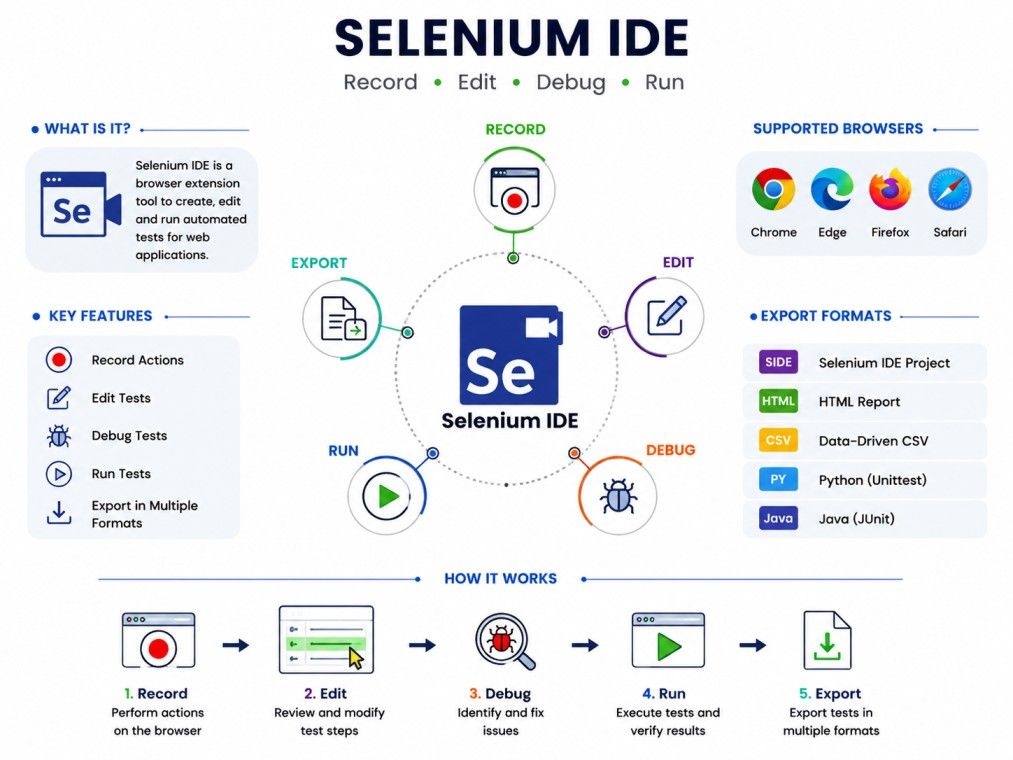
Selenium IDE is a browser extension that lets you record, edit, and run automated tests without writing code. It was built by the Selenium project team as an entry point into web automation testing.
You install it as a browser add-on, click record, interact with a website the way a real user would, and Selenium IDE captures every action as a test step.
Once you stop recording, you get a readable script made up of commands like click, type, and verify text. You can replay this script anytime to check if the website still behaves the way it should.
This makes Selenium IDE especially useful for regression testing, where you repeat the same checks after every code change.
Also Read: Types of Software Testing: Everything You Need to Know
Selenese is the command language that powers Selenium IDE. Every action you record, such as clicking a button or typing into a field, gets converted into a Selenese command. Each command has three parts:
You do not need to write Selenese by hand. Selenium IDE generates it automatically while you record. But understanding it helps when you want to edit a script manually or fix a broken step.
If you're looking to build expertise in testing and automation, upGrad's Executive Diploma in Data Science & Artificial Intelligence from IIITB, gives you the coding and automation skills to design and build the test frameworks that keep applications running smoothly.
Free Courses
Selenium IDE looks simple on the surface, but it has a clear structure behind it. Understanding this structure helps you use the tool more confidently, especially once your test suites start growing.
Understanding the main components of Selenium IDE helps you create, manage, and execute automated test cases more effectively.
Component |
What It Does |
| Recorder | Captures your browser actions as test steps |
| Editor | Lets you view and modify recorded commands |
| Playback engine | Runs the recorded script step by step |
| Selenium IDE extension | The browser add-on that hosts the entire tool |
| Command line runner | Executes tests outside the browser UI, often in CI pipelines |
These parts work together. The recorder feeds data to the editor, the editor stores your test as a sequence of commands, and the playback engine reads that sequence to interact with the browser again.
When you open the Selenium IDE extension, you will see:
The interface is intentionally simple. You do not need a manual to figure out where things are. This is one reason Selenium IDE remains a common first tool for QA beginners who are just getting comfortable with automated testing.
Also Read: Selenium Framework: Tools, Features, Challenges, and Practical Insights
Data Science Courses to upskill
Explore Data Science Courses for Career Progression
IIIT Bangalore
Executive Post Graduate Certificate in Data Science & AIPlacement Assistance
Getting started with Selenium IDE only takes a few minutes. The Selenium IDE download is available directly through your browser's extension store, and there is no separate installer file to manage.
Before you begin, make sure you have:
To add the Selenium IDE extension for Chrome:
Once installed, the Selenium IDE Chrome extension icon will appear next to your address bar. Click it anytime to open the recorder and start building tests.
To install the Selenium IDE addon for Firefox:
The Selenium IDE extension for Firefox works almost identically to the Chrome version, so switching between browsers will not slow you down.
Both versions are maintained by the same project, which means feature parity is generally strong across the two.
If you ever need to reinstall, simply repeat the Selenium IDE download steps above from your browser's official store.
Avoid downloading it from third party websites, since that can introduce security risks.
Once installed, using Selenium IDE follows a simple pattern: record, review, and run. Here is a step by step walkthrough for your first test.
Every click and keystroke gets logged automatically as a command.
To replay your test:
If a step fails, Selenium IDE highlights it in red so you can spot the problem quickly.
After recording, save your work by naming the test case and the project. Selenium IDE stores projects as .side files, which you can reopen later or share with teammates. Save often, especially while you are still learning, so you do not lose progress.
Also Read: How to Write Test Cases: Key Steps for Successful QA Testing
Locators tell Selenium IDE which element on the page to interact with. Common locator types include:
XPath lets you locate elements based on their position or attributes in the page structure. It is especially useful when an element has no unique ID or class. Selenium IDE auto-generates XPath locators during recording, but you can edit them manually for more precision.
Assertions check whether a condition is true, such as whether specific text appears on the page. Common assertion commands include verify text, verify title, and assert element present. Assertions turn a simple script into an actual test, since they confirm expected behavior.
Variables let you store and reuse values across a test, such as a username or search term. This avoids hardcoding the same value multiple times and makes scripts easier to update later.
Web pages do not always load instantly. Wait commands pause the script until an element appears or a condition is met. This prevents your test from failing simply because the page was still loading.
Selenium IDE supports basic control flow, including if, else, and while loops. This means you can build slightly more advanced logic, such as repeating a step until a condition is met, without switching to a full coding tool.
Here are some of the most commonly used commands in Selenium IDE:
Command |
Purpose |
| click | Clicks a button or link |
| type | Enters text into a field |
| open | Navigates to a URL |
| verifyText | Checks if specific text is present |
| assertTitle | Confirms the page title matches expected value |
| waitForElementPresent | Pauses until an element loads |
| selectWindow | Switches between browser tabs or windows |
| dragAndDropToObject | Simulates drag and drop actions |
| echo | Prints a message to the log for debugging |
You do not need to memorize every command. Most beginners learn them naturally by recording tests and reviewing the generated script.
Subscribe to upGrad's Newsletter
Join thousands of learners who receive useful tips
When a test fails, Selenium IDE gives you tools to figure out why. The log panel shows exactly which step failed and often includes an error message explaining the issue.
To debug effectively
Debugging becomes easier once you understand that most failures fall into one of three categories: a locator that no longer matches the page, a timing issue where the element has not loaded yet, or a genuine change in the website itself. Working through failures this way saves time compared to guessing randomly.
As you create more tests, organizing them into suites keeps your project manageable. A test suite groups related test cases so you can run them together instead of one at a time.
Selenium IDE allows you to reuse steps across multiple tests by referencing existing test cases inside new ones.
This avoids rebuilding the same login sequence or navigation flow every time, and keeps your suite easier to maintain when the website changes.
Selenium IDE supports plugins that extend its default functionality. Plugins can add custom commands, connect to external tools, or support specialized testing scenarios that are not covered out of the box.
This keeps the core tool lightweight while still allowing flexibility for advanced users.
For teams that want to run tests outside the browser interface, Selenium IDE offers a command line tool called Selenium Side-Runner. This is especially useful for integrating tests into a CI/CD pipeline.
To use it, you need Node.js installed along with the Selenium Side-Runner package. Once set up, you can run an entire .side project file from the terminal with a single command.
This makes it possible to schedule tests, run them on a server, or trigger them automatically after every code deployment, without opening the browser extension manually.
One of the most useful features of Selenium IDE is the ability to convert a recorded test into real code. This helps testers who eventually want to move into a full coding-based framework like Selenium WebDriver.
To export a test as Python code, open the test case, click the export option, and select Python along with your preferred testing framework, such as pytest. Selenium IDE generates a ready-to-run script that mirrors your recorded steps.
The Java export works the same way. Select Java as the target language, choose a framework like JUnit or TestNG, and Selenium IDE will produce a structured Java file with the same commands translated into WebDriver syntax.
This export feature is a natural bridge between no-code testing and full test automation, and it is one of the reasons Selenium IDE is often recommended as a stepping stone rather than a final destination.
Like any tool, Selenium IDE has its share of common issues. Here are the most frequent ones and how to fix them.
If clicks are not being captured, check that the recorder is actually active and that you are interacting with the correct browser tab. Sometimes closing and reopening the Selenium IDE extension resolves this.
This usually happens when a locator no longer matches the current page structure. Update the locator manually, or switch to a more stable one like ID or CSS selector instead of a fragile XPath.
If the Selenium IDE extension for chrome stops responding, try these steps:
Most issues get resolved with a simple reinstall, since it resets any corrupted extension data.
Choosing the right tool depends on your project's complexity and your team's coding comfort level.
Aspect |
Selenium IDE |
Selenium WebDriver |
| Coding required | No | Yes |
| Best for | Quick tests, beginners | Complex, scalable automation |
| Language support | Export only | Java, Python, C#, and more |
| Flexibility | Limited | High |
Cypress is a modern testing framework built for JavaScript developers. It offers faster execution and better debugging tools, but it requires coding knowledge.
Selenium IDE remains easier for non-developers who just need basic browser tests.
Playwright supports multiple browsers and languages with strong automation capabilities, but like Cypress, it demands coding skills. \Selenium IDE is simpler but far less powerful for large scale test automation.
Selenium IDE fits certain roles and situations better than other testing frameworks available.
Manual testers transitioning into automation often start here. It lets them build tests without learning a programming language first, while still understanding core automation concepts like locators and assertions.
Also Read: Most Asked Manual Testing Interview Questions
Selenium IDE works well for repetitive regression checks, such as confirming a login page still works after a code update. It is quick to set up and does not require maintaining a full test framework.
The original Selenium IDE was discontinued years ago after browser updates broke its plugin-based architecture.
The new Selenium IDE was rebuilt from scratch as a standalone extension, with a cleaner interface and better command support.
If you find outdated tutorials online, check whether they refer to the old version, since installation steps and features have changed significantly.
Selenium IDE is a great starting point, but it does have real limitations:
Knowing these limits helps you decide when it is time to move to a more robust framework.
Also read: Top 50 Automation Testing Interview Questions and Answers to Excel
Despite newer automation frameworks, Selenium IDE remains a practical choice for quick test creation, debugging, and learning Selenium.
Pros and Cons
Pros |
Cons |
| Free and easy to install | Limited scalability |
| No coding needed | Fragile locators |
| Good for learning automation basics | No advanced reporting |
| Quick to set up smoke tests | Not built for large test suites |
Yes, Selenium IDE is still actively maintained by the Selenium project. It continues to receive updates for browser compatibility and bug fixes, which makes it a safe tool to rely on for basic testing needs.
If Selenium IDE does not fit your needs, consider Selenium WebDriver for full coding flexibility, Cypress for JavaScript-based projects, or Katalon Studio for a hybrid no-code and coding approach.
If you already know how to code, you can skip straight to Selenium WebDriver. If you are new to testing altogether, starting with Selenium IDE helps you understand core concepts like locators and assertions before dealing with programming syntax.
Move to Selenium WebDriver once your tests need conditional logic beyond simple loops, integration with CI/CD pipelines at scale, or support for testing across multiple environments and devices. Selenium IDE is best treated as a starting point, not a permanent solution for growing QA teams.
Also Read: Most Common Selenium Interview Questions & Answers
Selenium IDE remains one of the simplest ways to get started with test automation. It removes the coding barrier, lets you record real browser actions, and gives you a working test script in minutes. Whether you are a manual tester exploring automation for the first time or a QA team member who needs quick regression checks, Selenium IDE covers the basics well.
That said, it is not built for large scale or highly complex testing. As your needs grow, exporting your recorded tests to Python or Java and moving toward Selenium WebDriver is a natural next step. Used the right way, at the right stage, Selenium IDE is a genuinely useful tool to have in your testing toolkit.
Want personalized guidance on Data Science and upskilling? Speak with an expert for a free 1:1 counselling session today.
Yes, Selenium IDE is completely free and open source. You can download it directly from the Chrome Web Store or Firefox Add-ons page without any licensing cost, making it accessible for students, beginners, and small QA teams.
No, Selenium IDE is built for browser-based testing only. It cannot test native mobile apps. For mobile automation, you would need a separate tool like Appium, which is specifically designed for Android and iOS app testing.
Selenium IDE has limited support for running tests in parallel compared to full frameworks. While the Selenium Side-Runner allows some command line execution, teams needing heavy parallel testing usually move to Selenium WebDriver with a proper test runner setup.
Selenium IDE currently works as an extension for Chrome and Firefox. Both versions offer similar functionality, so you can record and run tests on either browser depending on which one your team primarily uses for testing.
Yes, every recorded command appears in an editable format inside the tool. You can change locators, add new steps, insert assertions, or remove unnecessary commands directly in the editor without re-recording the entire test.
Yes, this is exactly what it was designed for. Selenium IDE lets you build working automated tests through recording alone, which makes it one of the most beginner-friendly tools available for learning test automation concepts.
Selenium IDE saves test projects as .side files. These files store all your test cases and suites in a structured format that can be reopened, edited, or shared with teammates using the same extension.
Yes, using the Selenium Side-Runner command line tool, you can run .side project files as part of an automated build or deployment pipeline. This requires Node.js and some basic command line setup outside the browser extension.
This usually happens due to a broken locator, a timing issue where an element has not fully loaded, or a minor change in the page structure. Reviewing the log panel typically points you to the exact failed step.
No, they are different tools within the same Selenium project. Selenium IDE is a no-code, record-and-playback extension, while Selenium WebDriver is a coding library used to build advanced, scalable automation scripts in languages like Java and Python.
No, Selenium IDE is designed specifically for browser UI testing, not API testing. For API testing, tools like Postman or REST Assured are better suited, since Selenium IDE cannot send or validate API requests directly.
695 articles published
Sriram K is a Senior SEO Executive with a B.Tech in Information Technology from Dr. M.G.R. Educational and Research Institute, Chennai. With over a decade of experience in digital marketing, he specia...
Speak with Data Science Expert
By submitting, I accept the T&C and
Privacy Policy
Start Your Career in Data Science Today
Top Resources
Executive Diploma
12 Months
Master's Degree
18 Months
Bootcamp
6 Months