Power BI DAX Functions: A Complete Guide from Beginner to Advanced
By Rahul Singh
Updated on Jun 11, 2026 | 7 min read | 5.12K+ views
Share:

All courses
Certifications
More
By Rahul Singh
Updated on Jun 11, 2026 | 7 min read | 5.12K+ views
Share:
Table of Contents
Power BI DAX functions are the built-in formulas used to create custom calculations, measures, and business logic within Power BI. DAX, short for Data Analysis Expressions, is the formula language that powers advanced analytics across Power BI, Power Pivot, and Analysis Services, helping users transform raw data into meaningful insights.
From simple aggregations to complex time intelligence calculations, Power BI DAX functions enable analysts to work with large datasets, modify filter contexts, and build dynamic reports.
This blog covers everything you need to know about DAX, starting from what it actually is and building up to advanced use cases. You will find a Power BI DAX functions list with real examples, explanations of when to use each type, common mistakes to avoid, and practical tips you can apply right away.
Transform your career with upGrad’s Data Science Course. Learn from industry experts, work on hands-on projects, and gain the skills top employer’s demand.
Popular Data Science Programs
DAX functions in Power BI are built-in formulas that perform calculations on your data. Think of them as a more powerful version of Excel formulas, designed specifically for relational data models.
In Power BI, you use DAX to:
Many beginners assume DAX works exactly like Excel. It does not. Here is the key difference:
Feature |
Excel |
DAX in Power BI |
| Works on | Rows and cells | Columns and tables |
| Recalculates | When the file opens | On every filter/slicer change |
| Best for | Simple sheets | Large relational data models |
| Context-aware | No | Yes (filter context, row context) |
DAX is context-aware. This means the same measure can return a different result depending on what filters are applied in a visual. That is what makes it powerful, and also what trips up most beginners at first.
Also Read: Top 14 Free Online Excel Courses in India: Job Roles, Benefits, and More
Understanding these two contexts is the foundation of writing good DAX. Every advanced concept builds on this.
Free Courses
There are hundreds of DAX functions, but they fall into clear categories. Below is a structured breakdown of the most important ones with examples that beginners can actually use.
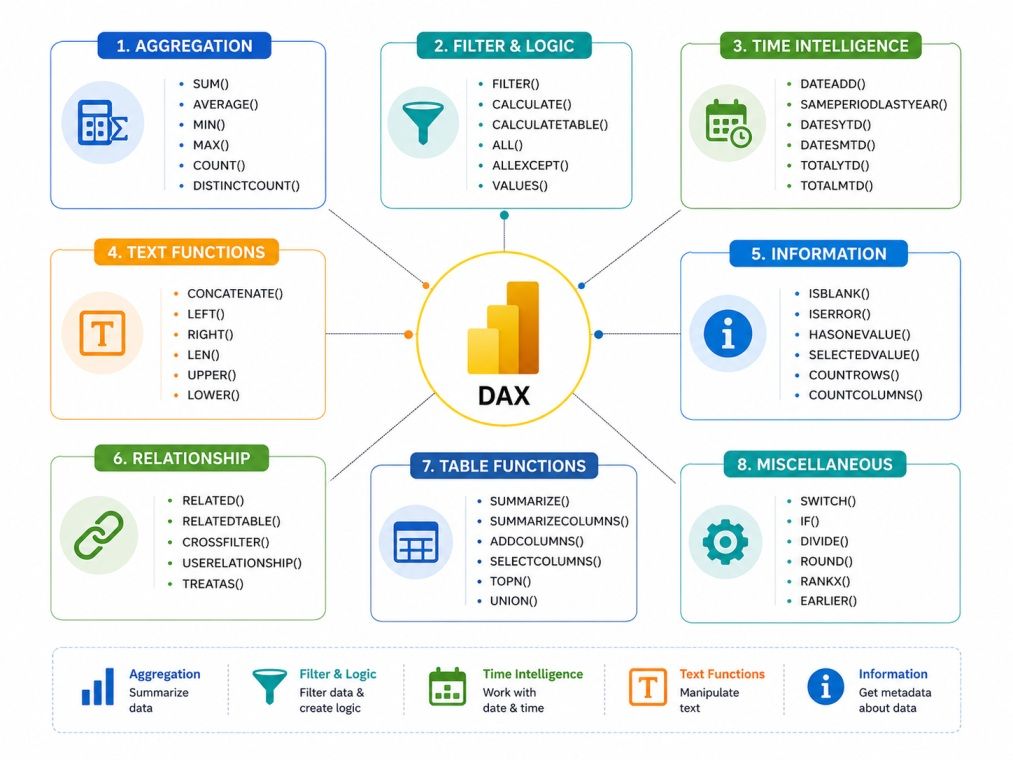
These are the most common starting point for anyone learning dax functions in power bi.
Function |
What It Does |
Example |
| SUM | Adds all values in a column | Total Sales = SUM(Sales[Amount]) |
| AVERAGE | Returns the mean | Avg Order = AVERAGE(Orders[Value]) |
| MIN / MAX | Returns smallest or largest value | Max Revenue = MAX(Sales[Revenue]) |
| COUNT | Counts numeric values | Order Count = COUNT(Orders[OrderID]) |
| COUNTA | Counts non-blank values | COUNTA(Customers[Name]) |
| COUNTROWS | Counts rows in a table | COUNTROWS(Sales) |
These are safe to start with. They follow simple syntax and behave predictably.
Logical functions let you add conditions to your calculations.
Use SWITCH whenever you have more than two conditions. Nested IFs become unreadable fast.
Also Read: 25+ Top Power BI Tools in 2025: Key Benefits and Uses
Filter functions are some of the most powerful dax functions power bi has to offer. They let you control which rows get included in a calculation.
CALCULATE is the most important DAX function you will learn. It evaluates any expression inside a modified filter context.
Sales in East = CALCULATE(SUM(Sales[Amount]), Sales[Region] = "East")FILTER returns a subset of a table based on a condition.
Top Orders = CALCULATE(SUM(Sales[Amount]), FILTER(Sales, Sales[Amount] > 5000))ALL removes all filters from a column or table, useful for showing totals regardless of slicers.
Total Sales All = CALCULATE(SUM(Sales[Amount]), ALL(Sales))ALLEXCEPT removes filters from all columns except the ones you specify.
Time intelligence is one of the standout areas in the power BI DAXfunctions list. These functions let you compare data over time without complex workarounds.
Function |
What It Does |
| TOTALYTD | Calculates year-to-date totals |
| TOTALQTD | Quarter-to-date totals |
| TOTALMTD | Month-to-date totals |
| DATEADD | Shifts a date by a specified interval |
| SAMEPERIODLASTYEAR | Returns same period from last year |
| DATESYTD | Returns a year-to-date set of dates |
Example:
YTD Sales = TOTALYTD(SUM(Sales[Amount]), Dates[Date])
 Last Year Sales = CALCULATE(SUM(Sales[Amount]), SAMEPERIODLASTYEAR(Dates[Date]))
For time intelligence to work correctly, you need a dedicated Date table in your data model with continuous dates and no gaps.
Also Read: Power BI Syllabus 2026: Full Course Breakdown from Beginner to Advanced Level
Useful when you need to clean, format, or combine text data.
These functions help you work across related tables.
Also Read: Top Power BI Developer Skills for 2026: A Complete Guide
Data Science Courses to upskill
Explore Data Science Courses for Career Progression
IIIT Bangalore
Executive Post Graduate Certificate in Data Science & AIPlacement Assistance
Writing your first measure feels intimidating, but the process is straightforward once you follow the right steps.
Start with a clear question. For example: "What is the total revenue for the selected time period?"
In Power BI Desktop, click the Modeling tab and then New Measure.
Start simple. Use SUM, AVERAGE, or COUNT first.
Total Revenue = SUM(Sales[Revenue])
After writing the formula, use the Measure Tools ribbon to set the format (currency, percentage, decimal places).
Drag your new measure into a card, bar chart, or table visual. Watch how it changes as you apply filters.
Also Read: 60 Advanced Excel Formulas
Once you are comfortable with basic dax functions in power bi, these advanced concepts will take your work to the next level.
Variables make formulas easier to read and faster to calculate. Define a variable once and reuse it.
Profit Margin =
VAR TotalRevenue = SUM(Sales[Revenue])
VAR TotalCost = SUM(Sales[Cost])
RETURN
DIVIDE(TotalRevenue - TotalCost, TotalRevenue, 0)
Always use DIVIDE instead of the / operator. It handles division by zero gracefully.
Also Read: Top 15 Ways to Improve Excel Skills [Actionable Tips]
Iterator functions loop through each row of a table and apply an expression.
Total Profit = SUMX(Sales, Sales[Revenue] - Sales[Cost])This is different from SUM because it calculates profit per row first and then totals it. Useful when you cannot add a calculated column.
Ranks values in a table dynamically. Great for leaderboards and top-N analysis.
Sales Rank = RANKX(ALL(Products), [Total Sales], , DESC)These functions check what is selected in a slicer and are useful for conditional formatting or dynamic titles.
Selected Year = IF(HASONEVALUE(Dates[Year]), VALUES(Dates[Year]), "Multiple Years")When you use CALCULATE inside an iterator, the row context gets converted to a filter context. This is called context transition. It is one of the trickier DAX concepts, but it matters when building complex measures inside tables.
Also Read: Excel Worksheet for Practice
Following a few habits from the start will save you a lot of debugging time later.
Also Read: Data Science for Beginners: Prerequisites, Learning Path, Career Opportunities and More
Subscribe to upGrad's Newsletter
Join thousands of learners who receive useful tips
DAX is one of the most important skills you can build as a Power BI user. It can feel confusing at the start, but the learning curve flattens quickly once you understand the core ideas of row context and filter context. Start with aggregation functions, move to CALCULATE, and then explore time intelligence. Practice on real datasets and focus on building measures rather than calculated columns wherever possible.
The Power BI DAX functions list is long, but you do not need all of it at once. Learn the 20% of functions that cover 80% of real business use cases, and build from there. With consistent practice, DAX goes from intimidating to genuinely enjoyable to write.
Want personalized guidance in Data Science and upskilling? Speak with an expert for a free 1:1 counselling session today.
DAX stands for Data Analysis Expressions. It is the formula language used in Power BI to create custom calculations, measures, and new columns. It is designed for working with relational data models and is much more powerful than standard Excel formulas.
A calculated column adds a new column to your table and stores a value for each row, computed once during data refresh. A measure is calculated dynamically based on the filter context at the time a visual renders. For most analytical use cases, measures are preferred.
CALCULATE lets you evaluate an expression while modifying the filter context. Almost every advanced DAX pattern involves CALCULATE in some form because it is the only function that can change which rows are included in a calculation.
No. SQL and DAX are different tools for different purposes. SQL works with databases. DAX works inside Power BI's in-memory data model. Knowing SQL can help you understand relational concepts faster, but it is not a prerequisite for learning dax functions power bi.
A Date table is a dedicated table in your model that contains one row for every date in your desired range with no gaps. Power BI's time intelligence functions like TOTALYTD and SAMEPERIODLASTYEAR require a properly marked Date table to calculate correctly across fiscal or calendar periods.
DIVIDE safely divides two numbers without throwing an error when the denominator is zero. Instead of Revenue / Cost, use DIVIDE(Revenue, Cost, 0) where the third argument is the result to return when dividing by zero. It is a best practice for all division in DAX.
Variables let you store the result of a sub-expression and reuse it multiple times without recalculating. This makes formulas faster, easier to read, and simpler to debug. Any formula longer than two lines generally benefits from being refactored with variables.
Iterator functions like SUMX, AVERAGEX, and MAXX loop through each row of a table and apply an expression before aggregating the result. They are useful when you need row-level calculations that cannot be stored as calculated columns. For example, SUMX can calculate profit per row and sum it all up in one step.
Avoid using FILTER inside CALCULATE when you can use a direct column filter instead. Minimize the use of iterators on large tables. Use variables to avoid recalculating the same sub-expression multiple times. Also, check your data model for unnecessary relationships or columns that add load.
Yes. DAX is also used in Analysis Services (both Tabular and Azure) and in Power Pivot for Excel. The syntax is largely the same, though some functions may behave slightly differently or may not be available in older versions.
Start with around 15 to 20 functions. Cover the basics: SUM, AVERAGE, COUNT, IF, SWITCH, CALCULATE, FILTER, ALL, RELATED, and a handful of time intelligence functions like TOTALYTD and SAMEPERIODLASTYEAR. These cover the majority of real-world Power BI reporting needs and give you a strong foundation for learning advanced dax functions in power bi.
96 articles published
Rahul Singh is an Associate Content Writer at upGrad, with a strong interest in Data Science, Machine Learning, and Artificial Intelligence. He combines technical development skills with data-driven s...
Speak with Data Science Expert
By submitting, I accept the T&C and
Privacy Policy
Start Your Career in Data Science Today
Top Resources
Executive Diploma
12 Months
Master's Degree
18 Months
Bootcamp
6 Months