Python Path: What It Is and How to Set It Up Correctly
By Sriram
Updated on Jul 24, 2026 | 14 min read | 4.42K+ views
Share:

All courses
Certifications
More
By Sriram
Updated on Jul 24, 2026 | 14 min read | 4.42K+ views
Share:
Table of Contents
Key Takeaway
In this blog, you will learn what the Python path means, how it is different from PYTHONPATH, how to add Python to PATH on Windows, Mac, and Linux, and how to check if your setup works.
Skills like Python and machine learning become truly valuable when you can use them to build real dashboards and communicate insights that drive decisions. Explore our Machine Learning courses and build practical skills through hands-on projects.
Popular Data Science Programs
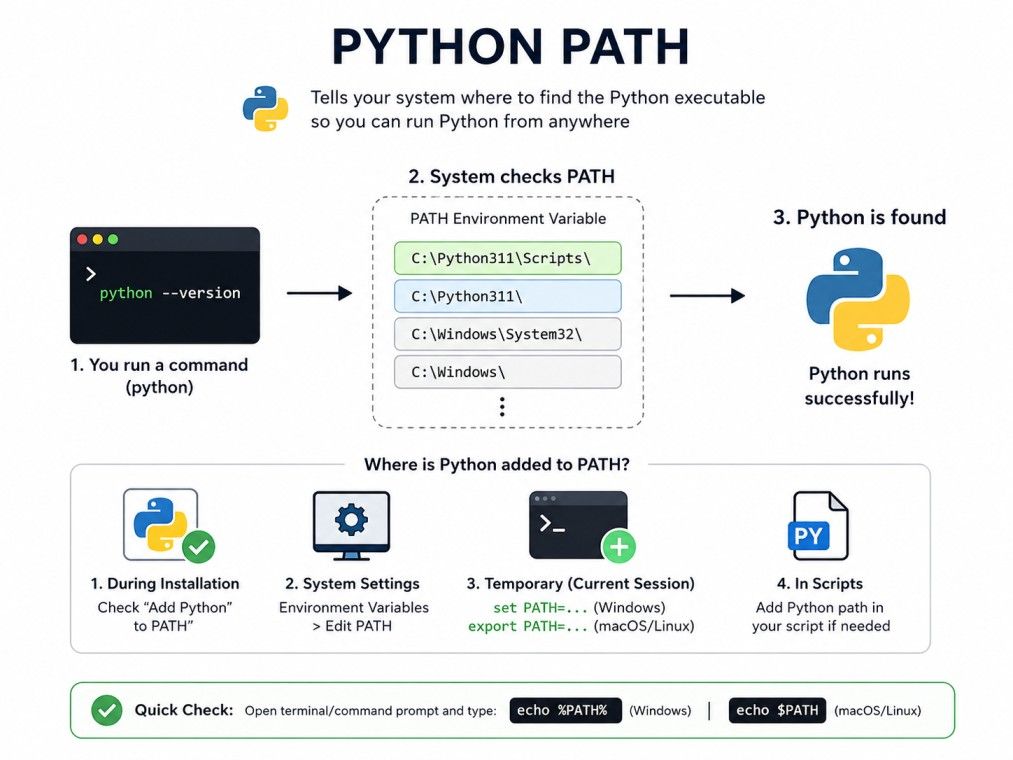
Python path usually refers to one of two things, and beginners often mix them up.
The first is the system PATH environment variable. This is a setting in your operating system that tells your computer where to look for programs when you type a command.
When you install Python and add it to PATH, your system knows where to find python.exe or python3 no matter which folder you are working in.
The second is path inside Python code, meaning how Python locates files, folders and modules while a script runs. This uses tools like os.path and sys.path.
Both are called "python path" in everyday conversation, which is why the term feels confusing at first. Once you separate the two, everything gets simpler.
Also Read: Introduction to Python Tutorials
Without a correctly set Python path, you will run into problems like:
Here is a quick way to tell the two concepts apart:
Type |
What It Controls |
Where You Set It |
| System PATH | Finding the Python program itself | Operating system settings |
| Path in Python | Finding files, folders, modules inside code | Python scripts using os.path or sys.path |
Understanding this difference is the first step to fixing most Python path issues, and it is exactly what the rest of this guide will walk you through.
Also Read: Python Modules: Import, Create, and Use Built-in Modules
Free Courses
People often confuse the system PATH variable with PYTHONPATH. They sound similar, but they do different jobs.
PATH is a general operating system variable. It is not specific to Python. It tells your OS where to search for any executable program, including python.exe, git, node and others. When PATH includes your Python installation folder, typing python in any terminal window works instantly.
PYTHONPATH is specific to Python. It tells the Python interpreter where to look for additional modules and packages beyond the standard library. If you have custom Python modules stored outside your project folder, PYTHONPATH helps Python find them during import.
Feature |
PATH |
PYTHONPATH |
| Purpose | Locate programs on your system | Locate Python modules to import |
| Used by | Operating system | Python interpreter |
| Required for beginners | Yes, almost always | Only in specific cases |
| Common issue | "python not recognized" | ModuleNotFoundError |
Most beginners only need to worry about the system PATH. PYTHONPATH becomes relevant later, once you start working with custom module locations or larger multi-folder projects.
A simple way to remember it: PATH helps your computer find Python. PYTHONPATH helps Python find your code.
Getting this distinction right early on will save you a lot of confused troubleshooting later, especially when you start seeing errors that look similar but need completely different fixes.
To turn your Python related skills into a career in data science and AI, check out the Executive Diploma in Data Science & Artificial Intelligence from IIIT Bangalore by upGrad, and build hands-on expertise through real-world projects.
Data Science Courses to upskill
Explore Data Science Courses for Career Progression
IIIT Bangalore
Executive Post Graduate Certificate in Data Science & AIPlacement Assistance
So far we have covered the system PATH. Now let's look at path in Python itself, meaning how your code finds files and folders while running.
Python has a built-in module called os.path that helps you work with file locations safely across different operating systems.
This matters because Windows uses backslashes in file paths while Mac and Linux use forward slashes. Writing paths manually can break your code when it runs on a different system.
Instead of writing a file path manually like this:
path = "data/files/report.csv"
You use os.path.join like this:
import os
path = os.path.join("data", "files", "report.csv")
This automatically uses the correct slash for whatever operating system the code is running on. It is a small habit that prevents a very common class of bugs.
Function |
What It Does |
| os.path.join() | Combines folder and file names into one path |
| os.path.exists() | Checks if a file or folder exists |
| os.path.abspath() | Returns the full absolute path |
| os.path.basename() | Returns just the file name from a path |
| os.path.dirname() | Returns just the folder name from a path |
Using os.path.join in Python is considered a best practice, especially in projects that may run on more than one operating system, such as open source tools or team projects with mixed devices.
If you search for os path join in python, you will see it come up constantly in tutorials about file handling. That is because almost every real project eventually reads or writes files, and hardcoding slashes is one of the easiest ways to introduce bugs that only show up once someone runs your code on a different machine.
Getting into the habit of using os.path.join early saves you from rewriting file handling logic later.
Also Read: Python Tutorial: Setting Up, Tools, Features, Applications, Benefits, Comparison
This is the part most people search for, so let's get into it directly. The steps are slightly different depending on your operating system, but the idea is the same everywhere: you are telling your computer where Python lives.
Find the Correct Python Executable First
Before adding Python to path, confirm which Python installation you actually want to use, especially if you have installed Python more than once. Run this in your terminal:
where python
On Mac or Linux, use:
which python3
This shows you the exact folder Python is installed in, which you will need for the next steps.
Open your terminal and run:
echo 'export PATH="/usr/local/bin/python3:$PATH"' >> ~/.zshrc
source ~/.zshrc
Adjust the path if your Python is installed somewhere else.
Most Linux distributions already include Python in PATH. If not, add this to your .bashrc file:
export PATH="$HOME/python3/bin:$PATH"
Then run source ~/.bashrc to apply the change.
Learning how to add Python to PATH properly on your specific operating system removes almost all beginner setup issues right away.
If you are installing Python on Windows, the installer shows a checkbox that says "Add Python to PATH." Many beginners skip it without realizing what it does.
You should almost always check this box. It saves you from manually editing environment variables later. If you missed it during installation, you do not need to reinstall Python. You can add it to PATH manually using the steps above.
Knowing when to rely on PATH editing versus letting a tool handle it saves time and avoids unnecessary changes to your system settings.
Also Read: What is Python IDE
Subscribe to upGrad's Newsletter
Join thousands of learners who receive useful tips
Once you have added Python to path, you need to confirm it actually worked. This step is often skipped, but it saves a lot of confusion later.
Open a new terminal window, not the one you used earlier, and run:
python --version
If this prints a version number, your Python path is working. If you see an error, something in the setup did not apply correctly.
Command |
What It Shows |
| python --version | Confirms Python is installed and reachable |
| where python (Windows) | Shows the exact path being used |
| which python3 (Mac/Linux) | Shows the exact path being used |
| echo %PATH% (Windows) | Lists all folders in your PATH variable |
| echo $PATH (Mac/Linux) | Lists all folders in your PATH variable |
If the version number that appears does not match what you expect, you likely have more than one Python installation, and the wrong one is listed first in your PATH. Reordering the entries or removing the incorrect folder usually fixes this.
Always test in a fresh terminal window. Environment variable changes do not apply to terminals that were already open before you made the change, which is a common reason people think their fix did not work when it did.
Even after following the steps above, path-related errors are common. Here are the ones people run into most often, along with simple fixes.
This Windows error means Python is not in your PATH at all. Recheck that you added the correct folder and restarted your terminal.
A common mistake is adding only the main Python folder and forgetting the Scripts subfolder, or the reverse. You usually need both, since pip lives in Scripts while python.exe lives in the main folder.
This usually means the terminal was not restarted, or the PATH entry has a typo. Double check the folder path for spelling and correct slashes.
This happens when you have multiple Python installations. Pip installs a package to one Python version, but the terminal runs a different one. Check both with:
python -m pip --version
This confirms which Python your pip command is actually tied to.
Over time, PATH can accumulate duplicate or broken entries from multiple installs. Open your environment variables and remove old or repeated Python folders, keeping only the correct one.
Error |
Likely Cause |
Fix |
| Command not recognized | Python not in PATH | Add Python folder to PATH |
| Path added but not working | Terminal not restarted | Open a new terminal window |
| Wrong Python version runs | Multiple installs, wrong order | Reorder PATH entries |
| Imports fail after pip install | Pip and python point to different versions | Use python -m pip |
Working through these one at a time almost always resolves the issue, even if the error message looks intimidating at first.
It also helps to remember that path issues are rarely about your code being wrong. They are almost always about your environment pointing to the wrong place. Once you internalize that, debugging becomes a lot less stressful, since you know exactly where to look first.
Python path problems feel confusing at first, but they usually come down to one of two things: your system does not know where Python is installed, or your code does not know where a file lives. Once you separate these two ideas, most errors become easy to diagnose.
Want personalized guidance on Machine Learning and upskilling? Speak with an expert for a free 1:1 counselling session today.
You will not be able to run Python commands directly from your terminal or command prompt. Instead, you will need to type the full file path to your Python installation every time, which is slow and inconvenient for regular use.
Yes, you do not need to reinstall Python. You can manually add the Python folder to your system's PATH variable through environment variable settings on Windows, or by editing your shell configuration file on Mac and Linux.
This usually means you have multiple Python installations, and the PATH variable lists an older or different version before the one you intended to use. Reordering the folders in PATH fixes this.
No, PYTHONPATH is optional and only needed when you want Python to search additional folders for custom modules. Most beginner and even intermediate projects work fine without setting it.
Open Command Prompt and type echo %PATH%. This lists every folder your system searches when looking for programs, including Python if it has been added correctly.
Yes, activating a virtual environment temporarily changes your PATH so that the terminal points to the Python version inside that environment, instead of your global Python installation.
This often happens when pip and python point to different installations. Running python -m pip install packagename instead of just pip install packagename usually resolves this.
An absolute path points to the exact location of a file starting from the root directory, while a relative path is based on the current working directory. Using os.path.abspath() converts a relative path into an absolute one.
No, restarting your computer is usually not necessary. Closing and reopening your terminal or command prompt window is enough for the updated PATH to take effect.
Go into your environment variable settings, find the Path variable, select the Python entry, and delete it. On Mac or Linux, remove the corresponding export line from your shell configuration file.
Version managers like pyenv let you install and switch between multiple Python versions without manually editing your system PATH each time, which is especially useful for developers working across different projects.
727 articles published
Sriram K is a Senior SEO Executive with a B.Tech in Information Technology from Dr. M.G.R. Educational and Research Institute, Chennai. With over a decade of experience in digital marketing, he specia...
Speak with Data Science Expert
By submitting, I accept the T&C and
Privacy Policy
Start Your Career in Data Science Today
Top Resources
Executive Diploma
12 Months
Master's Degree
18 Months
Bootcamp
6 Months