Azure Active Directory: What It Is and How It Works
By Sriram
Updated on Jul 20, 2026 | 9 min read | 2.8K+ views
Share:

All courses
Certifications
More
By Sriram
Updated on Jul 20, 2026 | 9 min read | 2.8K+ views
Share:
Table of Contents
Quick Snapshot
This blog walks you through everything you need to know about Azure Active Directory. You will learn how it works, how it differs from traditional Windows Active Directory, its key features and security capabilities, pricing, and how to decide whether it is the right fit for your organization.
Enroll in Data Science Courses from upGrad to enhance your software development skills with the hands-on expertise employers actively seek today.
Popular Data Science Programs
Azure Active Directory, often referred to as Azure AD, is Microsoft's multitenant, cloud-based identity and access management service. It stores information about users, groups, and devices and controls access to applications and resources. Traditional Active Directory runs on physical servers inside an office, while Azure Active Directory lives entirely in the cloud.
It helps organizations manage who can log in to their systems, apps, and data, and what they are allowed to do once they log in. If you have ever signed into Microsoft 365, Teams, or a company app using your work email, you have already used Azure Active Directory without realizing it.
Think of Azure Active Directory as a digital gatekeeper. Every time someone tries to log in to an app or service connected to your organization, Azure Active Directory verifies who they are and decides whether they are authorized to access it. It does this using usernames, passwords, security tokens, and additional checks like multi-factor authentication.
In 2023, Microsoft rebranded Azure Active Directory (Azure AD) to Microsoft Entra ID, but most people, documentation, and job listings still refer to it as Azure Active Directory. Both names refer to the same underlying service.
Also Read: How Does Identity And Access Management (IAM) Work?
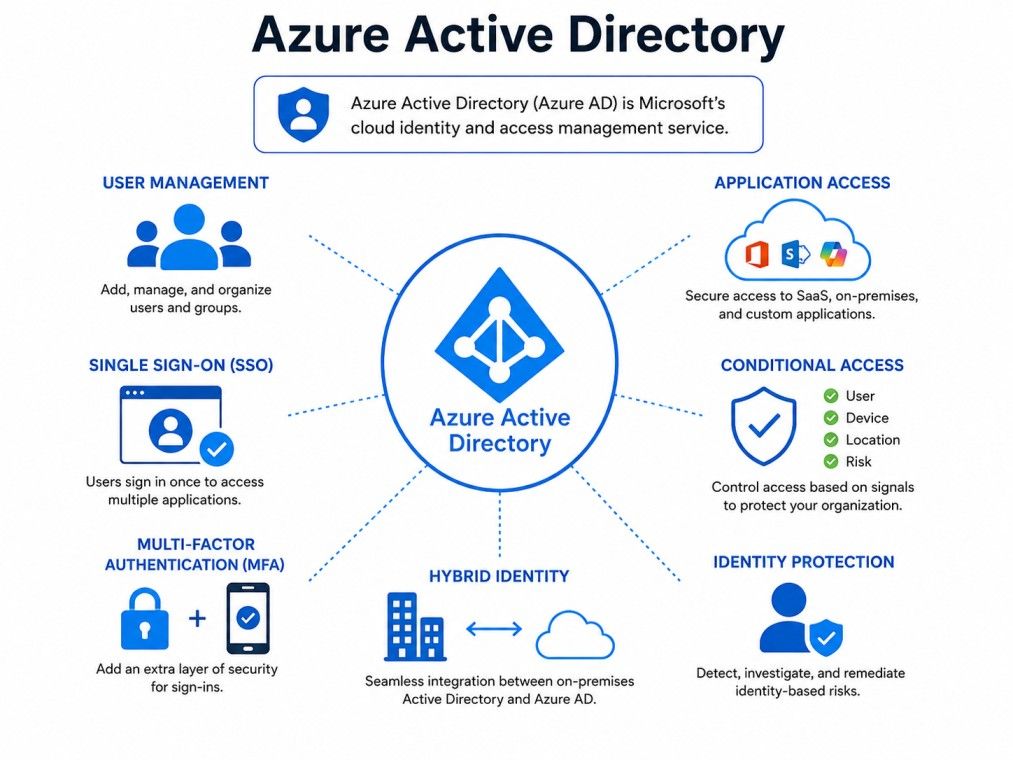
Source: AZURE ACTIVE DIRECTORY
Azure Active Directory (now Microsoft Entra ID) securely connects users to applications, devices, and resources. Here's a quick overview of its core functions and how it simplifies secure access across an organization.
Free Courses
Azure Active Directory is built on a simple idea: verify identity first, then decide access. Every user, device, or application that needs access to a resource must first prove its identity. Once verified, Azure Active Directory checks the permissions tied to that identity and either grants or denies access.
Azure Active Directory is organized around a few core building blocks shown in the table below:
Component |
What It Does |
| Tenant | A dedicated, isolated instance of Azure AD for one organization |
| Users | Individual accounts representing employees, students, or partners |
| Groups | Collections of users, used to assign access in bulk |
| Applications | Software registered in Azure AD so it can use AD for login |
| Roles | Define what a user or admin can do within the tenant |
Every organization that signs up for Azure Active Directory gets its own tenant. This tenant serves as a secure container that holds all your users, groups, and app registrations. No other organization can see or access your tenant's data.
Unlike on-prem Active Directory, Azure AD does not use Organizational Units (OUs), Group Policy Objects (GPOs), or domains and forests. It uses a less complex structure built around users, groups, and directory roles, which makes it simpler but also functionally different from what IT admins may be used to.
When a user tries to sign in, here is what typically happens:
This process usually takes a few seconds and runs in the background every time someone logs in to a connected app.
Data Science Courses to upskill
Explore Data Science Courses for Career Progression
IIIT Bangalore
Executive Post Graduate Certificate in Data Science & AIPlacement Assistance
Azure Active Directory comes packed with features designed to simplify identity management while keeping security tight.
Admins can directly create, update, disable, or delete user accounts from the Azure portal or through PowerShell scripts. Bulk operations are supported for organizations managing thousands of accounts.
Groups let admins assign permissions to multiple users at once rather than one by one. Azure Active Directory supports two types:
Azure Active Directory uses role-based access control to define what each user or admin can do. Built-in roles like Global Administrator, User Administrator, and Helpdesk Administrator cover most common scenarios, whereas custom roles can be created for specific needs.
Every Azure Active Directory tenant gets a domain like yourcompany.onmicrosoft.com by default. Most businesses replace this with their own custom domain, such as companyname.com, so employee logins match their actual company email addresses.
Devices can be registered directly with Azure Active Directory, a setup known as Azure Active Directory join. This allows organizations to manage laptops and desktops in the cloud, without needing them to connect to a local domain controller. It is especially useful for remote and hybrid teams/employees.
Azure Active Directory offers a range of standout capabilities that simplify identity management while enhancing security and user access, making it valuable for modern businesses.
Single sign-on (SSO) lets users log in once and access multiple connected apps without having to enter credentials again. This reduces password fatigue and cuts down on helpdesk tickets related to forgotten passwords.
The multi-factor authentication feature in Azure Active Directory adds a second layer of security beyond just a password. Users might need to approve a push notification, enter a code from an authenticator app, or use a fingerprint. This significantly reduces the risk of account compromise from stolen passwords.
Azure Active Directory allows conditional access that lets admins set rules based on context. For example, you can require multi-factor authentication only when someone logs in from an unfamiliar location, or block access entirely from certain countries. This keeps security tight without slowing down everyday logins.
Developers register their applications in Azure Active Directory, so the app can use it for authentication. Once registered, the app can request tokens, verify the user's identity, and access Microsoft Graph APIs to perform tasks such as reading calendar data or sending emails on the user's behalf.
Setting up Azure Active Directory does not require deep technical expertise, though IT experience comes in handy for larger deployments. The complete process to set up Azure Active Directory is as follows:
Most organizations start small, adding a handful of critical apps and core staff accounts, then expand coverage over time.
Subscribe to upGrad's Newsletter
Join thousands of learners who receive useful tips
Azure Active Directory is used by:
Basically, if an organization uses cloud apps and needs to control who can access what, Azure Active Directory plays a role in that setup.
If your business uses Microsoft 365, Office 365, or Dynamics 365, you already have an Azure Active Directory tenant. It gets created automatically the moment you sign up for any of these services. You do not need to buy it separately to start using the basic version.
You can check this yourself. Log into the Azure portal with your work account and search for "Azure Active Directory" or "Microsoft Entra ID" in the search bar. If your organization has any Microsoft cloud subscription, you will see your tenant details, including your domain name and user list.
Ready to pivot from testing into data-driven roles? Explore Executive Post Graduate Certificate Programme in Data Science & AI from IIITB in Data Science & AI, build the skills top employers value.
There is a lot of confusion about how Azure Active Directory differs from traditional Windows Active Directory. They share a name and a similar purpose, but they operate in very different ways internally.
Aspect |
Windows Active Directory |
Azure Active Directory |
| Where it runs | On local servers, on premises | Fully in the cloud |
| Structure | Domains, forests, OUs | Flat structure with users and groups |
| Communication | LDAP, Kerberos | REST API, OAuth, SAML |
| Authentication | NTLM, Kerberos | Modern protocols like OpenID Connect |
| Authorization | Group Policy Objects | Role based access control (RBAC) |
| Device management | Group Policy | Microsoft Intune, conditional access |
Also Read: What Is REST API? Main Elements, Examples & Challenges
Windows Active Directory requires physical or virtual servers running Windows Server. It is managed on-site or through a private data center. Azure Active Directory does not require any kind of hardware at all. Microsoft hosts and maintains the entire infrastructure.
Traditional Active Directory organizes resources into domains, trees, and forests, and uses Organizational Units to group and manage objects. Azure Active Directory, on the other hand, skips this hierarchy completely. It uses a simpler, flatter model built on users, groups, and administrative roles.
On-premises Active Directory relies on older protocols such as LDAP and Kerberos for inter-system communication. Azure Active Directory uses modern, internet-friendly protocols such as REST API, OAuth 2.0, and SAML, making it better suited for cloud apps and mobile devices.
Windows Active Directory authenticates using NTLM or Kerberos, both of which are designed for internal networks. Azure Active Directory uses modern authentication standards such as OpenID Connect (OIDC), which are built for the open internet. For authorization, on-prem AD depends on Group Policy Objects, while Azure AD uses role-based access control, which is easier to manage at scale.
Traditional AD manages devices using Group Policy, which requires devices to be on the same network or connected via a VPN. Azure AD manages devices through Microsoft Intune and conditional access policies, which work regardless of where the device is physically present.
Most organizations do not fully abandon their on-premises Active Directory. Instead, they connect it with Azure Active Directory to get the best of both. This is referred to as a hybrid identity environment setup.
Azure Active Directory Connect is Microsoft's free tool that links on-premises Active Directory with Azure Active Directory. It runs as a background service, quietly syncing user accounts, passwords, and group memberships between the two environments.
With Azure Active Directory Connect in place, employees can use a single set of credentials to access both local resources, such as file servers, and cloud resources, such as Microsoft 365 or third-party SaaS apps.
The syncing process typically works like this:
This hybrid approach is common in mid-size and large organizations that have invested heavily in on-prem infrastructure but still want the flexibility of cloud based identity management.
Identity is often the first line of defense against cyberattacks, which makes security a central part of Azure Active Directory.
Microsoft provides an Identity Secure Score inside the Azure portal. The Identity Secure Score is a percentage-based metric that measures how closely your organization follows Microsoft's recommended security best practices.
It gives your organization a numerical score based on how well you have configured security settings and offers specific recommendations to improve it. Organizations aiming for a strong security posture should review this score regularly and act on the suggestions provided.
Like any identity system, Azure Active Directory is a target for attackers. Common attack methods include:
Understanding these risks helps organizations prioritize the right defenses, particularly multi-factor authentication and conditional access.
Also Read: Types of Cyber Security threats.
Azure Active Directory pricing follows a tiered model, with each tier unlocking more advanced features.
Plan |
Best For |
Key Features |
| Free | Small teams, basic needs | Core user and group management, basic SSO |
| Premium P1 | Growing businesses | Conditional access, hybrid identity, group-based access |
| Premium P2 | Enterprises with security needs | Identity protection, privileged identity management |
The free tier covers basic identity needs but lacks advanced security features like conditional access and identity protection. It is a good starting point for very small teams but often needs an upgrade as the organization grows.
Premium plans are usually bundled with Microsoft 365 Business or Enterprise licenses, which can be more cost-effective than buying Azure Active Directory licenses separately. Costs vary based on user count and specific plan chosen, so it is worth checking current Microsoft pricing pages for exact figures before budgeting. Local pricing in India starts at ₹580/user/month for the P1 tier and ₹830/user/month for the P2 tier.
Match the plan to your actual security requirements rather than defaulting to the most expensive option.
Azure Active Directory is not the only identity management tool on the market, and it helps to know how it stacks up against others.
Entra ID is simply the new name for Azure Active Directory. Microsoft rebranded the service as part of a broader Entra product family focused on identity and access management. Functionally, they are the same product, so anything written about Azure Active Directory still applies to Entra ID.
Okta is a popular third-party identity provider, similar in purpose to Azure AD. The key difference is ecosystem fit. Azure Active Directory integrates deeply with Microsoft products like Windows, Microsoft 365, and Azure cloud services, while Okta positions itself as a neutral, platform-agnostic option that works well across mixed environments with tools from multiple vendors.
Moving from on-premises Active Directory or starting fresh requires a clear plan.
A phased rollout, starting with IT staff and a few pilot departments, usually catches issues before they affect the whole organization.
Azure Active Directory simplifies identity and access management by providing secure authentication and centralized user control.
Its cloud-based capabilities enhance security, improve productivity, and enable seamless access to applications and resources. Major benefits incude:
There is no functional difference. Microsoft renamed Azure Active Directory to Microsoft Entra ID as part of a rebranding effort. Both terms refer to the same identity and access management service, and existing setups continue to work without changes.
No, they are related but different products. Windows Active Directory runs on local servers and manages internal networks, while Azure AD is a cloud-based service that manages access to online apps and resources. Many organizations use both together in a hybrid setup.
The Skeleton Key attack is a malware-based technique that lets attackers authenticate as any user using a single master password. It originally targeted on-prem Active Directory but remains relevant in hybrid environments where weak on-prem security can expose the connected Azure AD tenant.
Log into the Azure portal using your work email and search for Azure Active Directory or Microsoft Entra ID. If your organization uses Microsoft 365 or any Microsoft cloud service, a tenant already exists and will show your domain and user details.
Azure AD Connect syncs user accounts, passwords, and group data between an on-premises Active Directory and Azure Active Directory. It allows employees to use one set of credentials for both local and cloud resources, forming the backbone of most hybrid identity setups.
Yes, Azure AD offers a free tier that covers basic user and group management along with simple single sign-on. It works well for small teams but lacks advanced features like conditional access, which require a paid Premium plan.
Yes, Azure AD can function as a standalone identity provider even without a Microsoft 365 subscription. Many companies use it purely to manage access to custom applications, third-party SaaS tools, or internal systems without adopting the full Microsoft 365 suite
Migration timelines vary based on organization size and complexity. Small businesses with a handful of users can migrate in a few days, while large enterprises with thousands of accounts and legacy systems may need several weeks of planning, testing, and phased rollout.
Yes, Azure AD supports thousands of pre-built integrations with third-party SaaS applications like Salesforce, Slack, and Google Workspace. It uses standard protocols like SAML and OAuth, so custom or lesser-known apps can also be registered manually.
You do not have to shut down your on-prem AD. Most organizations keep both running side by side using Azure AD Connect, creating a hybrid environment. Full migration away from on-prem AD is possible but typically happens gradually over time.
It is not mandatory by default, but Microsoft strongly recommends enabling it for all users, especially administrators. Many organizations now enforce it as a baseline security policy, and some premium plans include features to require it automatically for higher-risk sign-ins.
730 articles published
Sriram K is a Senior SEO Executive with a B.Tech in Information Technology from Dr. M.G.R. Educational and Research Institute, Chennai. With over a decade of experience in digital marketing, he specia...
Speak with Data Science Expert
By submitting, I accept the T&C and
Privacy Policy
Start Your Career in Data Science Today
Top Resources
Master's Degree
18 Months
Executive Diploma
12 Months
Bootcamp
6 Months