Excel for Data Visualization: A Complete Guide
By Sriram
Updated on Jul 02, 2026 | 6 min read | 2.38K+ views
Share:

All courses
Certifications
More
By Sriram
Updated on Jul 02, 2026 | 6 min read | 2.38K+ views
Share:
Table of Contents
Data visualization in Excel bridges that gap turning rows and columns into charts, graphs, and sparklines that make patterns and trends instantly visible. Instead of squinting at figures, you get a clear visual story your entire team can read and act on.
The process is straightforward: select your data, head to the Insert tab, and Excel hands you a toolkit of visual formats to choose from. Whether you need a quick sparkline to show movement within a cell or a full chart to present to stakeholders, the right visual can surface insights that raw data simply buries.
This blog, you’ll learn what data visualization means, why Excel remains one of the most popular tools for creating visuals, how to build different chart types, and the best practices for making your charts clear and impactful.
Learn Data Science Courses from upGrad today and make your analytics profile impossible to ignore, explore from spreadsheets to standout dashboards.
Popular Data Science Programs
Microsoft Excel has been around for a time. It is still one of the popular tools for looking at data and making it look good. With tools like Power BI and Tableau becoming popular lots of people still use Excel. They like it because it is easy to use, flexible and has features for making charts and graphs.
One big reason Excel is so strong is that many people already know how to use it. Most companies already have it, and many workers are good at making spreadsheets. This means you can make reports with charts and graphs without having to learn something
Microsoft Excel is great for analyzing data. Microsoft Excel creates visual reports and is used by millions of users.
Also Read: 10 Powerful Data Visualization Examples That Tell a Story!
Data visualization is the way we show information using visual elements. We do not have to manually look at and compare hundreds of numbers. Pictures help people see what is happening and how things are connected faster.
For example, let us say we have sales data that is written down in 24 rows. It takes time to read every single number. If we use a simple line chart to show the sales data, we can see right away if the sales are going up going down or staying the same.
Data visualization helps people look at information in a simple way:
Also Read: Data Visualisation: The What, The Why, and The How!
Excel is great because it is easy to use but still has useful features. These features make Excel good for making quick reports and for making detailed business dashboards with lots of information, in Excel.
Some of the things about Excel are:
Data Science Courses to upskill
Explore Data Science Courses for Career Progression
IIIT Bangalore
Executive Post Graduate Certificate in Data Science & AIPlacement Assistance
People who work in fields use Excel to show information in a simple way. Really small companies use Excel because it is easy to get started with and helps them understand things right away. They use Excel to visualize all kinds of information and make good decisions.
Industry |
Example Visualization |
| Sales | Monthly revenue trends |
| Marketing | Campaign performance charts |
| Finance | Budget vs actual spending |
| HR | Employee headcount dashboards |
| Education | Student performance reports |
| Healthcare | Patient admission trends |
Also Read: Must-Know Data Visualization Tools for Data Scientists
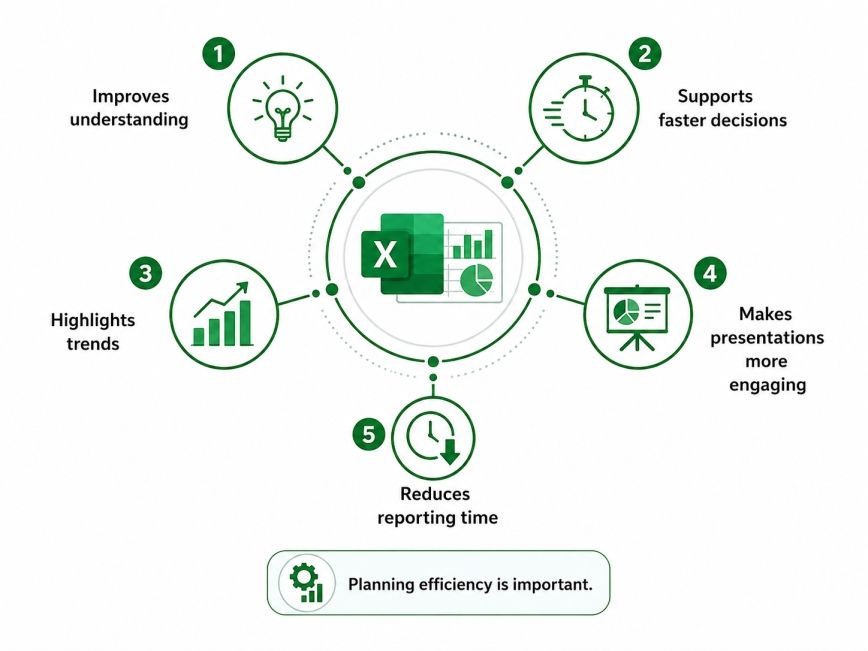
Using visuals is better than looking at raw numbers; it offers several advantages.
1. Improves understanding:
Charts simplify complex information and make reports easier to interpret.
2. Supports faster decisions
Decision-makers can quickly identify patterns without reading lengthy tables.
3. Highlights trends
Line and area charts clearly show growth, decline, and seasonality over time.
4. Makes presentations more engaging
Visual reports are easier to explain during meetings than spreadsheets filled with numbers.
5. Reduces reporting time
Once dashboards are created, updating them usually requires refreshing the underlying data instead of building reports from scratch.
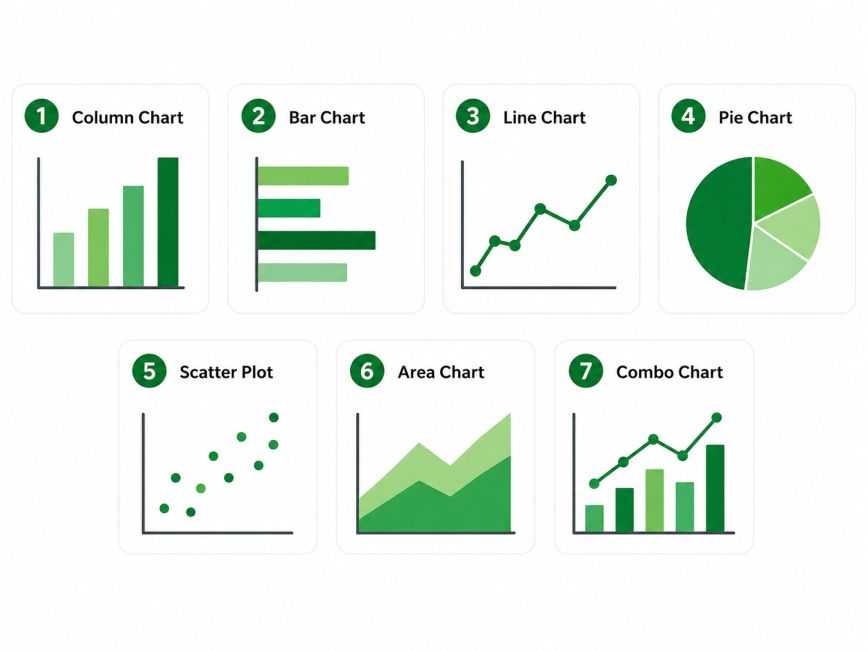
Choosing the chart type is very important. It is like getting accurate data. The wrong chart can confuse people. They will not understand what you are trying to say.
On the other hand, the right chart makes your point very clear and helps people understand your message quickly.
A column chart compares values across different categories.
Best used for:
Bar charts work similarly to column charts but display categories vertically. They are ideal when category names are long or when comparing many items.
Examples include:
A line chart displays changes over time. Line charts help identify upward or downward trends at a glance.
Use it for:
Pie charts show how each category contributes to a whole.
They work best when:
Scatter plots reveal relationships between two numerical variables. If points form an upward pattern, there may be a positive relationship between the variables.
Common examples include:
Area charts are similar to line charts but fill the space beneath the line.
They are useful for showing:
Sometimes one chart isn't enough. A combo chart combines two chart types, such as columns and lines.
Subscribe to upGrad's Newsletter
Join thousands of learners who receive useful tips
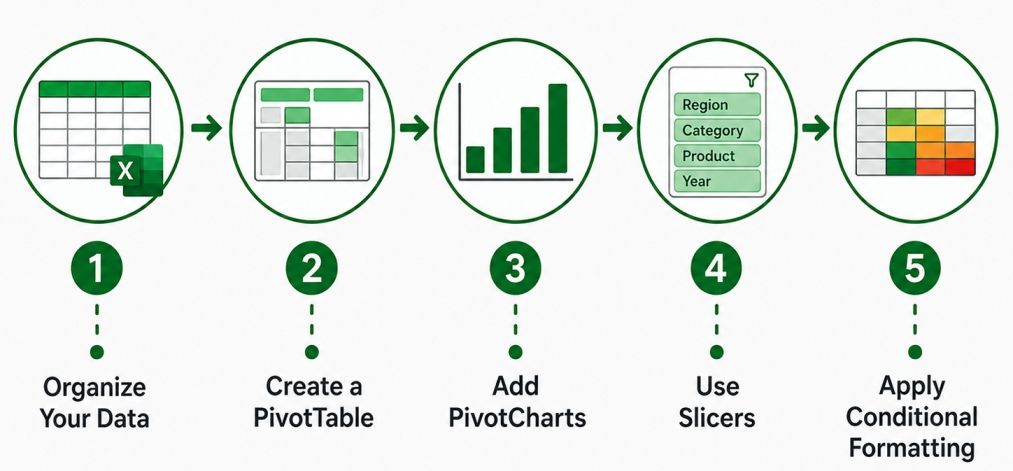
Charts are really helpful. Dashboards are even better because they put lots of visuals together in one spot. A dashboard is great because it lets users keep an eye on metrics like sales or customer numbers without having to jump back and forth between different spreadsheets. For companies, a dashboard can be the one place to go tracking how well they are doing.
The good thing is that you do not need to be a good programmer to make a dashboard in Excel. Excel has things, like PivotTables and PivotCharts that make it easy to create reports. You can also use slicers and conditional formatting to make your reports look nice. The best part is that these reports will update themselves when you add data to Excel.
Before creating any visuals, make sure that your data is clean and structured. Clean data makes it much easier to build an accurate charts.
A good dataset should:
For example:
Date |
Region |
Product |
Sales |
| Jan | North | Laptop | 52,000 |
| Jan | South | Tablet | 38,000 |
| Feb | North | Phone | 61,000 |
PivotTables help you sum up data in a few clicks.
For example, you can see sales for each region, which is way easier than going through thousands of records one, by one.
They allow you to:
When you have your PivotTable all set up, you should add a PivotChart, they are different from charts.
PivotCharts will update themselves whenever you make a change to your PivotTable. This means you can get your reports done faster and will not have to do as much work manually.
Slicers are interactive filters. Every connected chart updates immediately. This small feature makes dashboards much easier to explore.
Instead of editing charts manually, users can simply click options such as:
Conditional formatting highlights important values automatically. These visual cues help users identify important information without reading every number.
Examples include:
A good dashboard is simple. Remember, the purpose of a dashboard is to answer questions quickly, not display every available metric.
Follow these practices:
Also Read: Top 12 Best Practices for Creating Stunning Dashboards with Data Visualization Techniques
Creating a chart is the beginning. The main thing is to make sure people understand what you are trying to say. If the chart does not look good, it can be hard to make sense of the information even if the numbers are right.
These tips will help you make charts that are easy to figure out and look professional.
Avoid adding unnecessary design elements. Readers should understand the chart within a few seconds. Instead of using multiple colors and decorative effects, focus on the message.
Different charts answer different questions. Choosing the right chart improves clarity immediately.
Question |
Recommended Chart |
| Which product sold the most? | Column Chart |
| How did sales change over time? | Line Chart |
| What percentage does each category contribute? | Pie Chart |
| Is there a relationship between two variables? | Scatter Plot |
Colors should support understanding rather than distract from it. Consistency helps readers interpret information faster.
A good approach is to:
Avoid making readers guess what the chart represents.
Every chart should include:
Too many gridlines, borders, or effects make charts harder to read. A clean chart often communicates more effectively.
Consider removing:
Ask yourself one question: What should the reader notice first?
Highlight that insight, using color, annotations, or labels.
For example, instead of presenting twelve months of sales equally, highlight the month with the highest growth if that's your key finding.
From Excel charts to advanced analytics, mastering data visualization is your first step into the broader data ecosystem. Explore Master of Science in Data Science from Liverpool John Moores University and build the end-to-end skills that turn raw data into a rewarding career.
Many first-time users repeat the same errors. Keeping these points in mind will make your reports more effective and easier for others to understand.
Avoid these:
Also Read: How Does Data Visualization for Decision-Making Enhance Business? 10 Proven Strategies
Learning excel for data visualization is one of the most valuable skills for anyone working with data. Start with the basics by choosing the right chart for your data. As you become more comfortable, explore PivotTables, PivotCharts, slicers, and dashboards to create interactive reports that save time and improve decision-making.
The best visualizations are not necessarily the most colorful or complex. They are the ones that present information clearly, answer important questions, and help readers make informed decisions. With regular practice, you can create professional-looking Excel reports that communicate data with confidence.
Want to explore more about management accounting? Book your free 1:1 personal consultation with our expert today.
Excel for data visualization refers to using Microsoft Excel to present data through charts, graphs, dashboards, and other visual elements. Instead of reviewing rows of numbers, users can quickly identify trends, comparisons, and patterns that support better decision-making.
Yes. Excel is one of the easiest tools for beginners because it offers built-in chart templates, simple formatting options, and interactive features like PivotTables. Most users can start creating useful charts without prior experience in analytics or programming.
A line chart is generally the best option for displaying trends across days, months, or years. It helps readers understand whether values are increasing, decreasing, or remaining stable while making seasonal patterns much easier to identify.
Yes. Excel supports interactive dashboards using PivotTables, PivotCharts, slicers, timelines, and conditional formatting. These features allow users to filter information dynamically and update reports without recreating charts each time the data changes.
A chart displays a single visualization, while a dashboard combines multiple charts, tables, and performance indicators into one screen. Dashboards provide a broader overview of data and make it easier to monitor several metrics simultaneously.
Start by identifying what you want to communicate. Use column charts for comparisons, line charts for trends, pie charts for proportions, scatter plots for relationships, and combo charts when comparing different metrics in the same report.
Yes, Excel can visualize large datasets effectively, especially when used with PivotTables and filters. However, for extremely large or real-time datasets, tools such as Power BI may offer better performance and scalability.
Common mistakes include selecting the wrong chart type, adding unnecessary colors, using 3D effects, overcrowding dashboards, and failing to label charts properly. Keeping visuals simple usually produces better results than adding excessive design elements.
No. Basic knowledge of formulas, tables, and charts is enough to begin. As you gain confidence, you can gradually learn PivotTables, slicers, and conditional formatting to build more interactive and professional dashboards.
For many organizations, yes. Excel is widely used for reporting because it combines data analysis and visualization in one platform. Small and medium-sized businesses often rely on Excel for regular reporting before moving to specialized business intelligence tools.
If you're new to data analysis, learning Excel first is a smart choice. It teaches core concepts such as organizing data, creating charts, and summarizing information. These skills transfer directly to advanced visualization tools like Power BI and Tableau.
730 articles published
Sriram K is a Senior SEO Executive with a B.Tech in Information Technology from Dr. M.G.R. Educational and Research Institute, Chennai. With over a decade of experience in digital marketing, he specia...
Speak with Data Science Expert
By submitting, I accept the T&C and
Privacy Policy
Start Your Career in Data Science Today
Top Resources
Master's Degree
18 Months
Executive Diploma
12 Months
Bootcamp
6 Months