Absolute Reference in Excel: Definition, Formula, and Examples
By upGrad
Updated on Sep 26, 2026 | 8 min read | 2.36K+ views
Share:

All courses
Certifications
More
By upGrad
Updated on Sep 26, 2026 | 8 min read | 2.36K+ views
Share:
Table of Contents
Key Highlights
Take your programming skills further and open doors to careers in data science, AI, and more. Check out our Online Data Science Courses and start building your future today!
Popular Data Science Programs
An absolute reference in Excel is a locked cell address like $A$1. It does not change when you copy or drag the formula to other cells. But by default, Excel uses a relative reference, whose sign is A1. It changes automatically when you copy the formula to a new row or column.
This method works in most of the cases, but when you want a complete list to be fixed, then absolute reference works best. To make a reference absolute, you have to add a dollar sign ($) before the column letter and before the row number. For example, $D$1 means the formula will always look at cell D1, even after copying.
These are the different ways you can lock a cell:
Also read: Top 60+ Advanced Excel Formulas List with Examples (2026)
Free Courses
Using an absolute reference is easy once you've done it a few times. Here's the full process, broken down step by step.
Don't worry about locking anything yet. Just write the formula.
Say you want to multiply a price in B2 by a tax rate sitting in A1 =B2*A1.
This works fine for one cell. The problem shows up when you copy it.
Drag this down to B3, B4, B5, and Excel shifts both references at once.
Every row below the first one now pulls from the wrong cell. No error shows up. The numbers just come out wrong.
Add a dollar sign before the column letter and before the row number, =B2*$A$1.
Now when you copy this formula:
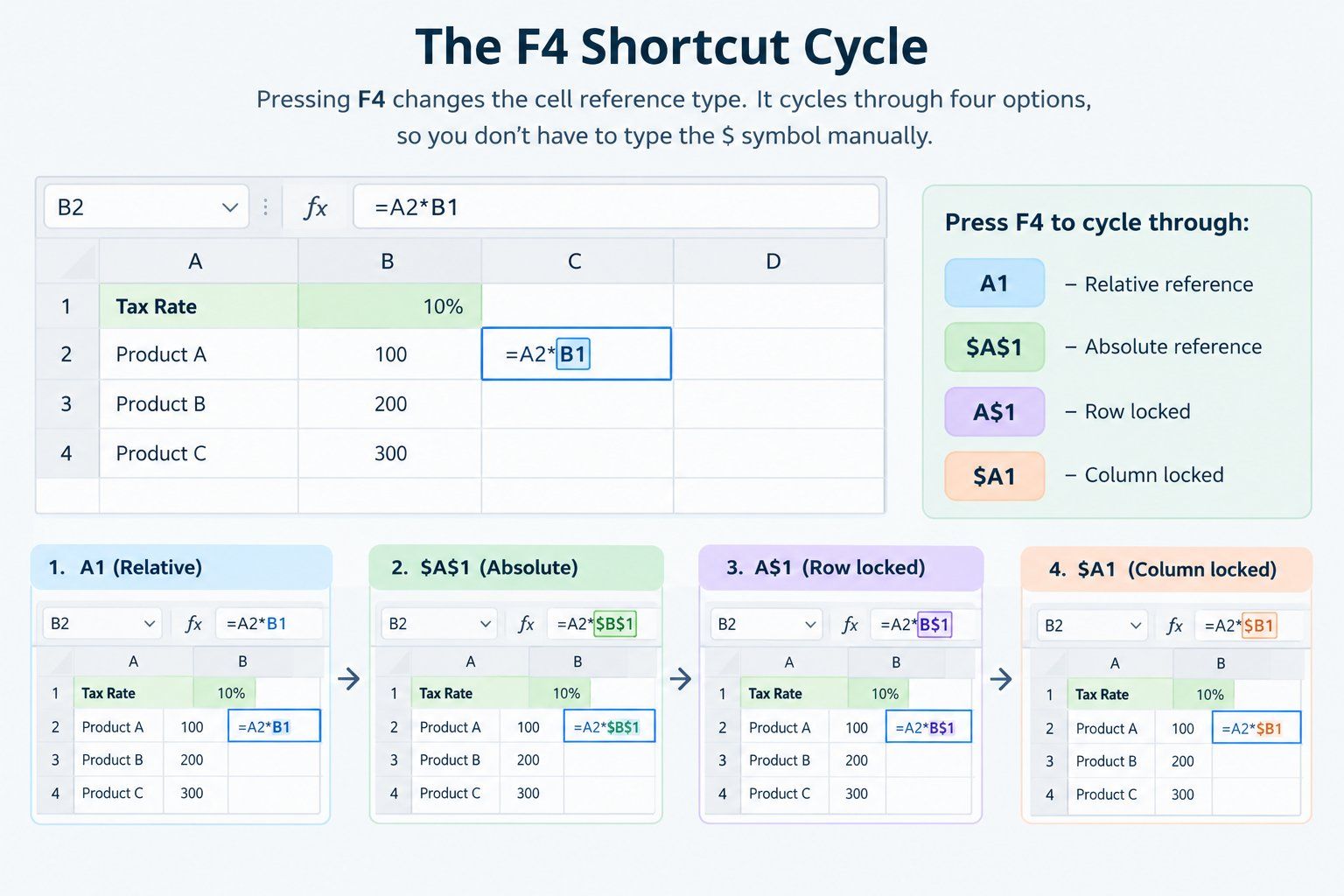
Typing dollar signs works, but F4 is faster.
Click on the cell reference inside your formula bar, right where you typed A1. Press F4. Excel adds the dollar signs for you.
Keep pressing F4, and it cycles through four options:
Press |
Result |
What's Locked |
| 1st | $A$1 | Row and column |
| 2nd | A$1 | Row only |
| 3rd | $A1 | Column only |
| 4th | A1 | Nothing |
You won't always need both locked. Sometimes just one is enough, especially in tables where a formula moves in two directions.
Once the reference is locked, you're ready to copy it.
The locked part stays exactly where it is. Everything else adjusts on its own.
Also read: Microsoft Excel Tutorial for Beginners: Complete Step-by-Step Guide
Data Science Courses to upskill
Explore Data Science Courses for Career Progression
IIIT Bangalore
Executive Post Graduate Certificate in Data Science & AIPlacement Assistance
The best way to understand absolute references is to see them in action. Below are a few real, everyday examples showing exactly when and why you'd lock a cell.
Say you run a small shop. You have a list of product prices in column B, and a fixed 18% GST rate sitting in cell A1.
To calculate tax for each product, you'd write this formula in C2 =B2*$A$1
Then drag it down for every row.
Product |
Price (B) |
Tax Rate (A1) |
Formula in C |
Result |
| Shirt | 500 | 18% | =B2*$A$1 | 90 |
| Shoes | 1200 | 18% | =B3*$A$1 | 216 |
| Bag | 800 | 18% | =B4*$A$1 | 144 |
Notice $A$1 never changes. Only B2, B3, B4 shift, since those are relative.
Suppose your company pays a flat 5% commission on every sale. The commission rate sits in cell D1.
Formula in column C =B2*$D$1
This is where mixed references usually show up.
Formula in B2 =$A2*B$1
Drag this one formula across and down, and it fills the entire multiplication table correctly.
Say column B has prices in dollars, and cell F1 has the current USD to INR exchange rate.
Formula in column C =B2*$F$1
Every row pulls the same exchange rate from F1, no matter how many rows you add later.
Want to build a stronger foundation in data before mastering DBMS concepts? Check out the Executive Post Graduate Certificate Programme in Data Science & AI from IIITB, India's #1 Post Graduate Certificate in Data Science & AI, designed to make you a true Data Pro.
Excel gives you three ways to write a cell reference. Each one behaves differently once you copy or drag a formula to other cells. Knowing which one to use is what keeps your formulas correct instead of pulling the wrong numbers.
Here's a quick comparison of all three, followed by a proper explanation of each.
Reference Type |
Example |
Row Behavior |
Column Behavior |
What Happens When Copied |
| Relative | A1 | Changes | Changes | Both the row and column shift to match the new cell |
| Absolute | $A$1 | Locked | Locked | Stays exactly the same in every cell |
| Mixed (row locked) | A$1 | Locked | Changes | Row stays fixed, column shifts |
| Mixed (column locked) | $A1 | Changes | Locked | Column stays fixed, row shifts |
The dollar sign locks whatever comes right after it.
For most everyday spreadsheet work, relative and absolute references are enough. Mixed references become useful once your sheets grow bigger and a formula needs to stay correct while moving both across and down.
Also read: Excel Worksheet for Practice
Now that you've seen how absolute references work, let's look at where they're used most often in real work, and the mistakes people commonly make while using them.
1. Tax and GST Calculations: When a business applies one fixed tax rate to a whole list of prices, the tax rate cell is locked so it never shifts.
2. Discounts and Offers: A store running a flat 20% discount on every product uses one locked cell for the discount rate, applied across the entire price list.
3. Commission and Bonus Sheets: Sales teams often use one fixed commission percentage for every employee. Locking that cell keeps the formula accurate no matter how many rows get added later.
4. Currency Conversion: When converting a list of prices from one currency to another, the exchange rate is usually kept in one cell and locked, so every row uses the same rate.
5. Budget and Expense Templates: A fixed monthly budget or a fixed interest rate in loan calculations is often locked using an absolute reference, so it applies consistently across every row.
6. Lookup Formulas: Functions like VLOOKUP or INDEX-MATCH often use absolute references for the lookup range, so the range doesn't shift when the formula is copied down.
Also read: Ribbon in MS Excel: Features, Tips, and Customisation
Here's where absolute references show up most often in real spreadsheets.
Also read: Data Validation in Excel
Even after learning how absolute references work, small slip-ups still happen. Here's what usually goes wrong.
This is the number one mistake. Someone builds a formula, it works fine in the first cell, but they forget the dollar signs. The moment it's copied down, the fixed value starts sliding into the wrong cells, and every row after the first gives a wrong answer.
In tables that run both across and down, like a multiplication grid, it's easy to lock the row when the column needs locking, or the other way around. The formula still runs, but the numbers come out scrambled.
Not everything needs a dollar sign. If a value is meant to change with each row, locking it by mistake freezes it, and the formula just repeats the same answer over and over instead of calculating anything new.
Pressing F4 cycles through relative, absolute, and both mixed options. Press it one time too many, or too few, and you end up with a lock you didn't actually want, without noticing right away.
A formula gets dragged down fifty rows, and nobody looks back to confirm it worked. If a reference wasn't locked the way it should've been, the error can sit there unnoticed for a long time.
A Simple Way to Catch These Mistakes Early:
Also read: Top 15 Ways to Improve Excel Skills [Actionable Tips]
Conclusion
Absolute references keep one cell fixed while the rest of your formula adjusts automatically. Once you understand how the dollar sign works, and use F4 to apply it quickly, you'll stop running into broken formulas when copying or dragging across a sheet.
Whether it's tax, discounts, currency conversion, or lookups, the rule stays the same: lock what should stay fixed, leave the rest relative.
Want personalized guidance on AI and upskilling? Speak with an expert for a free 1:1 counselling session today.
On a Mac, you press Cmd + T instead of F4 to add or cycle through dollar signs in a cell reference.
Yes. A single formula can have multiple absolute references, mixed references, and relative references together, depending on what each part of the formula needs.
Yes. You can lock a cell reference even when it points to another sheet, for example Sheet1!$A$1, and it will stay fixed the same way it does within one sheet.
No. There is no set limit. You can use as many absolute references as your formulas require, across as many sheets as needed.
No. Absolute references don't affect calculation speed. Performance issues usually come from very large datasets or heavy formulas, not from locking cell references.
Yes. A named range behaves like a permanent absolute reference. Once you name a cell or range, it stays fixed automatically, without needing dollar signs.
If you delete the exact cell being referenced, Excel usually shows a #REF! error, since the formula can no longer find the value it was pointing to.
Yes, mostly. Google Sheets uses the same dollar sign format and supports the F4 shortcut on Windows, though the Mac shortcut can differ slightly by browser.
Yes. Select the entire formula or range in the formula bar and press F4. It applies the same locking pattern to all references selected at that moment.
Certain Paste Special options, like Values Only or Transpose, can override reference behavior. It's best to use a normal copy-paste when you want the lock to hold.
Yes. Absolute references work inside any Excel function. They're commonly used inside SUM, IF, VLOOKUP, and INDEX-MATCH whenever one part of the range needs to stay fixed.
991 articles published
We are an online education platform providing industry-relevant programs for professionals, designed and delivered in collaboration with world-class faculty and businesses. Merging the latest technolo...
Speak with Data Science Expert
By submitting, I accept the T&C and
Privacy Policy
Start Your Career in Data Science Today
Top Resources
Executive Diploma
12 Months
Master's Degree
18 Months
Bootcamp
6 Months