Ribbon in MS Excel: Features, Tips, and Customisation
By Sriram
Updated on Sep 28, 2026 | 8 min read | 4.87K+ views
Share:

All courses
Certifications
More
By Sriram
Updated on Sep 28, 2026 | 8 min read | 4.87K+ views
Share:
Table of Contents
The ribbon in MS Excel is the visual command bar that controls everything you do in Excel. It organizes tools into tabs like Home, Insert, Data, and View, making it easy to access features for formatting, analysis, and visualization. Whether you’re editing a worksheet or building complex formulas, the ribbon acts as your central workspace for every Excel task.
In this guide, you’ll read more about the structure and components of the ribbon, how to show or hide it, and customisation options to tailor it for your workflow. You’ll also explore key features of each tab, pro tips for faster use, and common issues with quick fixes.
Looking to build your career in one of the fastest-growing data science fields? Explore our online Data Science Course and gain the skills that employers are actively looking for all from the convenience of your home!
The Ribbon in MS Excel was first introduced in Excel 2007 to replace the traditional dropdown menus. Each tab represents a category like Home, Insert, or Data, and each contains related commands.
Think of the ribbon as Excel’s control center. It gives you quick access to everything you need without digging through multiple menus.
Enhance your data science skills with the following specialized programs from upGrad to become industry-ready in 2025.
Also Read: What Is Data Science? Courses, Basics, Frameworks & Careers
In short, the ribbon in Excel makes working with data more intuitive and organized. Once you understand its structure, navigating and performing tasks in Excel becomes faster and easier.
Free Courses
The structure of the ribbon in Excel is designed to make every command easy to find and use. It organizes all tools into a clean hierarchy of tabs, groups, and commands. Each layer has a specific role that helps you navigate Excel faster and perform tasks without confusion.
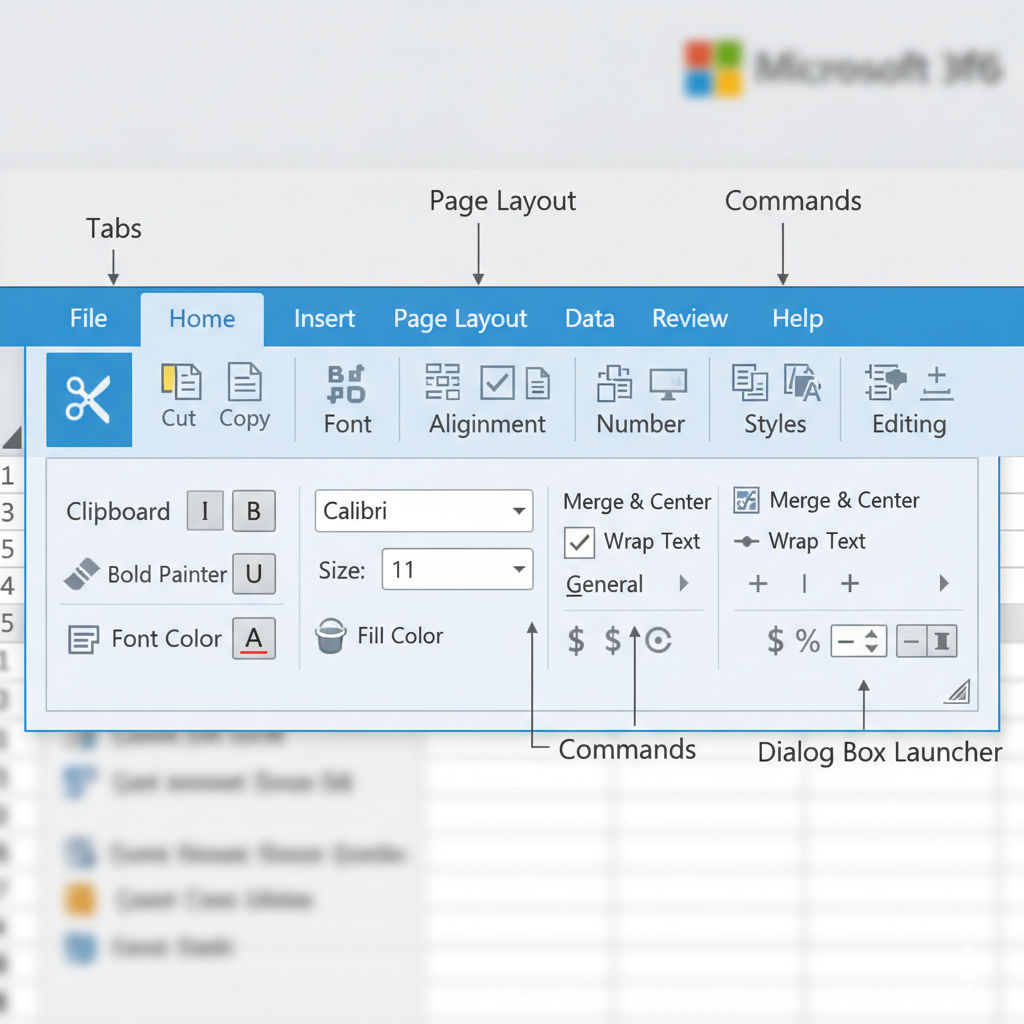
Understanding this structure is the first step to working confidently in Excel.
Tabs are the top-level categories on the ribbon. Each tab contains related tools and features.
Common tabs in Excel include:
You’ll also see contextual tabs appear when you select certain objects (like charts or pictures). These tabs provide tools that are specific to that object.
Also Read: Data Science Life Cycle: Phases, Tools and Best Practices
Within each tab, commands are divided into smaller groups.
For example, the Home tab includes these main groups:
Groups make it easier to locate related commands quickly.
Also Read: Data Validation in Excel
Commands are the buttons, dropdowns, or menus that perform specific actions.
Some groups have a small arrow in the corner called a Dialog Box Launcher. Clicking it opens more detailed settings.
Level |
Example |
Purpose |
| Tab | Home, Insert, Data | Broad category of tools |
| Group | Font, Alignment, Editing | Clusters related commands |
| Command | Bold, Merge Cells, Sort | Performs a specific task |
The ribbon in Excel follows this structured design to help you stay organized. Once you understand how tabs, groups, and commands work together, you can navigate Excel efficiently and use its features with confidence.
Also Read: How to Become a Data Scientist – Answer in 9 Easy Steps
Sometimes, the ribbon in MS Excel disappears or hides to create more space on your screen. If you can’t find your tabs or commands, you can easily bring them back. Learning how to show ribbon in Excel helps you restore all tools quickly and continue working without interruption.
The easiest way to show the ribbon is through the Ribbon Display Options menu located at the top-right corner of the Excel window (next to the minimize button).
Follow these steps:
This setting updates immediately and helps you adjust the workspace as needed.
Also Read: 60 Advanced Excel Formulas – A Must Know For All Professionals
You can also use the shortcut Ctrl + F1 to toggle the ribbon on or off.
This method is quick and works on all Excel versions.
If your ribbon shows only tab names, double-click any tab (like Home or Insert).
The full ribbon will reappear.
Double-click again to collapse it back.
Also Read: Excel Worksheet for Practice
Display Mode |
Description |
Best For |
| Auto-hide Ribbon | Hides ribbon completely | Maximum screen space |
| Show Tabs | Displays only tab names | Moderate workspace |
| Show Tabs and Commands | Displays full ribbon | Frequent tool use |
Once you know how to show the ribbon in Excel, switching between these modes becomes effortless. It helps you control your workspace layout and balance between visibility and screen space.
Also Read: Top 15 Ways to Improve Excel Skills [Actionable Tips]
The ribbon in Excel can be customised to match how you work. Instead of relying only on the default tabs and commands, you can rearrange, add, or remove tools that you use most often. Learning how to customise the ribbon in Excel helps you save time and make your workflow smoother.
Customising the ribbon is helpful when you:
It’s especially useful for analysts, teachers, or professionals who perform repetitive Excel operations.
Also Read: Top 50 Excel Interview Questions in 2025
Follow these steps to edit or create tabs on the ribbon:
You’ll immediately see your new layout on the ribbon.
Also Read: 40 Essential Excel Tools, Functions, and Formulas for Enhanced Data Management
You can export your customised ribbon and share it with others:
If you want to undo changes:
Action |
Result |
| Add New Tab | Create a custom section for your tools |
| Rename Tab | Give a clear, descriptive title |
| Reorder Tabs | Arrange by importance or workflow |
| Export Settings | Save your ribbon setup for reuse |
Customising the ribbon bar in Excel makes Excel truly yours. Once you personalise it with the commands you use most, you’ll work faster, navigate less, and focus more on your data.
Mastering the ribbon in Excel goes beyond knowing its tabs and commands. Small shortcuts and habits can make your workflow smoother and faster. Here are some practical tips that help you use the ribbon more efficiently and keep your workspace organized.
Also Read: Statistical Functions in Excel: A Beginner’s Guide with Examples
Also Read: What is Macros in Excel? How to add, Examples and uses
Action |
Shortcut / Tip |
Benefit |
| Show/Hide Ribbon | Ctrl + F1 | Adjust workspace easily |
| Access Ribbon Tabs | Alt + Key | Faster navigation |
| Add Custom Tab | Right-click → Customize Ribbon | Personalized setup |
| Use Search Bar | Type feature name | Instantly find tools |
| Add Quick Access Commands | Right-click → Add to Toolbar | Save clicks |
Learning these pro tips for working with the ribbon in Excel helps you manage time better, avoid clutter, and maintain full control over your workspace, whether you’re analyzing data or building reports.
Also Read: How to use Pivot Table in Excel? Step by Step Tutorial
Subscribe to upGrad's Newsletter
Join thousands of learners who receive useful tips
The ribbon in Excel is reliable, but sometimes it can disappear, freeze, or fail to show your custom settings. Most of these problems are easy to fix once you know where to look. Below are the most common ribbon-related issues and their quick solutions.
Cause: The ribbon might be hidden using display settings or collapsed accidentally.
Fix:
If you’re using the Auto-hide option, move your mouse to the top of the window to make it reappear temporarily.
Also Read: What is Excel VBA? Explained with Real Time Examples
Cause: The ribbon is collapsed to show only the tab names.
Fix:
Cause: Ribbon customization file is missing or not loaded.
Fix:
Cause: Add-ins or background processes can slow Excel’s interface.
Fix:
Also Read: Gantt Chart in Excel
Cause: Corrupted user profile or Excel configuration.
Fix:
Issue |
Possible Cause |
Solution |
| Ribbon missing | Hidden or collapsed | Ctrl + F1 or Show Tabs and Commands |
| Only tabs visible | Collapsed ribbon | Double-click any tab |
| Custom tab not showing | Customization not loaded | Import customization file |
| Ribbon frozen | Add-in conflict | Start Excel in Safe Mode |
| Ribbon resets | Damaged settings | Reset or re-import layout |
These simple steps help you restore and maintain the ribbon in Excel. Once fixed, you can continue working smoothly without losing access to essential tools and tabs.
Understanding the Ribbon in Excel is key to improving efficiency and working more effectively with your data. By getting familiar with its features, you can complete tasks faster and streamline your workflow.
upGrad offers specialized programs to help you enhance your Excel skills. Their data science and Excel-focused courses combine practical exercises with essential knowledge to help you master the tools you need.
Here are some of the top courses recommended by upGrad to improve your Excel skills:
Not sure which career path in MS Excel and data science suits you best? Get personalized career counseling to identify the best opportunities for you. Visit upGrad’s offline centers for expert mentorship, hands-on workshops, and networking sessions to connect you with industry leaders!
The ribbon in MS Excel is the main toolbar that organizes commands into tabs and groups. It replaces traditional menus, making it easier to find tools for formatting, formulas, and data tasks, helping users work faster and navigate efficiently.
The ribbon in MS Excel was introduced to simplify navigation and improve usability. It replaced drop-down menus, grouping tools into clear tabs like Home and Insert, so users can easily locate functions and perform operations without complex menu searches.
The ribbon in MS Excel has three key parts: Tabs, which categorize commands; Groups, which organize related features; and Commands, which execute actions. This structure helps users perform tasks quickly and locate tools with minimal effort.
The ribbon in MS Excel and the ribbon bar in Excel refer to the same toolbar. Both display tabs, icons, and menus grouped by function to simplify access to Excel tools for editing, analyzing, and formatting data efficiently.
The ribbon in Excel usually has tabs like Home, Insert, Page Layout, Formulas, Data, Review, and View. Depending on your activity, additional contextual tabs appear when working with charts, tables, or graphics for specific commands.
If the toolbar disappears, click the Ribbon Display Options button in the top-right corner and select Show Tabs and Commands. You can also press Ctrl + F1 to quickly show the ribbon in Excel and restore all commands.
The ribbon in MS Excel can auto-hide when the Auto-hide Ribbon mode is active. This feature increases workspace by hiding tabs and commands. Move your cursor to the top or press Ctrl + F1 to display it again.
To hide the ribbon in Excel, click the Ribbon Display Options button and choose Auto-hide Ribbon or press Ctrl + F1. This gives more space for working on large sheets while keeping tools easily accessible when needed.
Ribbon Display Options in Excel control the ribbon’s visibility. You can choose Auto-hide Ribbon, Show Tabs, or Show Tabs and Commands depending on your preference. These options help balance screen space and accessibility for efficient work.
To customize the ribbon in MS Excel, right-click the toolbar and choose Customize the Ribbon. You can add or remove tabs, rename groups, and arrange commands based on your personal workflow preferences or frequently used tools.
Yes. Go to File > Options > Customize Ribbon, click New Tab, and add your preferred commands. This lets you create a personalized ribbon bar in Excel that fits your daily tasks and improves your productivity.
To reset the ribbon in MS Excel, open File > Options > Customize Ribbon and click Reset > Reset All Customizations. This restores the default ribbon layout and removes all manually added tabs or groups.
If the ribbon bar in Excel is missing, it may be collapsed or hidden. Click the arrow in the upper-right corner or press Ctrl + F1 to bring it back and restore your full Excel interface instantly.
Yes. You can export your customized ribbon in MS Excel by going to File > Options > Customize Ribbon > Import/Export. Save the file as .exportedUI and import it on another device to use your setup.
To access hidden commands in the ribbon bar in Excel, expand the ribbon or use dialog box launchers—small arrows in the corner of groups. These open advanced options and extra tools related to the selected section.
Contextual tabs in the ribbon in Excel appear automatically when you select objects like charts, tables, or images. They provide additional tools relevant to that object, making editing or formatting faster and more focused.
The ribbon in MS Excel boosts productivity by grouping commands logically. It reduces time spent searching menus, allowing users to perform actions like formatting, sorting, and data analysis more efficiently in fewer clicks.
You can press Ctrl + F1 to toggle the ribbon in Excel. This quick shortcut hides or shows the toolbar instantly, helping you switch between a clean workspace and full access to commands whenever needed.
To show only tab names, click the Ribbon Display Options icon and select Show Tabs. This hides commands but keeps the main tabs visible, letting you quickly switch between sections without occupying too much space.
If the ribbon in MS Excel becomes unresponsive, restart Excel in Safe Mode by holding Ctrl during launch. Then, disable unnecessary add-ins under File > Options > Add-ins to restore smooth functionality and performance.
698 articles published
Sriram K is a Senior SEO Executive with a B.Tech in Information Technology from Dr. M.G.R. Educational and Research Institute, Chennai. With over a decade of experience in digital marketing, he specia...
Get Free Consultation
By submitting, I accept the T&C and
Privacy Policy
Top Resources
Classroom
6 Months
Microsoft
Generative AI Mastery Certificate for Software DevelopmentLearn to use GitHub copilot, Azure & more
Certification
2 months
3 Months