Python Virtual Environment: A Complete Guide for Beginners to Advanced Users
By Rahul Singh
Updated on Jun 16, 2026 | 10 min read | 3.22K+ views
Share:

All courses
Certifications
More
By Rahul Singh
Updated on Jun 16, 2026 | 10 min read | 3.22K+ views
Share:
Table of Contents
A Python virtual environment is an isolated workspace that contains its own Python interpreter, libraries, and installed packages. It allows developers to create project-specific environments, ensuring that dependencies for one project do not interfere with those of another.
By keeping packages separate from the system-wide Python installation, a Python virtual environment helps prevent version conflicts, improves project portability, and makes dependency management easier. It is a standard practice in Python development for building reliable and reproducible applications.
In this blog, you will learn exactly what a python virtual environment is, why you need one, how to create virtual environment in python, and how to activate virtual environment in python.
Transform your career with upGrad’s Data Science Course. Learn from industry experts, work on hands-on projects, and gain the skills top employer’s demand.
Popular Data Science Programs
A python virtual environment is a self-contained directory that holds a specific version of Python and a set of packages installed just for that project. It does not touch your system Python or any other project.
Think of it like this. You are working on two projects. Project A needs Django 3.2. Project B needs Django 4.2. You cannot install both versions in the same place. A virtual environment lets each project carry its own version without conflict.
Without isolation, every package you install goes into one global location. Over time:
Also Read: 42 Best Python Project Ideas & Topics for Beginners [2026]
A python virtual environment wraps each project inside its own bubble. Inside that bubble:
This is not a nice-to-have. It is how professional Python development works.
Always. Even for small scripts. Getting into the habit early saves you hours of debugging later.
Situation |
Use a Virtual Environment? |
| Learning Python basics | Yes |
| Building a web app | Yes |
| Working on a data science project | Yes |
| Quick one-off script | Yes, strongly recommended |
| System-level Python tools | No (use system Python here) |
Free Courses
Python ships with a built-in module called venv that handles this. You do not need to install anything extra for basic usage.
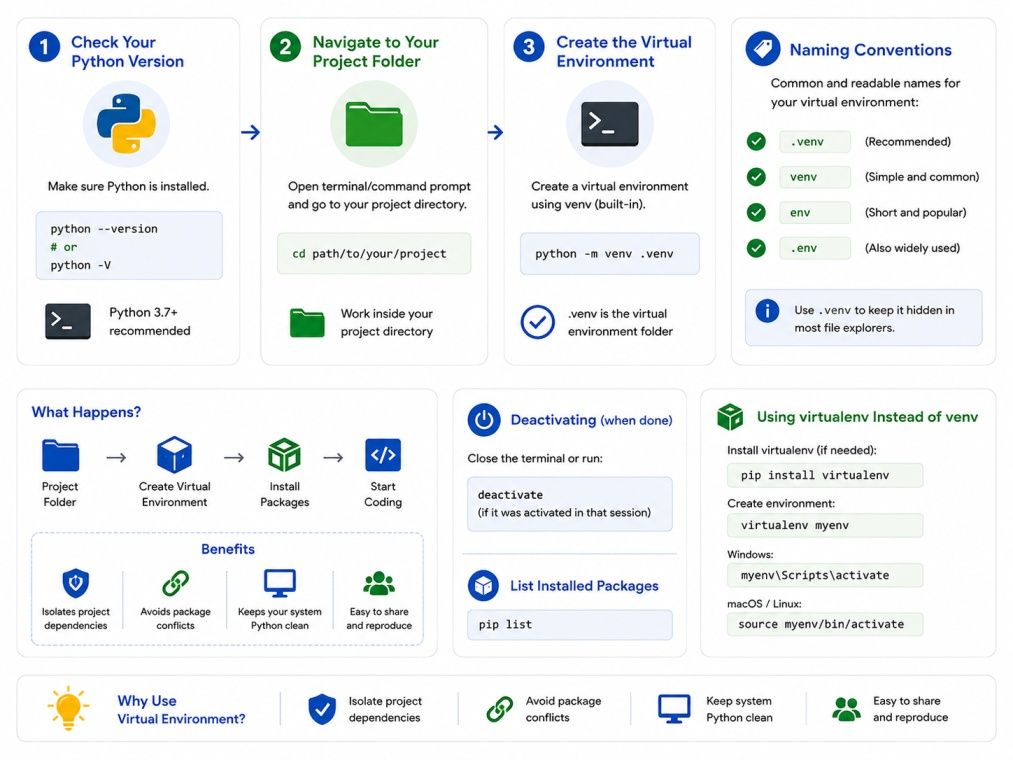
Open your terminal and run:
python --versionor
python3 --versionYou need Python 3.3 or higher. Most modern systems already have this.
cd /path/to/your/projectIf the folder does not exist yet, create it first:
mkdir my_project
cd my_projectRun this command to create virtual environment in python:
python -m venv venvHere, the first venv is the module name. The second venv is the name of the folder that will be created. You can name it anything, but venv or .venv are the most common conventions.
What happens after you run this? Python creates a folder called venv inside your project. That folder contains:
Name |
Common Use |
| venv | Most popular, easy to type |
| .venv | Hidden folder, preferred in some setups |
| env | Also widely used |
| project_env | Descriptive, good for multiple envs |
virtualenv is a third-party tool with more features than the built-in venv. To install it:
pip install virtualenvThen create virtual environment in python using:
virtualenv venvThe rest of the steps are the same.
Also Read: Module and Package in Python
Data Science Courses to upskill
Explore Data Science Courses for Career Progression
IIIT Bangalore
Executive Post Graduate Certificate in Data Science & AIPlacement Assistance
Creating the environment is just step one. You also need to activate it before you can use it.
The command to activate virtual environment python differs based on your OS.
On macOS and Linux:
source venv/bin/activateOn Windows (Command Prompt):
venv\Scripts\activateOn Windows (PowerShell):
venv\Scripts\Activate.ps1After you run the activate command, your terminal prompt changes. You will see the environment name in parentheses at the start:
(venv) user@machine:~/my_project$That prefix confirms the environment is active. Any package you install now goes only into this environment.
Also Read: Data Analysis Using Python [Everything You Need to Know]
To confirm the right Python is in use:
which python    # macOS/Linux
where python    # Windows
It should point to the venv folder inside your project, not the system Python path.
Once activated, use pip as usual:
pip install requests
pip install numpy pandas
These packages live only inside your activated python virtual environment.
Also Read: 12 Incredible Python Applications You Should Know About
Creating and activating a python virtual environment is just the start. Managing what goes inside it is equally important.
Once you have installed the packages your project needs, save them to a file:
pip freeze > requirements.txtThis creates a requirements.txt file listing every installed package and its exact version. Share this file with your project.
Anyone who clones your project can recreate the same environment in three steps:
python -m venv venv
source venv/bin/activate    # or the Windows equivalent
pip install -r requirements.txt
That is it. Same packages, same versions, no guesswork.
Also Read: Python Cheat Sheet: From Fundamentals to Advanced Concepts for 2026
pip listThis shows every package installed in the active environment.
pip uninstall package_nameWhen you are done working, deactivate with:
deactivateYour terminal prompt goes back to normal. The environment is still there. You just stepped out of it. Run the activate virtual environment python command again whenever you return to the project.
Also Read: A Complete Guide on OOPs Concepts in Python
Do not commit the venv folder to version control. Add it to .gitignore:
venv/
.venv/
env/
Commit requirements.txt instead. That file is small and gives others everything they need to recreate the environment.
Once you are comfortable with the basics, a few extra techniques will make your workflow faster and cleaner.
If you work with data science tools like NumPy, Pandas, or TensorFlow, conda is worth knowing. It manages both Python packages and non-Python dependencies like C libraries.
conda create --name my_env python=3.11
conda activate my_env
conda environments are stored centrally, not inside your project folder.
pyenv lets you install and switch between multiple Python versions on the same machine. Combined with venv, it gives you full control:
pyenv install 3.10.12
pyenv local 3.10.12
python -m venv venv
Now your environment uses Python 3.10.12 specifically.
Also Read: Top Data Analytics Tools Every Data Scientist Should Know About
pipenv combines pip and venv into one tool. It auto-creates a virtual environment and manages a Pipfile instead of requirements.txt.
pip install pipenv
pipenv install requests
pipenv shell # activates the environmentpoetry is a modern dependency manager that handles packaging, versioning, and virtual environments together. It is widely used in production Python projects.
pip install poetry
poetry new my_project
poetry add requests
poetry shellIf you use VS Code, it detects virtual environments automatically. Press Ctrl+Shift+P, search for "Python: Select Interpreter", and pick the one inside your venv folder. After that, every terminal you open inside VS Code is already activated.
Error |
Likely Cause |
Fix |
| command not found: python | Python not in PATH | Use python3 instead |
| activate: permission denied | Script permissions (Windows) | Run Set-ExecutionPolicy RemoteSigned in PowerShell |
| ModuleNotFoundError | Wrong environment active | Check with which python and reactivate |
| Packages not found after activation | Installed in wrong environment | Deactivate, reactivate, reinstall |
A python virtual environment is one of the most practical habits you can build as a Python developer. It keeps your projects clean, prevents version conflicts, and makes sharing code simple. The process is short: create virtual environment in python with python -m venv venv, then activate virtual environment python with the right command for your OS, install your packages, and freeze them into a requirements.txt.
Whether you are learning Python for the first time or building a production-grade application, virtual environments belong in every project you touch. Start using them today and you will save yourself a lot of trouble later.
Want personalized guidance on Python and Data Science and upskilling? Speak with an expert for a free 1:1 counselling session today.
A python virtual environment is an isolated folder that contains its own Python interpreter and installed packages. It keeps one project's dependencies completely separate from another, so version conflicts never happen.
No, if you are using Python 3.3 or higher. The venv module comes built-in. Just run python -m venv venv in your terminal and the environment is created. For extra features, you can install virtualenv separately.
Look at your terminal prompt. When you activate virtual environment python correctly, the environment name appears in parentheses at the start of the line, like (venv) user@machine:~$. You can also run which python on Mac or Linux to confirm.
Yes. If you have multiple Python versions installed, specify which one to use: python3.10 -m venv venv. Tools like pyenv make it easy to manage and switch between multiple Python versions on one machine.
venv is built into Python and works for most use cases. virtualenv is a third-party package with more features, including support for older Python versions and faster environment creation. Both let you create virtual environment in python effectively.
No. Add it to .gitignore instead. Commit your requirements.txt file. That file is all anyone needs to recreate the same environment using pip install -r requirements.txt.
Open Command Prompt and run venv\Scripts\activate. In PowerShell, run venv\Scripts\Activate.ps1. If PowerShell blocks it, run Set-ExecutionPolicy RemoteSigned first and then try again.
Running deactivate exits the active python virtual environment and returns your terminal to the system Python. Your environment is not deleted. Run the activate command again anytime to re-enter it.
conda manages both Python packages and system-level dependencies like C libraries. It is popular in data science. A regular python virtual environment created with venv handles pure Python packages only. For most web development and scripting, venv is simpler and sufficient.
Yes, technically you can create multiple environments in the same project folder. In practice, most projects use one. Some teams create separate environments for development, testing, and production to keep dependencies clearly separated.
This usually happens when you install packages without activating your environment first. Always activate virtual environment python before running pip install. Double-check with which pip on Mac or Linux to confirm pip is pointing to your virtual environment, not the system.
98 articles published
Rahul Singh is an Associate Content Writer at upGrad, with a strong interest in Data Science, Machine Learning, and Artificial Intelligence. He combines technical development skills with data-driven s...
Speak with Data Science Expert
By submitting, I accept the T&C and
Privacy Policy
Start Your Career in Data Science Today
Top Resources
Master's Degree
18 Months
Executive Diploma
12 Months
Bootcamp
6 Months