Data Formatting in Excel (With Examples & Shortcuts)
By upGrad
Updated on Sep 24, 2026 | 8 min read | 2.36K+ views
Share:

All courses
Certifications
More
By upGrad
Updated on Sep 24, 2026 | 8 min read | 2.36K+ views
Share:
Table of Contents
Key Highlights
Turn raw data into real decisions. Learn Python, SQL, statistics, and machine learning from scratch, no prior coding experience needed. Enroll in our Data Science course today and start building skills companies are actually hiring for.
Popular Data Science Programs
Data formatting is a process of changing how information will appear in excel without changing the underlying value. Means adjusting the visual presentation of data.
For example, if you change the format of 0.25 number to percentage, then it will become 25% but for any calculation 0.25 will be taken. Data formatting in excel is not about altering data, it is about increasing readability.
Data formatting is important because it transforms the raw and confusing data into clear numbers. Some other important points for data formatting are as follows:
Must read: Microsoft Excel Tutorial for Beginners: Complete Step-by-Step Guide
Free Courses
Excel offers six main ways to format data. Some change only appearance, while others add real functionality. Here is a breakdown of different types.
Type |
Changes the Data? |
Where to Find It |
| Number Formatting | No, display only | Home tab, Number section, or Ctrl + 1 |
| Date & Time Formatting | No, display only (if recognized as a date) | Home tab, Number section, or Ctrl + 1 |
| Text & Font Formatting | No | Home tab, Font section |
| Cell Formatting | No | Home tab, Font/Alignment, or Ctrl + 1 |
| Conditional Formatting | No, rule-based and automatic | Home tab, Conditional Formatting |
| Table Formatting | No, but adds functionality | Insert tab, Table (Ctrl + T) |
It changes the presentation of a number, not the real value. For calculation, Excel use the true value.
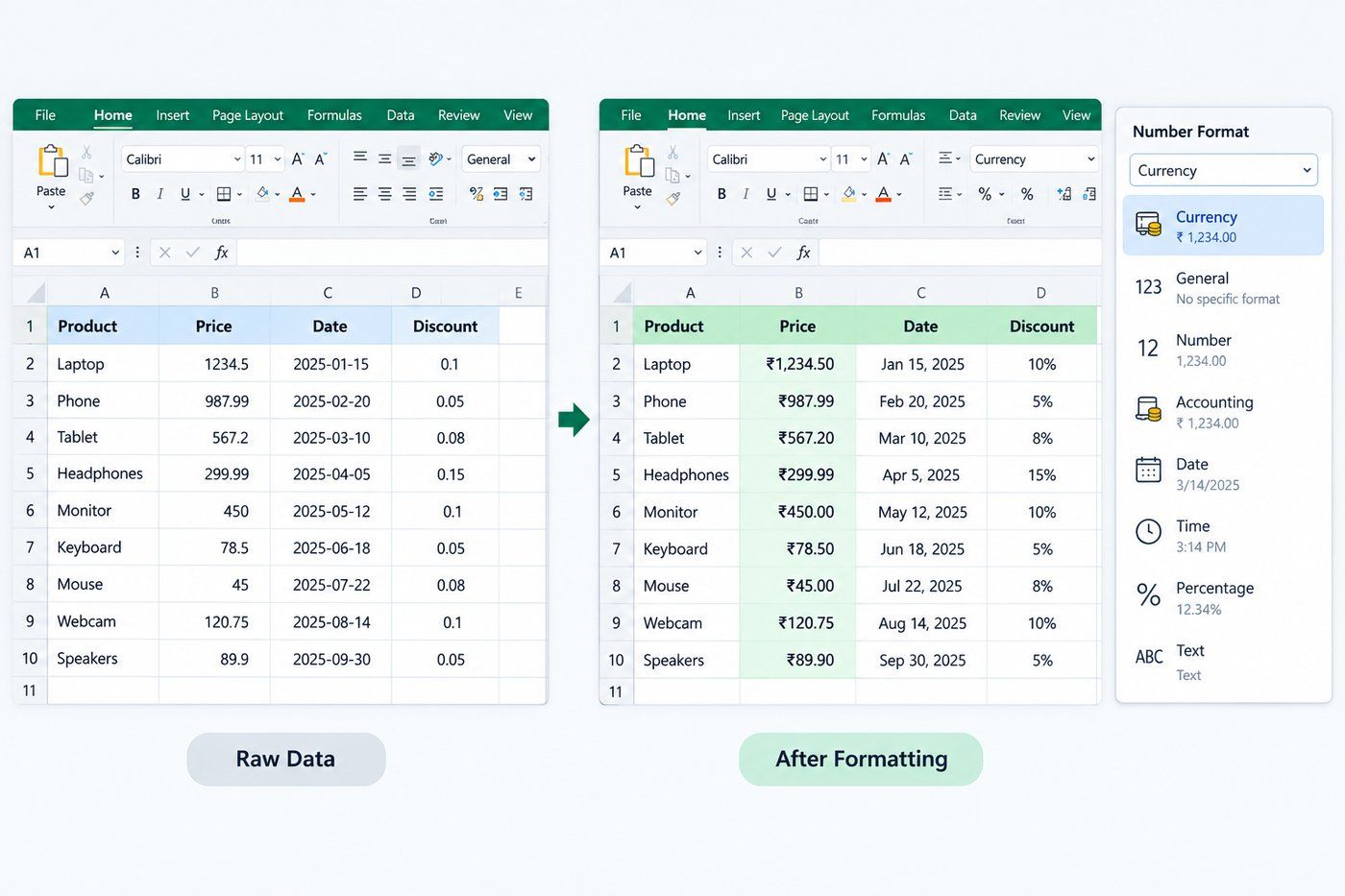
A date can be present in different formats like, 12/09/2026, 12-Sep-2026, and September 12, 2026. These all are identical dates.
This is purely cosmetic: font, size, color, bold or italic. It doesn't touch the underlying data.
Covers the container around the data rather than the data itself:
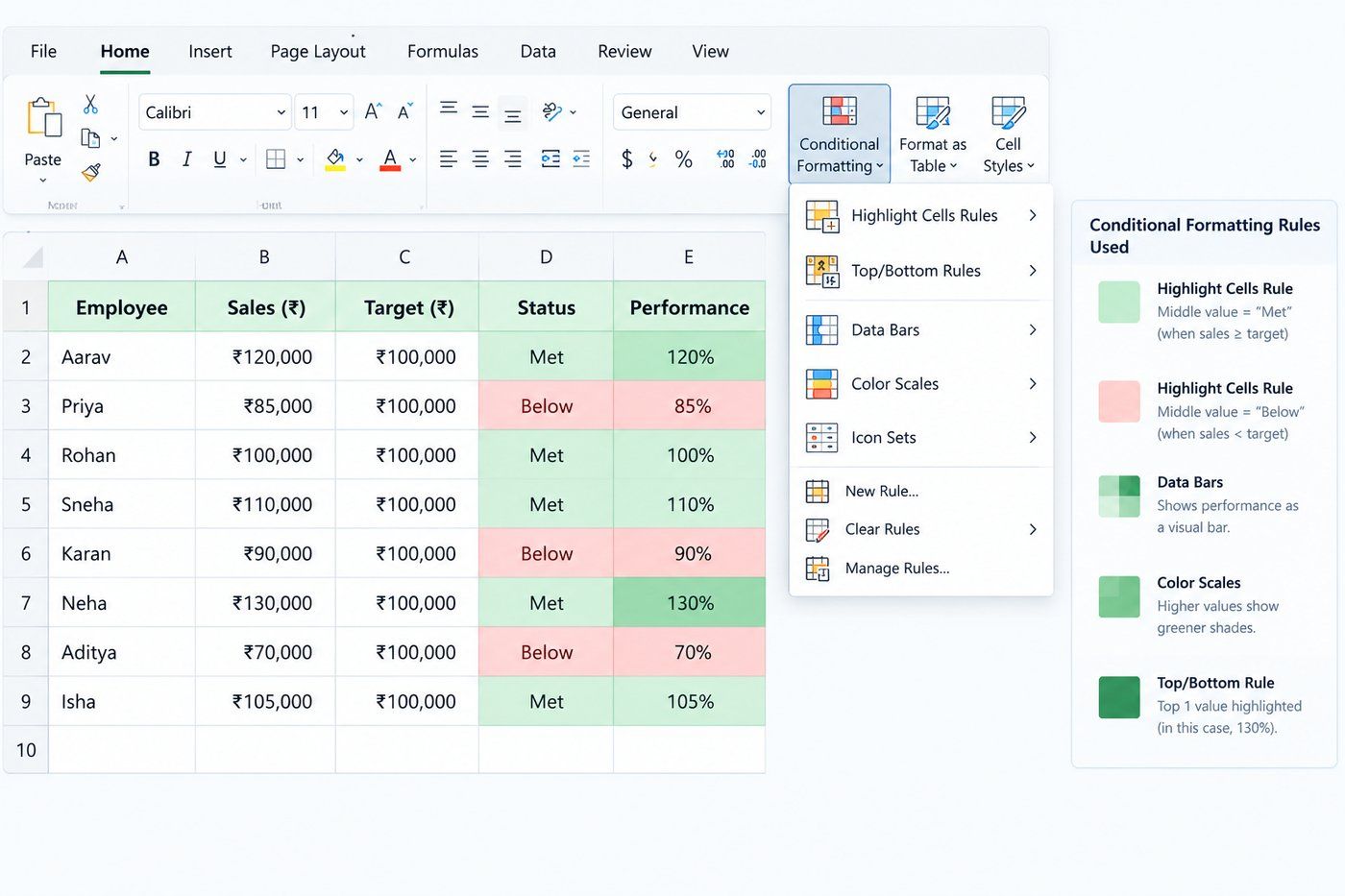
This tells Excel: if a cell meets a certain condition, format it a certain way, automatically.
Converts a plain range into a structured Excel Table, which is more than just a style upgrade.
Benefit |
Description |
| Visual | Alternating row colors, styled headers |
| Filtering | Filter buttons added automatically to headers |
| Formulas | Reference columns by name, like Table1[Sales], instead of cell addresses |
| Customization | Table Design tab lets you switch styles anytime |
Also read: Mastering Excel: A Comprehensive Guide to Boost Your Spreadsheet Skills
Data Science Courses to upskill
Explore Data Science Courses for Career Progression
IIIT Bangalore
Executive Post Graduate Certificate in Data Science & AIPlacement Assistance
Manual cell formatting works fine for static data. But once you're building dynamic reports or summary lines that pull from other cells, you need a formula to control the output, not just a formatting menu. That's what the TEXT function and its related tools are for.
TEXT() converts a number or date into a formatted string, right inside a formula.
=TEXT(value, format_code)
Formula |
Input |
Output |
| =TEXT(2450,"₹#,##0.00") | 2450 | ₹2,450.00 |
| =TEXT(0.084,"0.0%") | 0.084 | 8.4% |
| =TEXT(TODAY(),"DD-MMM-YYYY") | 24/09/2026 | 24-Sep-2026 |
| =TEXT(7,"00000") | 7 | 00007 |
That last example is worth remembering. Zero-padding an ID or invoice number takes one formula instead of manual formatting.
Once a value passes through TEXT(), Excel treats it as text, not a number. It can't be summed, averaged, or used in further math.
Standard practice to avoid this:
One layer for Excel to calculate with, one layer for people to read.
Use cell formatting when the question is how a cell should look.
Use TEXT() inside a formula when the question is how to build a label or sentence from values that change.
Most spreadsheets need both.
Must read: Top 60+ Advanced Excel Formulas List with Examples (2026)
If you format data often, learning a few keyboard shortcuts can save you a good amount of time instead of clicking through menus every time.
These work on whatever cell or range you've selected, and apply the format instantly:
Shortcut |
What It Does |
| Ctrl + Shift + 1 | Applies number format with commas and 2 decimals |
| Ctrl + Shift + 4 | Applies currency format |
| Ctrl + Shift + 5 | Applies percentage format |
| Ctrl + Shift + 3 | Applies date format |
| Ctrl + Shift + 6 | Applies scientific format |
| Ctrl + Shift + ~ | Resets back to General format |
Instead of right-clicking every time, just select your cells and press Ctrl + 1 (Cmd + 1 on Mac). This opens the Format Cells window directly, where you can pick number formats, date styles, borders, alignment, and more, all in one place.
Ctrl + Shift + 3 applies a quick date format to selected cells. There's no default shortcut for time in most Excel versions, so you'd typically go through Ctrl + 1, select Time, and pick the format you want. If you use a specific time format often, it's worth setting it up once and reusing that cell as a template.
To quickly add a border around selected cells, press Ctrl + Shift + 7. This applies an outline border to your selection. For more specific border styles, like only bottom borders or double lines, you'll still need to go through Format Cells or the Borders drop-down in the Home tab.
Other useful ones while formatting cells:
From your first line of Python to your first autonomous AI agent. This Professional Certificate Programme in Data Science & Agentic AI covers Python, SQL, BI, machine learning, and RAG. One programme, a complete skill set. Enroll now.
Even regular Excel users run into these. Most take seconds to fix once you spot the cause.
Common after pasting data from a website or another file. The number looks normal, but Excel reads it as text, so SUM() skips it or throws an error. Look for a small green triangle in the corner of the cell; that's the warning sign.
Fix it two ways:
Color-coding everything backfires. It makes a sheet harder to scan, not easier.
Stick to two or three colors max, each with a clear purpose:
A column mixing 0, 2, and 4 decimal places looks unprofessional, especially in financial sheets.
Fix: Select the entire column or range at once and apply one decimal setting, rather than formatting cells individually as you go.
Merging looks fine for a header, but merging cells within your actual data causes real problems:
Issue |
What Happens |
| Sorting | Stops working correctly |
| Filters | Break or behave unpredictably |
| Formulas | Referencing merged cells can act strange |
Better option: Use Center Across Selection (under Format Cells) instead of merging, when you want that centered look.
Also read: Supercharge Your Analysis with Statistical Functions in Microsoft Excel!
Conclusion
Data formatting in excel is not just about making a sheet look nice. It changes how easily you and others can read, trust, and use the data. A well formatted sheet catches errors faster, works better with formulas, and just looks more professional when you share it with someone else.
Once you get comfortable with the basics, like number formats, date formats, and conditional formatting, it becomes second nature. Try applying a few of these tips to your next sheet, and you'll notice the difference right away.
Have any questions about this topic? Book a free consultation call with our experts and get personalized guidance on the right learning path for you.
A Table (created using Insert > Table) automatically applies banded rows, filter buttons, and structured references in formulas. A normal range with formatting looks similar visually, but doesn't have these built-in features like auto filtering or expanding formulas when you add new rows.
You can use the Format Painter. Select the cell with the formatting you want to copy, click Format Painter on the Home tab, and then click or drag over the cells you want to apply it to. Double-clicking Format Painter lets you apply it to multiple areas without reselecting it each time.
Select the cell or range, go to the Home tab, click on the Clear option in the Editing group, and choose Clear Formats. This removes all formatting but keeps the actual data in the cell.
Yes. Select all the sheets you want to format by holding Ctrl and clicking their tabs, then apply the formatting as usual. It will apply to the same cell range on every selected sheet. Right-click a tab and choose Ungroup Sheets once you're done.
It usually means excel thinks something might be off with the cell, often that a number is stored as text. Click on the cell and a warning icon will appear, giving you the option to convert it to a proper number.
Open Format Cells with Ctrl + 1, go to the Number tab, select Custom from the list, and type your own format code in the Type box. For example, 0.00 "kg" would show a number followed by "kg" while keeping it usable in formulas.
Yes. Fonts, borders, colors, and column widths all show up when you print, so it's worth checking Print Preview before printing to make sure the formatting looks right on paper, not just on screen.
Paste Special lets you choose exactly what gets pasted, like just the formatting, just the values, or just the formulas, instead of pasting everything at once. It's useful when you want to copy formatting without overwriting the data already in a cell.
When you apply a new font size, bold text, or a longer format like a full date, the content may no longer fit in the existing column width. Double-clicking the border of the column header will auto-fit it to the content.
Yes, this is done by creating a custom template. Format a sheet the way you want, then save it as an excel Template file (.xltx), so every new sheet you create from that template starts with the same formatting already applied.
Not directly through Undo, since it tracks actions in order. But you can select the affected cells and use Clear Formats from the Home tab to remove just the formatting, while keeping all your data exactly as it is.
987 articles published
We are an online education platform providing industry-relevant programs for professionals, designed and delivered in collaboration with world-class faculty and businesses. Merging the latest technolo...
Speak with Data Science Expert
By submitting, I accept the T&C and
Privacy Policy
Start Your Career in Data Science Today
Top Resources
Executive Diploma
12 Months
Master's Degree
18 Months
Bootcamp
6 Months