What is Cursor AI? Features, Pricing & How to Use It (2026)
By upGrad
Updated on Oct 14, 2026 | 8 min read | 2.36K+ views
Share:

All courses
Certifications
More
By upGrad
Updated on Oct 14, 2026 | 8 min read | 2.36K+ views
Share:
Table of Contents
Key Highlights
Ready to build your future in AI? Explore upGrad’s Artificial Intelligence courses to develop in-demand skills, gain practical experience, and advance your career in the growing field of AI.
Popular AI Programs
Cursor AI is a code editor with AI built in. It’s made by a company called Anysphere and it came out in 2023. It’s a copy of VS Code that they changed, so if you’ve used VS Code, Cursor will look the same to you. The difference is that you can talk to it. You type what you want, like “add a login form”, and it writes the code.
Several core features of cursor AI are as follows:
Agents are the main way to use Cursor. You write what you want, like “add a login page”, and the agent reads your project, plans the work and changes the files it needs. It can also run searches and commands along the way. When it finishes, you review the changes and accept or reject them.
For bigger tasks, you can turn on Plan Mode. The agent first writes a plan with a list of tasks, so you can check it before any code is written.
Regular agents run on your computer. Cloud agents run on their own computers, so your machine stays free. Cursor says they can build, test and demo a feature from start to finish, and then show you the result to review.
You can start many cloud agents at once on different tasks, and they can keep working for hours or days.
Cursor indexes your project so it knows what is in it. It searches by meaning, not only by exact words, so you can ask “where is this API called?” or “what depends on this module?” and get an answer from any file. This helps most in large or messy projects where you can’t remember where things are.
For small changes you don’t need an agent. Select some code, press Cmd+K, and write what you want changed, like “add error handling”. Cursor edits only that part and shows you the change. It gives you a way to make quick edits yourself while keeping control, and use agents only when the task is bigger.
You decide which AI model does the work. Cursor’s model menu includes models from OpenAI, Anthropic, Google, SpaceXAI and Cursor’s own Composer model. There is also an Auto option that picks a model for you.
Third-party models are billed separately by usage, so a heavier model costs more than a lighter one.
Cursor works outside the editor too.
You can turn on Privacy Mode in settings, or a team admin can turn it on for everyone. When it’s on, Cursor says your code data is not used for training, by Cursor or by the model providers it works with.
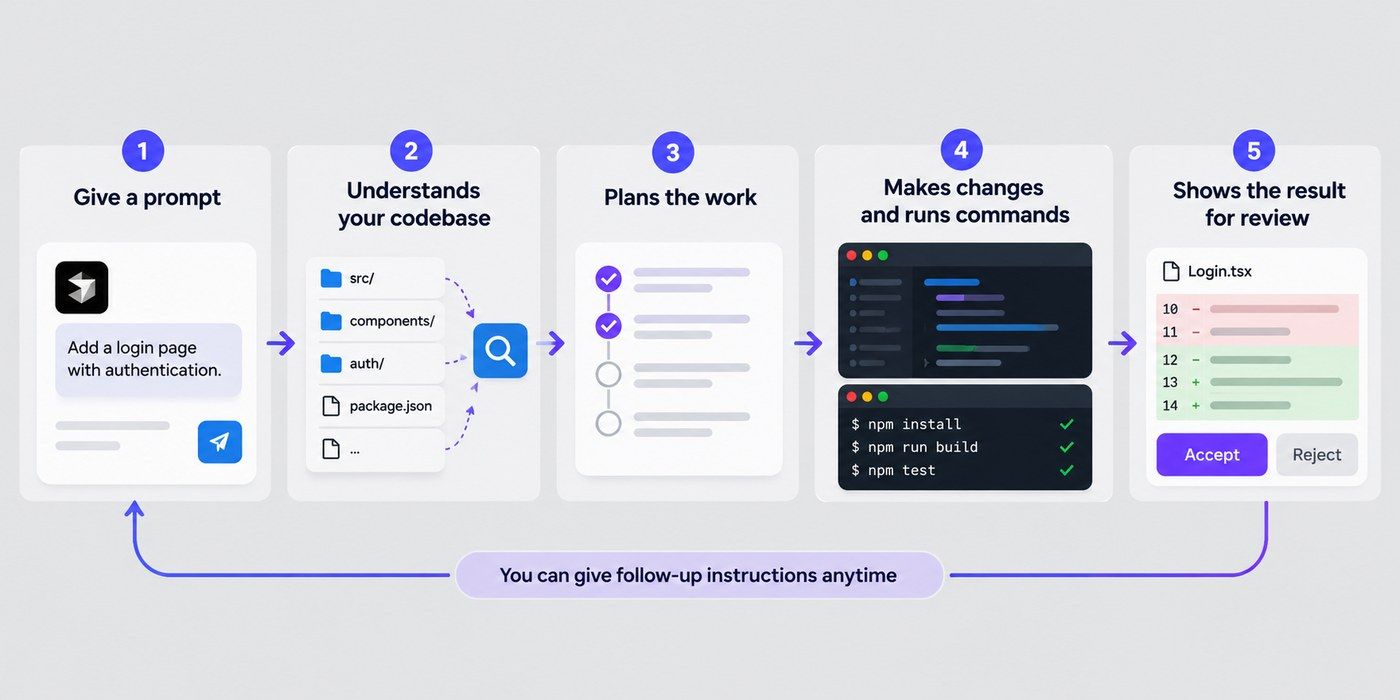
Cursor reads your project and keeps an index of it. When you ask something, it looks through that index and finds the parts of your code that matter for the question. Then it sends those parts and your question to the AI model you picked.
The answer comes back in the editor, and you decide whether to keep it. That’s how it can answer questions about a big project and not only the file you have open.
Also read: Claude AI Agent: What It Is and How It Works
Free Courses
Yes, you can start for free. Cursor AI offers a permanent free tier called the Hobby plan.
Cursor’s pricing page lists a Free plan with a limited number of agent and chat requests, and you can sign up without paying. It is enough to try Cursor on a real task, but not enough for daily use. Most of the useful features, like cloud agents and code review, need a paid plan.
These are the plans in Cursor’s docs. Prices are per month and do not include tax, except Start.
Plan |
Price |
Notes |
| Free | $0/month | Limited AI usage and requests |
| Plus | $8/month | Basic usage; third-party model usage is billed separately |
| Premium | $30/month | 4× more usage than Plus, cloud agents, automations, and AI code reviews |
| Super | $100/month | 15× more usage than Plus and priority model access during peak times |
| Ultra | $200/month | 50× more usage than Plus and earliest access to products and models |
| Teams | $30+/user/month | Shared team features, centralized billing, administration, and team-wide privacy settings |
| Enterprise | Custom pricing | Advanced security controls, granular spending limits, audit logs, and priority support |
Learn how to use Generative AI and Agentic AI to solve business problems and lead AI projects with upGrad’s Executive Programme in Generative AI & Agentic AI for Leaders, in collaboration with IIIT Bangalore.
AI Courses to upskill
Explore Artificial Intelligence Courses for Career Progression
Cursor AI is easy to use, the developers who are new to AI-powered coding tools can also use it. Follow the below steps to install Cursor and get better results from its AI features.
Go to cursor.com/downloads and download the installer for your system. Cursor supports macOS 12 and later (Apple Silicon and Intel), Windows 10 and later, and Linux. Open the app, sign in, and pick a folder with your project in it.
Cursor is built on VS Code, so you can bring your setup with you. Brings over your extensions, themes, settings and keybindings. If you skipped the import prompt when you first opened Cursor, you can do this at any time.
If you are moving from a different computer, or you want more control, use a profile instead. In VS Code, open the Command Palette and export your profile, which saves a .code-profile file. In Cursor, open the profiles menu, click the dropdown next to New Profile, choose Import Profile, and click Import.
Open the agent with Cmd+I on Mac or Ctrl+I on Windows. For a first prompt, ask Cursor to explain your project, for example: “Explain this codebase. Point me to the main entry points and key modules.” Cursor searches your files and gives you a summary, which is a quick way to understand a project you don’t know.
Then try one small change. Cursor suggests asking for three small, safe improvements and choosing one. Good first tasks are low risk, like fixing a small UI issue or improving some text. When the agent finishes, look at the diff to see what it changed, and ask it to run your tests or build.
Also read: Warp AI Terminal: What It Is, Features & How to Use It?
No doubt Cursor AI is a useful coding assistant, but the other tools can be helpful based on your project, budget and coding experience. Below are the different tools for developers and non-coders.
Tool |
Type |
Best for |
| GitHub Copilot | Plugin for popular IDEs | Teams already on GitHub |
| Windsurf | AI code editor | A Cursor-like editor |
| Claude Code | Terminal tool | Terminal-based workflows |
| Cline | Open-source VS Code extension | Control over models and costs |
| Continue | Open-source plugin | A customizable setup |
Copilot is an AI coding assistant that gives code suggestions, explains code and helps with debugging. Its coding agent can also work on GitHub issues and create pull requests.
Windsurf is an AI-powered code editor built around an agent called Cascade. It helps you understand your codebase, generate code and make changes across files.
Claude Code is an AI coding tool from Anthropic that works mainly through the terminal. It can analyze a codebase, edit files, run commands and handle complex tasks. It runs alongside your existing editor, so you don’t have to switch.
Cline is an open-source AI coding assistant that runs as a VS Code extension. It can plan tasks, edit files, run terminal commands and work with development tools.
Continue is an open-source AI coding platform. It supports code completion, chat and AI-assisted development workflows.
For people with limited coding experience, some tools can build an app from a plain description. They make it easier to create prototypes and web apps without writing every line of code.
Tool |
What it does |
Best for |
| Lovable | Turns text prompts into web apps | Founders and beginners |
| Bolt | Builds web apps in the browser | Rapid prototyping |
| Replit | Builds, tests and publishes in one place | Beginners who prefer working in a browser |
Lovable turns text prompts into web applications. You describe what you need, generate a first version, and refine the design and features with more instructions.
Bolt lets you build web apps directly in a browser using natural-language prompts. You can generate, preview and edit your app without setting anything up on your computer.
Replit is an online platform that combines coding, AI-assisted app creation, testing and publishing. You describe an app, let its AI agent help build it, and publish it from the same place.
Also read: Foundation Models in AI: Types, Examples, Uses and Benefits
Conclusion
Now you know what is Cursor AI? It is a code editor built on VS Code, with an AI agent at its center. You tell it what you want, and it reads your project, changes the files and shows you the result to review. It also has Tab autocomplete, quick inline edits with Cmd+K, cloud agents, a terminal version and code review on GitHub.
It makes the most sense if you write code every day and want AI inside your editor. Try the free plan first if one is available, and move to a paid plan if you hit the limits. Prices and plans change often, so check Cursor’s pricing page before you pay. If you don’t write code, or you prefer to stay in your own editor or terminal, look at the alternatives.
Have any questions about artificial intelligence courses? Book a free consultation call with our experts and get personalized guidance on the right learning path for you.
Similar reads:
What is ChatGPT? An In-Depth Exploration of OpenAI's Revolutionary AI
Understanding “Is ChatGPT Generative AI?”
Large Language Models: What They Are, Examples, and Open-Source Disadvantages
23+ Top Applications of Generative AI Across Different Industries
No. Cursor is proprietary software made by Anysphere. It is built on VS Code, which is open source, but Cursor itself is not. If open source matters to you, the Alternatives section above lists Cline, Continue and Zed.
Mostly no. The AI models run on servers hosted by the model provider, a partner or Cursor, so agents, chat and Tab need an internet connection. The app also contacts Cursor’s servers for updates and the marketplace. Since Cursor is built on VS Code, you should still be able to open and edit files without a connection, but test this yourself.
Cursor’s docs list models from Anthropic (Claude Sonnet 5.5, Opus 5.5, Fable 5.1 and Haiku 5.5), OpenAI (GPT-5.6 Sol, Terra and Luna), Google (Gemini 3.1 Pro and 3.8 Flash), Meta (Muse Spark 1.3), and Cursor’s own models (Grok 4.5, 4.6 and 4.7, and Composer 2.5). The list changes often, so check the docs before you publish.
Because Cursor is built on VS Code, it works with the languages VS Code supports, like JavaScript, TypeScript, Python, Go and Java. How good the help is depends on the model you pick and on the extensions you have installed.
Partly. Cursor’s docs mention Cursor for iOS, which works with cloud agents, so you can start and check tasks from your phone. I could not confirm an Android app, or whether you can edit code directly on a phone.
Yes, but it works best if you can read the code it writes. A good way to start is to ask Cursor to explain a piece of code, and to begin with small, low-risk changes. The risk for beginners is accepting changes you don’t understand, so read each diff before you accept it. If you don’t want to read code at all, look at the non-coder tools in the Alternatives section.
Not a standing one. Cursor’s student page says anyone can get started for free, and that upgrade discounts come through promotions at campus and online events. You can sign up for their campus newsletter to hear about these.
Cursor says it holds SOC 2 Type II, ISO 27001, ISO 42001 and AIUC-1 certifications, and that it uses no infrastructure in China. Privacy Mode is available to anyone, including free and Pro users, and when it is on, Cursor says it will not train on your data. If you work with sensitive code, turn Privacy Mode on and read Cursor’s data-use page to see what is sent when it is off.
Yes. You can delete your account at any time from the Settings dashboard, and Cursor has an account deletion guide in its help center.
It fits people who write code most days and want AI inside their editor, especially those who work in large projects and are comfortable reviewing changes. It is less suited to people who don’t code, or to people who want to stay in another editor or in the terminal.
It depends on how much you use it. If it saves you time on routine work like finding code, small edits and first drafts, the cost is easy to justify. The best test is to use it on one real task from your own project and compare the time. Watch your usage in the first month, because heavy agent use can push you past your plan and cost more.
1038 articles published
We are an online education platform providing industry-relevant programs for professionals, designed and delivered in collaboration with world-class faculty and businesses. Merging the latest technolo...
Speak with AI & ML expert
By submitting, I accept the T&C and
Privacy Policy
Top Resources
Master's Degree
18 Months
Executive Diploma
12 Months
IIIT Bangalore
Executive Programme in Generative AI & Agentic AI for LeadersIndia’s #1 Tech University
Dual Certification
5 Months