What Is Ollama? How It Works, Features, and Support Models
By upGrad
Updated on Oct 12, 2026 | 8 min read | 3.47K+ views
Share:

All courses
Certifications
More
By upGrad
Updated on Oct 12, 2026 | 8 min read | 3.47K+ views
Share:
Table of Contents
Key Highlights
Want to go beyond running models on your laptop? Check out upGrad’s Generative AI and Agentic AI courses to learn how to build real AI projects and move into a career in AI.
Agentic AI Courses to upskill
Explore Agentic AI Courses for Career Progression
IIIT Bangalore
Executive Diploma in Machine Learning and AI360° Career Support
Ollama is a free tool that lets you run AI models on your own computer.
Normally, when you use an AI chatbot, your message goes to a company’s server. The server thinks about it and sends back an answer. With Ollama, none of that happens. The AI runs right on your laptop or desktop.
You download a model once. After that, you can chat with it, build apps with it, or connect it to other tools. You don’t need a cloud account.
Ollama takes care of the hard technical parts. You don’t have to worry about file formats, memory, or graphics card settings. Type one simple command, and the model starts working.
It runs on Mac, Windows, and Linux.
Ollama is not an AI model, it is the tool that runs AI models. The models, like Llama, Mistral, and Gemma, come from other companies.
Also read: What are the Different Types of LLM Models?
Now, you know what is Ollama, next check how Ollama works?
Ollama does three simple things. It gets the model, runs it, and lets you talk to it. Below is detailed explanation of its process:
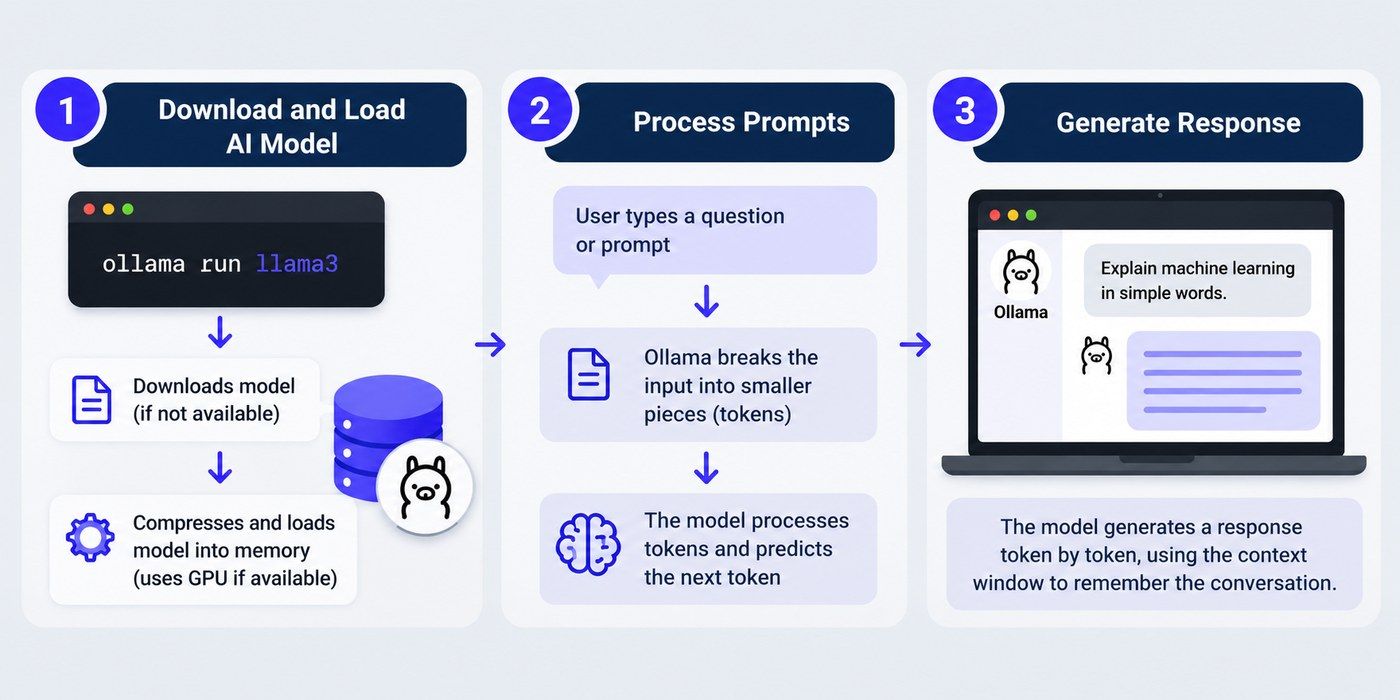
Everything starts with one command, like ollama run llama3.
Ollama first checks if the model is already on your computer. If not, it downloads it. Models are shrunk down to save space, this is called quantization. It makes the files smaller and easier to run, and the answers stay almost as good.
Next, Ollama loads the model into your computer’s memory. If you have a good graphics card, the tool will use it to go faster. The first load can take a few seconds but after that the model will stay ready for a while. So, your questions feel quick. Once you are done with your chatting, Ollama will clear it from memory on its own.
When you type a question, Ollama breaks it into small pieces called tokens. A token is usually a word or part of a word.
The model then guesses the next token, then the next one, and keeps going until the answer is done. That is why you see the reply appear word by word.
Ollama also keeps track of the context window. This is how much of your chat the model can remember at one time. A bigger window means better memory, but it also uses more of your computer’s resources.
There are two main ways to use Ollama.
Ollama works with the same format that OpenAI uses, you can connect multiple existing tools with it just by a small change. In case you don’t like the terminal, there are desktop apps and chat interfaces that feel like a normal chatbot.
Also read: Top 10 Artificial intelligence Models
Ready to go deeper than running models on your laptop? Check out upGrad’s Data Science and Generative AI certification with IIIT Bangalore and build skills that employers look for.
Ollama supports many open models, and the list keeps growing. It is easier to think about them in groups.

These are the all-rounders. They handle everyday tasks like:
Popular families include Llama from Meta, Mistral, Gemma from Google, Qwen from Alibaba, and Phi from Microsoft. They come in small and large sizes. Small ones run on a basic laptop. Large ones need strong hardware.
Some models are built for programming. They can write code, explain it, fix bugs, and create tests.
Reasoning models work differently. They think through a problem step by step before they answer. This helps with math, logic, and tricky questions. You can find options like Qwen Coder and DeepSeek in the library.
These models can look at pictures, and answer your related questions. An image can be a screenshot, a chart, scanned page, etc.
They are useful for describing images, reading text from photos, and explaining diagrams. Here, the LLaVA is the best choice. However, some new models like Gemma and Qwen also support images.
Picking a model is easy if you follow these steps:
Also read: Difference Between LLM and Generative AI
Here is why people like using Ollama.
Also read: How to Build Your Own AI System: Step-by-Step Guide
Ollama is great, but it has some limits you should know about.
Also read: LLM Examples: Real-World Applications Explained
Neither one is better in every case. They suit different needs. Here is how they compare.
Factor |
Ollama (Local) |
Cloud-Based AI Models |
| Privacy | Your data stays on your computer | Your data goes to the company’s servers |
| Internet access | Works offline after you download the model | Needs an internet connection |
| Performance | Depends on your computer. Small models are fast, big ones can be slow | Fast and steady, with access to the strongest models |
| Cost | Free to run, but you pay for your hardware and power | You pay per use or through a subscription |
| Setup | You install the tool and pick a model | Ready to use in a few minutes |
| Scalability | Good for one person or a small team | Built to serve thousands of users |
A lot of people use both. They keep Ollama for private work, offline tasks, and experiments. They use cloud models when they need the best quality or have to serve many users.
Also read: Top Agentic AI Tools in 2026 for Automated Workflows
Conclusion
Once you know what is Ollama and how it works. Running AI on your own computer with the help of Ollama becomes easy. Now, you don’t need cloud accounts, monthly plans or complicated setups. You just need to install it, pick a model and start using it.
However, it has limits and your computer decides how fast the model runs. Remember, the best cloud model can beat the local model on hard tasks. But for private work, offline use, building apps, and learning how AI works, Ollama is hard to beat.
If you want to know about local AI, try Ollama.
Confused about your career? Book a consultation call with upGrad and get clear, personalized guidance.
Go to the official Ollama website and download the installer for your system. On Mac and Windows, you run it like any other app. On Linux, you paste a single install command into the terminal. Once it is done, open a terminal and type ollama run followed by a model name. Ollama will download the model and start a chat.
No. Ollama can run models on your CPU alone. It will be slower, though, especially with bigger models. A supported GPU speeds things up a lot. Apple Silicon Macs are a good middle ground because the chip shares memory between the CPU and GPU.
Ollama keeps downloaded models in a hidden folder on your computer. You don’t need to dig through it by hand. Type ollama list to see what you have installed. To remove a model and free up space, type ollama rm followed by the model name.
Run ollama pull with the model name again. Ollama checks for a newer version and only downloads what has changed. To update Ollama itself, install the latest version from the website, or let the app update itself if it offers to.
Not on its own. Ollama runs the model, but it does not come with a built-in way to search your files. You can pair it with other tools like Open WebUI or AnythingLLM. These let you upload documents and ask questions about them while the model still runs locally.
Ollama does not train models. It is made for running them. You can still use a model that someone else has fine-tuned. If you have a small add-on file for a model, called a LoRA adapter, you can attach it through a Modelfile. For real training, you will need other tools.
Both let you run AI models on your own computer. LM Studio is built around a visual app where you browse, download, and chat with models by clicking. Ollama is built around the terminal and the API, which makes it a favorite with developers. If you like clicking, try LM Studio. If you like commands and building apps, Ollama is a good fit.
Yes. Ollama has an official Docker image. This is handy if you want a clean setup, or if you want to run it on a server. If you want GPU support in Docker, you will need to set that up first, and NVIDIA cards need an extra toolkit installed.
Yes, if your computer has enough memory. Ollama can keep several models loaded and handle requests for each. If memory runs low, it unloads the ones you haven’t used recently. You can also change how many models stay loaded with a setting.
Not really. When you close a chat in the terminal, the conversation is gone. The model also doesn’t learn from your chats. If you use the API, you have to send the earlier messages again with each new request. Chat apps built on top of Ollama usually save your history for you.
By default, Ollama only listens on your own computer, so nobody else can reach it. You can change this setting to let other devices on your network connect. Be careful here. Ollama has no login by default, so anyone who can reach it can use it. Don’t open it to the internet without a password or some kind of protection in front of it.
1024 articles published
We are an online education platform providing industry-relevant programs for professionals, designed and delivered in collaboration with world-class faculty and businesses. Merging the latest technolo...
Speak with AI & ML expert
By submitting, I accept the T&C and
Privacy Policy