Looker Studio tutorial: A Complete Guide to Building Smart Dashboards
By Sriram
Updated on Jun 18, 2026 | 6 min read | 4.58K+ views
Share:

All courses
Certifications
More
By Sriram
Updated on Jun 18, 2026 | 6 min read | 4.58K+ views
Share:
Table of Contents
Looker Studio is a free business intelligence and data visualization tool that transforms raw data into interactive dashboards. To create a report, connect data sources such as Google Analytics 4, Google Sheets, or Google Ads. You can then add charts, scorecards, and tables, apply filters for deeper analysis, and share real-time insights with teams, stakeholders, or clients.
In this blog, you’ll learn how Looker Studio works, how to connect data sources, build dashboards, and use advanced features like calculated fields and filters. Everything is explained in a simple, hands-on way so you can actually apply it in real projects instead of just reading theory.
Explore Online Digital Marketing Courses from upGrad and gain a deeper understanding of how businesses in India are leveraging digital channels.
The Looker Studio tutorial starts with understanding what the tool really does behind the scenes. Looker Studio is a free data visualization platform by Google that converts raw data into interactive dashboards. It connects to multiple data sources and presents insights in a visual format.
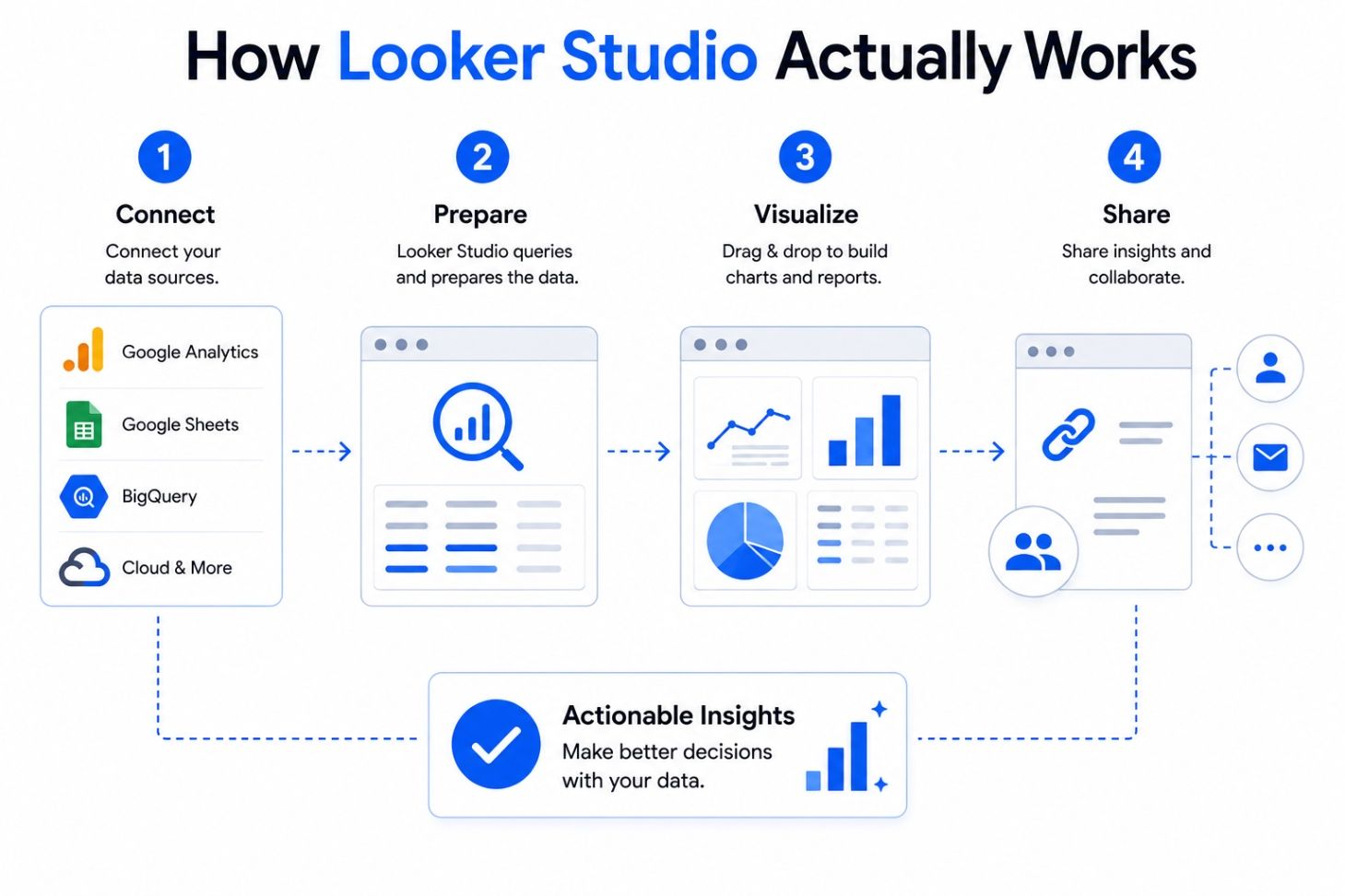
At its core, it works in three simple steps:
In real-world use, marketers use it to track campaign performance, while analysts use it for business KPIs. A typical SEO dashboard, for example, might show clicks, impressions, CTR, and conversions in one view instead of multiple tools.
Free Courses
The Looker Studio tutorial becomes practical when you start connecting real data. This is where most beginners either gain clarity or get confused.
Looker Studio supports multiple connectors, including:
After connecting a data source in Looker Studio, follow these key points:
Also Read: A Comprehensive Guide to Understanding the Different Types of Data in 2025
Digital Marketing Courses to upskill
Explore Digital Marketing Courses for Career Progression
MICA Executive Alumni Status
The Looker Studio tutorial becomes interesting when you start designing dashboards that people actually use. This is where data turns into storytelling.
Dashboards are built using components like:
The key idea is not to use every chart type, but to choose what answers a question quickly.
For example, if you're tracking website traffic, a time series chart works better than a table. If you're comparing campaigns, bar charts are more effective.
Layout also matters. A common approach is:
Section |
Purpose |
| Top row | KPIs (traffic, conversions) |
| Middle | Trends over time |
| Bottom | Detailed breakdowns |
Filters also play a big role. They allow users to switch between date ranges, regions, or campaigns without changing the report.
In real business use, dashboards are often shared with teams who don’t understand raw data. So clarity matters more than complexity.
Also Read : List of Google Updates 2021 [Updated]
Looker Studio becomes far more powerful when you move beyond basic charts and start using advanced analytical features. These capabilities help transform raw data into deeper insights, enabling more accurate reporting and smarter business decisions.
One of the most useful features is calculated fields. These allow you to create custom metrics like:
Conversion rate = conversions/sessions
This helps you build business-specific metrics instead of relying only on default ones:
Filters are another powerful tool- They let you slice data based on conditions like geography, device type, or campaign source.
Data blending is slightly more advanced- It allows you to combine two different data sources into one view. For example, merging Google Ads data with CRM sales data.
But there’s a catch-Blending too many datasets can slow down performance and sometimes create mismatched results if keys are not aligned properly.
A realistic limitation here -is that Looker Studio is not a full BI engine like Tableau or Power BI. It works best for lightweight to medium-level reporting.
Looker Studio is powerful, but using it effectively requires understanding both its strengths and limitations. A well-designed dashboard improves decision-making, while poor design can reduce performance and usability.
Before building reports, it's important to follow best practices and be aware of practical challenges that arise in real business environments.
The following practices help create faster, cleaner, and more reliable dashboards.
Best Practice |
Why It Matters |
| Use pre-aggregated data | Reduces dashboard load time and improves performance. |
| Keep dashboards simple | Too many visuals can confuse users and slow reports. |
| Use consistent naming conventions | Makes reports easier to maintain and understand. |
| Avoid unnecessary filters | Excess filters increase complexity and processing time. |
| Limit heavy data blending | Large joins may impact dashboard speed and accuracy. |
Also read: Top Digital Marketing Channels for Maximum Reach and ROI
Looker Studio is widely used across industries for reporting and analytics.
Use Case |
Example |
| Marketing Dashboards | Monitor traffic, conversions, and campaign ROI. |
| SEO Reporting | Track impressions, clicks, rankings, and CTR. |
| Business KPI Tracking | Measure revenue, customer growth, and performance. |
| Executive Reporting | Provide stakeholders with high-level insights. |
Also read : 7 Best Lead Generation Techniques That Work in 2025
Like any BI tool, Looker Studio also has certain limitations.
Limitation |
Impact |
| Large datasets | Dashboards may become slow with massive data volumes. |
| Complex transformations | Advanced data modeling often requires external tools. |
| Connector dependency | Performance depends on connected data sources. |
| Limited version control | Team collaboration is less advanced than enterprise BI tools. |
Despite these limitations, Looker Studio remains highly accessible. Users with basic data knowledge can create interactive dashboards without coding, making it an excellent choice for marketers, analysts, developers, and students.
The Looker Studio tutorial gives you a complete path from understanding the tool to building and optimizing real dashboards. It’s not just about charts; it’s about turning data into decisions.
Once you practice connecting data, building visuals, and applying filters, you start thinking differently about reporting itself. It becomes less about numbers and more about clarity and action.
If you treat Looker Studio as a storytelling tool rather than just a reporting tool, your dashboards will instantly become more useful in real-world scenarios.
Want personalized guidance on Digital Marketing Business in India? Speak with an expert for a free 1:1 counselling session today.
Most users can learn the basics of Looker Studio within a few hours. However, building advanced dashboards with calculated fields, data blending, and custom filters may take a few weeks of practice. The best approach is to work on real datasets rather than only watching tutorials. A hands-on Looker Studio tutorial often speeds up learning significantly.
Looker Studio can work with large datasets, but performance depends on the connected source and query complexity. Dashboards with multiple charts and filters may load slowly when millions of records are involved. Using pre-aggregated data or connecting to a data warehouse like BigQuery often improves speed and reliability.
No, Looker Studio does not require coding for most tasks. Users can build dashboards using drag-and-drop components. However, knowledge of formulas, SQL, or data modeling becomes useful when creating advanced reports, calculated fields, or integrating multiple data sources.
Calculated fields let you create custom metrics using formulas. For example, you can calculate conversion rate, profit margin, or average order value directly inside a report. This feature reduces the need to modify source data and allows teams to build business-specific KPIs quickly.
Yes, Looker Studio is free for individual users and businesses. You can connect to several Google data sources without additional cost. Some third-party connectors may require paid subscriptions. A Looker Studio tutorial often starts with free integrations before moving to advanced enterprise use cases.
Looker Studio integrates smoothly with Google Analytics 4, Google Ads, Search Console, BigQuery, and Google Sheets. The ideal source depends on your reporting needs. Marketers often use GA4 and Search Console, while analysts may prefer BigQuery for handling larger datasets.
Looker Studio focuses on dashboard creation and reporting, while Looker is a full business intelligence platform with advanced data modeling capabilities. Small teams often use Looker Studio because it is easier to set up. Larger organizations may choose Looker for enterprise-level analytics.
Refresh rates vary depending on the connector being used. Some sources update almost in real time, while others refresh periodically. If your dashboard tracks campaign performance or website traffic, always check refresh settings to avoid making decisions based on outdated information.
Looker Studio does not directly connect to Excel files in all cases. Many users upload Excel data to Google Sheets first and then connect it to their reports. This method also makes collaboration easier because teams can update data without manually replacing files.
A frequent mistake is adding too many charts and metrics to a single report. This often creates clutter and reduces performance. Another issue is connecting unclean data sources. Following a structured Looker Studio tutorial helps users avoid these problems and build dashboards that are easier to understand.
Yes, Looker Studio is widely used for SEO reporting because it integrates with Google Search Console and analytics tools. You can track impressions, clicks, CTR, and landing page performance in one dashboard. SEO teams often automate weekly reports to save time and improve decision-making through visual insights.
730 articles published
Sriram K is a Senior SEO Executive with a B.Tech in Information Technology from Dr. M.G.R. Educational and Research Institute, Chennai. With over a decade of experience in digital marketing, he specia...
Get Free Consultation
By submitting, I accept the T&C and
Privacy Policy
Level Up Your Digital Marketing Career Today!
Top Resources
MICA
Advanced Certificate in AI-Powered Digital Marketing & Communication from MICAMICA Executive Alumni Status
Certification
5 Specialisation
Classroom
4 Months
Certification
2 Months