File Handling in Python: Complete Guide With Examples
By Sriram
Updated on Jul 10, 2026 | 14 min read | 4.47K+ views
Share:

All courses
Certifications
More
By Sriram
Updated on Jul 10, 2026 | 14 min read | 4.47K+ views
Share:
Table of Contents
Key Takeaway
In this blog, you will get a complete walkthrough of file handling in Python, from the basics to real coding examples. We will cover file-handling modes in Python, how to read and write files, work with CSV data, handle errors properly, and see complete, working programs. By the end, you will be able to write your own file-handling program in Python with confidence.
Understanding AI concepts is only the first step toward building a successful career in this field. Explore AI courses offered by upGrad and compare programs designed to help you develop practical, industry-ready skills.
Popular AI Programs
File handling is a set of built-in tools and functions that let you interact with files stored on your computer, without leaving your Python script. It is the process of creating, opening, reading, writing, and closing files directly from your code.
Instead of manually typing data every time, Python lets you store information in files and pull it back whenever you need it. Whether you are building a small script or a full application, file handling in Python is one of the first practical skills you need to master.
Python treats files as objects. When you open a file, Python gives you a file object that you can use to perform actions like reading or writing. This is what makes file handling in Python so simple compared to some other languages.
Here is a quick way to explain file handling in Python: think of a file as a notebook. You can open the notebook, read what is written, add new notes, erase old ones, or close it and put it away. Python's file handling functions do exactly this, just with code instead of your hands.
Also Read: Python Tutorial: Setting Up, Tools, Features, Applications, Benefits, Comparison
Files let your Python programs save and reuse data even after the script stops running, instead of losing everything once it exits. This makes file handling essential for tasks like logging, reporting, automation, and working with real-world data. File handling matters as it:
Also Read: What is Python Web Scraping?
Python can work with several types of files, each suited to a different data format, from plain text to structured records. Knowing which type you're dealing with helps you pick the right mode and method for reading or writing it.
File Type |
Description |
Common Extension |
| Text files | Store readable text data | .txt |
| CSV files | Store tabular data separated by commas | .csv |
| JSON files | Store structured data as key-value pairs | .json |
| Binary files | Store non-text data like images or audio | .jpg, .mp3, .exe |
Also Read: Difference between Text File and Binary File
Python's built-in open() function works with all of these, though binary files need a slightly different mode, which we will cover next.
If someone asks you to explain file handling in Python during an interview or a class, this is the core idea to remember: it is about interacting with files using Python's built-in functions, without depending on any external software.
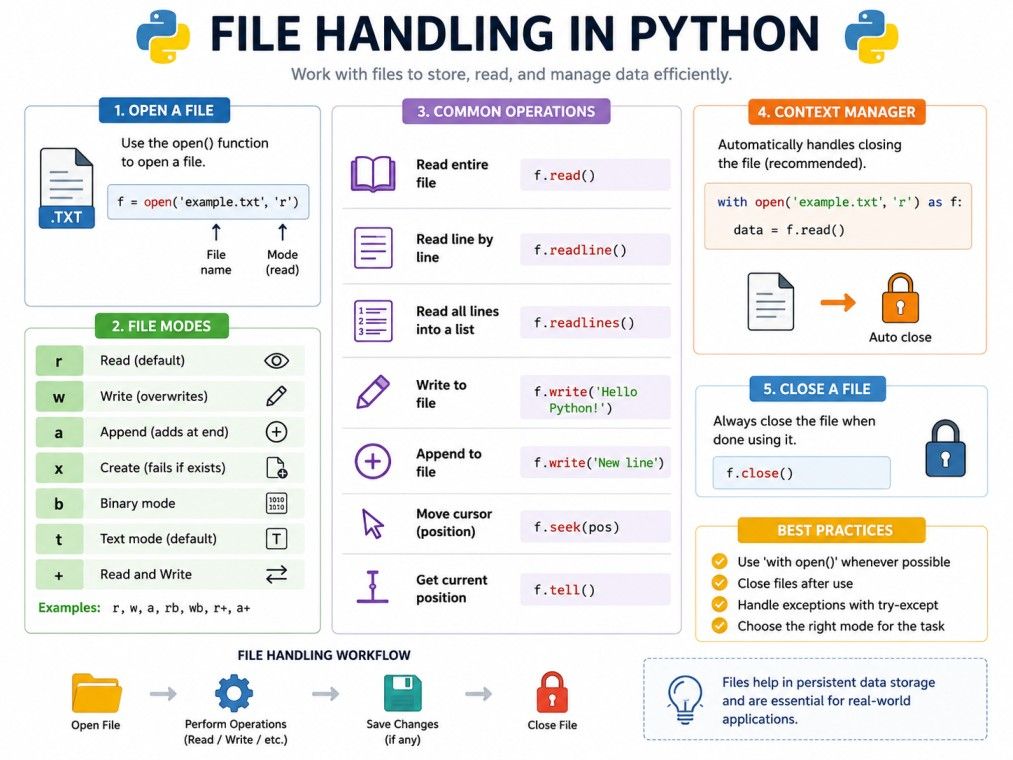
Free Courses
Before you open a file, Python needs to know what you plan to do with it. That is where file handling modes in Python come in. A mode tells Python whether you want to read, write, append, or do something else with the file.
Here are the most commonly used file handling modes in Python:
Mode |
Meaning |
What Happens |
| r | Read | Opens file for reading. File must exist |
| w | Write | Creates a new file or overwrites an existing one |
| a | Append | Adds new data at the end of the file |
| r+ | Read and Write | Opens file for both reading and writing |
| w+ | Write and Read | Overwrites file and allows reading |
| a+ | Append and Read | Adds data at the end and allows reading |
| rb | Read Binary | Opens a binary file for reading |
| wb | Write Binary | Opens a binary file for writing |
Picking the correct mode matters a lot. If you use w mode by mistake on a file you meant to only read, you will erase everything in it. Here is a simple rule of thumb:
# Opening a file in read mode
file = open("notes.txt", "r")
Properly understanding file handling modes in Python will save you from a lot of accidental data loss. Always double check the mode before running a script that writes to a file.
If you're looking to turn Python fundamentals into a career in AI and machine learning, upGrad's Executive Diploma in Machine Learning & AI with MLOps, Gen AI & Agentic AI can help you get there. The program covers everything from core Python and data handling to building, deploying, and scaling real-world ML and AI systems, including MLOps pipelines, Generative AI, and Agentic AI applications.
AI Courses to upskill
Explore Artificial Intelligence Courses for Career Progression
Once you know the mode, the next step is actually opening the file. Python's open() function is the starting point for almost every file handling task.
file = open("data.txt", "r")
This line opens data.txt in read mode and stores the file object in the variable file. You can now call methods on this object to read its content.
Every file you open should be closed once you are done. This frees up system resources and makes sure your data is saved properly.
file = open("data.txt", "r")
content = file.read()
file.close()
Forgetting to close a file is a common mistake, especially for beginners. It can lead to locked files or data that does not get saved correctly.
Also Read: Python File Handling: Opening and Closing Files in Python with Examples
A cleaner and safer way to handle files is with the with statement. It automatically closes the file for you, even if an error occurs while working with it.
with open("data.txt", "r") as file:
   content = file.read()
Notice there is no need to call file.close() here. Python takes care of it once the code inside the with block finishes running.
Aspect |
open() and close() |
with open() |
| File closing | Manual, must call close() | Automatic |
| Error handling | Risky if an error skips close() | Safer, closes file even on error |
| Code length | Slightly longer | Shorter and cleaner |
| Recommended for | Quick scripts | Most real-world code |
Most Python developers prefer the with statement because it is short, readable, and reduces the chance of leaving files open by mistake.
Reading data is one of the most common file handling tasks. Python gives you three main methods to do this, and each one works a little differently.
read(), readline(), and readlines()
Method |
What It Returns |
Best Used For |
| read() | Entire file content as one string | Small files |
| readline() | One line at a time | Reading line by line manually |
| readlines() | List of all lines | When you need each line as a separate item |
with open("data.txt", "r") as file:
   print(file.read())
with open("data.txt", "r") as file:
   line = file.readline()
   print(line)
with open("data.txt", "r") as file:
   lines = file.readlines()
   print(lines)
If you were asked to explain file handling in Python to a beginner, reading methods are usually the easiest place to start, since the output is something you can see right away.
For large files, reading everything at once is not ideal. It can slow down your program or use too much memory. Instead, loop through the file directly:
with open("data.txt", "r") as file:
   for line in file:
       print(line.strip())
This method reads one line at a time and is the most memory-efficient way to process large text files.
Reading is only half the job. Most real applications also need to write data back into files, whether that is logs, reports, or saved user input.
with open("output.txt", "w") as file:
   file.write("Hello, this is a new file.")
Remember, w mode overwrites the file completely. If output.txt already had content, it will be gone after this runs.
Also Read: How To Write to a File in Python
with open("output.txt", "a") as file:
   file.write("\nThis line gets added at the end.")
Append mode is useful when you want to keep a running log without deleting older entries.
Also Read: Append in Python
Feature |
Write Mode (w) |
Append Mode (a) |
| Existing content | Erased | Kept |
| New content | Replaces file | Added at the end |
| Common use | Creating fresh reports | Logging, tracking history |
Knowing what is file handling in Python at a code level, and not just in theory, means you should be able to write, run, and read back a file without checking documentation every time.
Subscribe to upGrad's Newsletter
Join thousands of learners who receive useful tips
Beyond reading and writing, Python also lets you manage files directly, similar to how you would in a file explorer.
import os

if os.path.exists("data.txt"):
   print("File found")
else:
   print("File does not exist")
import os

# Create a new file
open("newfile.txt", "w").close()

# Rename a file
os.rename("newfile.txt", "renamed.txt")

# Delete a file
os.remove("renamed.txt")
Python offers two main ways to handle file paths: the older os module and the newer pathlib module.
# Using os module
import os
path = os.path.join("folder", "data.txt")

# Using pathlib module
from pathlib import Path
path = Path("folder") / "data.txt"
pathlib is generally considered cleaner and more readable, especially when working across different operating systems.
Things do not always go smoothly. A file might be missing, or you might not have permission to open it. This is where file exception handling in Python becomes important.
try:
   with open("missing.txt", "r") as file:
       data = file.read()
except FileNotFoundError:
   print("The file was not found.")
except PermissionError:
   print("You do not have permission to open this file.")
Good file exception handling in Python means your program does not crash when something unexpected happens. Instead, it shows a clear message and keeps running or exits gracefully.
Even closing a file can sometimes raise an error, especially with unusual file systems. Wrapping the whole block in a try-except, or simply using with, avoids this problem since with closes the file automatically, no matter what happens inside the block.
Also Read: Exception Handling in Python
CSV files are one of the most common formats you will work with, especially for spreadsheets, reports, and data exports. Python has a built-in csv module that makes csv file handling in Python straightforward.
import csv

with open("data.csv", "r") as file:
   reader = csv.reader(file)
   for row in reader:
       print(row)
import csv

with open("output.csv", "w", newline="") as file:
   writer = csv.writer(file)
   writer.writerow(["Name", "Age", "City"])
   writer.writerow(["Amit", 28, "Delhi"])
For readability, you can also read and write CSV files as dictionaries, where each column header becomes a key.
import csv

with open("data.csv", "r") as file:
   reader = csv.DictReader(file)
   for row in reader:
       print(row["Name"], row["Age"])
This approach to CSV file handling in Python is especially useful when working with data that has many columns, since you can call fields by name instead of remembering their position.
Reading the theory is useful, but writing an actual file handling program in Python is what makes it click. Here are a few practical examples you can try.
with open("greeting.txt", "w") as file:
   file.write("Welcome to file handling in Python!")

with open("greeting.txt", "r") as file:
   print(file.read())
with open("data.txt", "r") as file:
   content = file.read()
   words = content.split()
   print("Total words:", len(words))
with open("source.txt", "r") as source:
   with open("destination.txt", "w") as destination:
       destination.write(source.read())
import datetime

def log_action(action):
   with open("activity.log", "a") as file:
       file.write(f"{datetime.datetime.now()}: {action}\n")

log_action("User logged in")
log_action("User uploaded a file")
These file handling examples in Python cover the most common patterns you will use in real projects: writing, reading, copying, and logging data. Practicing these file handling examples in Python is the fastest way to get comfortable with the syntax.
Even experienced developers slip up on a few basics when writing a file handling program in Python. Knowing these mistakes in advance will save you time later.
To explain file handling in Python in one line: it is simple once you respect the mode you choose, close what you open, and plan for errors that might arise. Most beginner mistakes come from skipping one of these three steps.
Following a few simple habits will save you a lot of debugging time later.
Following these practices makes your file handling in Python code more reliable and easier to maintain, especially as your projects grow larger. If you can explain file handling in Python using these habits, you already understand more than most beginners who only memorize the syntax.
File handling in Python comes down to a few core building blocks: opening a file, choosing the right mode, reading or writing data, and closing it properly. Once you understand these, along with reading and writing CSV files and handling exceptions, the rest is just practice. Try the examples in this blog, tweak them, and build a few small scripts of your own. That hands-on repetition is what makes file handling feel natural, and it sets you up well for bigger tasks like data processing, automation, and building applications that manage real-world files.
Want personalized guidance on Artificial Intelligence and upskilling? Speak with an expert for a free 1:1 counselling session today.
File handling in Python is used to create, read, write, and manage files directly from your code. It allows programs to store data permanently, work with logs, process reports, and exchange information with other applications without hardcoding values in the script.
Python offers several file handling modes, including read, write, append, and their combined read-write versions, along with binary modes for non-text files. Choosing the correct mode is important since some modes, like write mode, overwrite existing file content.
The read() method returns the entire file content as a single string, while readlines() returns a list where each item is one line from the file. readlines() is useful when you need to process or loop through individual lines separately.
The with statement automatically closes the file once the code block finishes, even if an error occurs during execution. This makes your file handling in Python code safer and shorter compared to manually calling open() and close().
A FileNotFoundError usually means the file path is incorrect or the file does not exist. Check the spelling of the file name, confirm the file is in the expected folder, and consider using os.path.exists() before opening the file.
Yes, Python's built-in csv module handles csv file handling in Python without needing any third-party packages. It supports reading, writing, and even working with CSV data as dictionaries using DictReader and DictWriter.
Text mode treats file content as readable strings and is used for files like .txt or .csv. Binary mode, indicated by b in the mode string, handles raw bytes and is required for files like images, audio, or executables.
File exception handling in Python is typically done using try-except blocks around file operations. This lets you catch specific errors like FileNotFoundError or PermissionError and respond with a clear message instead of letting the program crash.
The os module is the older, function-based way to work with file paths, while pathlib offers an object-oriented approach that many developers find more readable. Both work well, but pathlib is generally recommended for new projects.
Yes, closing a file frees system resources and ensures data is properly saved to disk. Using the with statement is the safest way to guarantee a file gets closed automatically, without needing to remember to call close() manually.
A simple file handling program in Python can start with opening a file in write mode, adding some text, then reading it back. Practicing small file handling examples in Python, like word counters or basic logging scripts, helps build confidence quickly.
710 articles published
Sriram K is a Senior SEO Executive with a B.Tech in Information Technology from Dr. M.G.R. Educational and Research Institute, Chennai. With over a decade of experience in digital marketing, he specia...
Speak with AI & ML expert
By submitting, I accept the T&C and
Privacy Policy
Top Resources
Master's Degree
18 Months
Executive Diploma
12 Months
IIIT Bangalore
Executive Programme in Generative AI & Agentic AI for LeadersIndia’s #1 Tech University
Dual Certification
5 Months