UiPath Orchestrator: Complete Guide, Setup and Features
By Sriram
Updated on Jul 24, 2026 | 14 min read | 4.43K+ views
Share:

All courses
Certifications
More
By Sriram
Updated on Jul 24, 2026 | 14 min read | 4.43K+ views
Share:
Table of Contents
Key Takeaway
In this blog, we will break down what UiPath Orchestrator actually does, walk through its features and interface, show you how to install it and connect your first robot, compare it with other RPA tools, and answer the questions beginners ask most often.
Understanding AI concepts is only the first step toward building a successful career in this field. Explore AI courses offered by upGrad and compare programs designed to help you develop practical, industry-ready skills.
Popular AI Programs
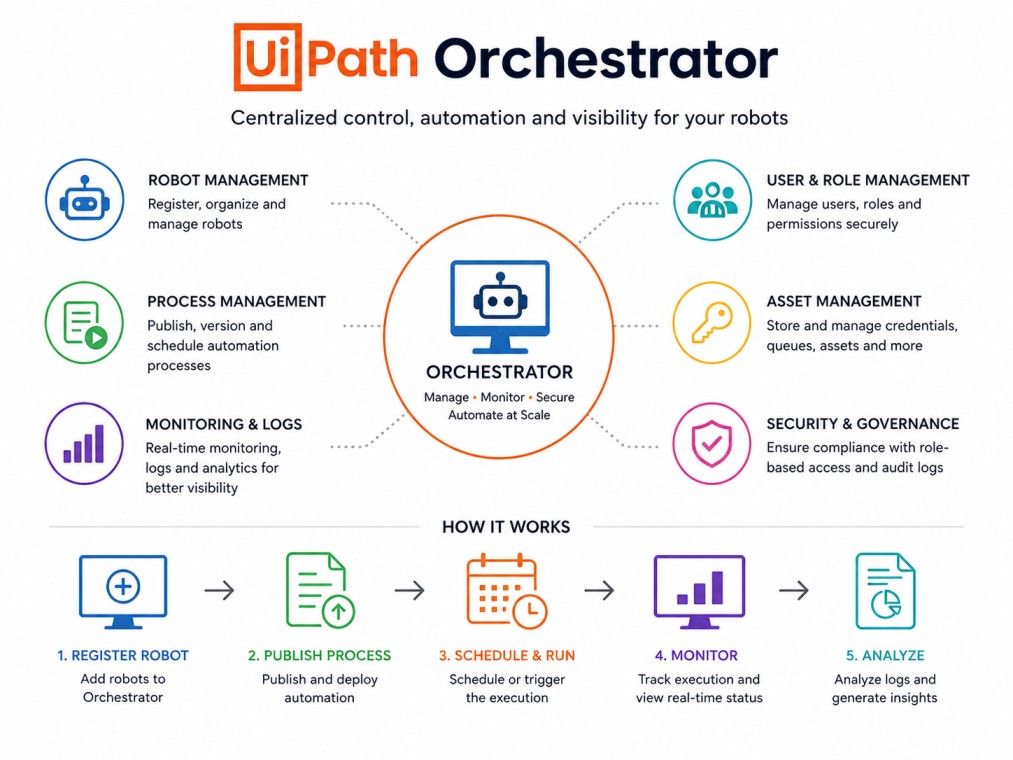
UiPath Orchestrator is a web-based management platform that lets you deploy, schedule, monitor, and control robots across your organization.
Think of it as the control center for your entire automation setup. While UiPath Studio is where you build automations and UiPath Robot is what actually runs them, Orchestrator is what connects everything and keeps it organized.
Without Orchestrator, you would need to manually start every bot on every machine. That works fine for one or two automations, but it breaks down quickly once you have dozens of processes running across different departments.
At its core, UiPath Orchestrator does four things:
It is built to handle both attended bots that work alongside humans and unattended bots that run on their own, often overnight or during off hours.
The UiPath platform has three main parts working together:
Component |
What It Does |
| UiPath Studio | Where developers build and design automation workflows |
| UiPath Robot | The software that executes the automation on a machine |
| UiPath Orchestrator | The platform that manages, schedules and monitors all robots |
Orchestrator is the layer that turns individual bots into a coordinated automation system.
Orchestrator makes enterprise-scale RPA possible, since it lets IT teams manage hundreds of robots from a single dashboard instead of logging into each machine separately.
Also Read: How to Become an RPA Developer: Skills, Roadmap & Career Guide for 2026
Free Courses
UiPath Orchestrator packs in a wide range of capabilities, and understanding them helps you see why it is considered the backbone of any RPA setup. Let's go through the main ones.
Orchestrator lets you register, license, and monitor every robot connected to your environment.
You can see which robots are online, which ones are busy, and which ones are idle.
You can also group robots by department or function, which makes managing large fleets much easier.
Queues are one of the most useful features in Orchestrator. They let you break large workloads into smaller transaction items that bots can pick up one at a time.
If a transaction fails, it gets logged with the error, and you can retry it without redoing the entire process.
A process is a published automation ready to run. Packages are the actual files, built in Studio, that get uploaded to Orchestrator and then deployed to robots.
This separation simplifies version control, since you can roll back to an older package if a new one causes issues.
Triggers decide when a process runs. You can set time-based triggers for recurring jobs, or queue-based triggers that start a process automatically when new items land in a queue. This is what makes unattended automation actually unattended.
Not everyone on your team needs the same level of access. Orchestrator lets admins assign roles so that some users can only view jobs while others can edit, deploy or delete processes. This keeps your automation environment secure and organized.
Orchestrator exposes a REST API that lets you connect it with external systems like ticketing tools, monitoring dashboards, or custom applications. This is useful for teams that want to trigger automations from outside the UiPath ecosystem itself.
If you're looking to lead in an AI-first world, IIM Kozhikode Strategic AI for Business Professionals - Leadership for an AI-First World offered by upGrad is built to help you get there.
AI Courses to upskill
Explore Artificial Intelligence Courses for Career Progression
The Orchestrator interface is organized into two main contexts: tenant level and folder level. Understanding this split makes navigating Orchestrator much easier, especially for beginners who often get confused about where a particular setting lives.
Tenant level settings apply across the entire organization account. This is where admin level configuration happens.
Folders act like project spaces within Orchestrator. Each folder can have its own robots, processes and permissions, which is useful for larger companies running automations across multiple teams.
This separation between tenant and folder level settings is one of the things that makes Orchestrator scalable for large organizations with multiple departments running their own automations independently.
Also Read: 48+ Must-Know UiPath Interview Questions and Answers
To really understand UiPath Orchestrator, it helps to know what happens behind the scenes when a robot runs a job.
When a robot starts, it connects to Orchestrator using a machine key and a connection URL. Orchestrator then sends the robot its assigned processes, and the robot reports back job status, logs and any errors in real time.
This constant back and forth is what allows you to monitor jobs live from the Orchestrator dashboard instead of having to check each machine manually.
Orchestrator can be deployed in different ways depending on how much reliability and scale you need.
Architecture Type |
Best For |
Key Characteristic |
| Single Node | Small teams, testing, proof of concept | One server handles everything |
| Multi-Node | Large enterprises needing high availability | Multiple servers share the load, reducing downtime risk |
Single node setups are simpler to install and manage, which makes them a good starting point for learning or small scale automation. Multi-node setups add redundancy, so if one server goes down, others keep the system running.
A typical Orchestrator installation includes a web application layer, a SQL database that stores all job and configuration data, and an indexer service that handles logging and search.
These components work together so that even as your robot fleet grows, Orchestrator can keep up with the volume of data being generated.
Orchestrator manages two types of robots differently.
Most large scale automation programs rely heavily on unattended robots since they can run around the clock.
Orchestrator is not just a monitoring tool. It solves real operational problems that companies face once they move beyond running one or two bots manually.
These are the day to day scenarios where Orchestrator earns its place in an automation setup:
Beyond day to day operations, Orchestrator plays a big role in keeping automation programs compliant and secure at scale:
These use cases explain why Orchestrator is considered essential rather than optional once a company scales past a handful of bots.
It is the difference between RPA as a small experiment and RPA as a dependable part of business operations.
Subscribe to upGrad's Newsletter
Join thousands of learners who receive useful tips
Setting up UiPath Orchestrator involves preparing your environment, installing the software, and configuring it for your organization. Here is what you need to know before you start.
For a standard production environment, UiPath recommends at least 4 CPU cores, 8 GB of RAM, and sufficient disk space depending on expected log volume.
Smaller test environments can run on lighter specs, but production setups handling many robots need more headroom to avoid performance issues.
Orchestrator needs a supported Windows Server operating system, a compatible version of SQL Server or Azure SQL for the database, and IIS configured as the web server.
You will also need a valid SSL certificate if you plan to run Orchestrator over HTTPS, which is strongly recommended for any production deployment.
Once installed, there are a few things worth doing right away:
Following these steps carefully at the start saves a lot of troubleshooting later, especially in larger organizations where multiple teams will depend on the same Orchestrator instance.
Once Orchestrator is installed, the next step is connecting your robots to it. This is where you will use the UiPath orchestrator login process for the first time as an end user.
UiPath Assistant is the desktop application that runs on the machine where your robot will execute tasks. Open it to begin the connection process.
From Assistant, choose the option to connect to Orchestrator. You will be prompted for your Orchestrator URL and login credentials.
This uipath orchestrator login step links your local machine to the central platform.
If this is a fresh Orchestrator instance, you will need to create a tenant first.
A tenant acts as an isolated workspace, useful if different business units need separate environments within the same orchestrator uipath installation.
Once logged in, Orchestrator generates a machine key. Enter this key in UiPath Assistant to complete the connection. This step registers your machine as a robot within Orchestrator.
Check the Robots section inside Orchestrator. Your machine should now show as "Connected" and "Licensed."
If it shows anything else, double check your machine key and license availability before trying again.
Once connected, you can assign processes to this robot and start scheduling jobs right away.
One of the first decisions teams face is choosing between cloud and on-premise UiPath Orchestrator. Both options give you the same core functionality, but they differ in setup effort, cost and control.
Cloud Orchestrator is hosted and managed by UiPath. You do not need to install servers or manage updates yourself.
On-premise Orchestrator runs on your own servers, giving you full control over the environment.
A standalone Orchestrator setup is a simplified on-premise option, often used for smaller teams or proof of concept projects. It skips some of the high availability configuration needed for large enterprise deployments, making it quicker to set up but less resilient under heavy load.
If your organization already has cloud infrastructure and wants to move fast, cloud Orchestrator is usually the simpler choice. If you operate in a heavily regulated industry or need tight control over your data, on-premise may be the better fit. Many companies start with cloud for testing and later evaluate on-premise as their automation program matures.
UiPath Orchestrator is not the only RPA control platform on the market. Here is how it compares to some common alternatives.
Automation Anywhere's Control Room serves a similar function to Orchestrator, managing bots and scheduling jobs.
UiPath Orchestrator generally offers a more mature queue management system and a broader third party integration ecosystem, while Control Room is known for its cloud native architecture.
Blue Prism's Control Room focuses heavily on security and governance, which appeals to highly regulated industries.
UiPath Orchestrator tends to offer a more modern, user friendly interface and faster deployment options, especially for teams that also use Studio and Assistant.
Power Automate is more accessible for citizen developers and integrates tightly with Microsoft 365, but it lacks the depth of enterprise governance and robot fleet management that Orchestrator provides.
For large scale, complex automation programs, Orchestrator remains the stronger choice.
Even a well configured Orchestrator setup runs into issues occasionally. Here are the most common ones and how to fix them.
This usually happens due to an incorrect machine key, network firewall restrictions, or an expired license.
Check that the Orchestrator URL is correct, confirm firewall rules allow the connection, and regenerate the machine key if needed.
License errors often occur when the available robot licenses are already in use. Check the Licensing section under tenant settings to see how many licenses are allocated versus available, and free up unused ones if needed.
Jobs can fail due to application changes, missing selectors, expired credentials or network timeouts. Reviewing the job logs in Orchestrator usually points directly to the root cause, since each failed job records a detailed error message.
Many organizations eventually need to migrate their Orchestrator setup, whether that means moving from on-premise to cloud or upgrading to a newer version.
Migration typically involves exporting configuration data like assets, queues and processes, then recreating them in the cloud environment. UiPath provides migration tools to help move data, but it is still worth testing thoroughly in a staging environment before switching production traffic over.
UiPath Orchestrator is what turns individual bots into a real, manageable automation system. From scheduling and queue management to security and governance, it handles the operational side of RPA so your automations actually run reliably at scale.
Want personalized guidance on Artificial Intelligence and upskilling? Speak with an expert for a free 1:1 counselling session today.
Studio is where you build automation workflows, while Orchestrator is where you deploy, schedule and monitor them. Studio creates the automation, Orchestrator manages how and when it runs across your robot fleet.
Yes, UiPath offers a Community edition with limited Orchestrator access for individual learners and small projects. It has restrictions on robot count and lacks some enterprise governance features found in paid plans.
The job usually gets marked as faulted, and Orchestrator logs the disconnection. Once the robot reconnects, you can manually restart the job or rely on retry logic if it was configured for that process.
Not strictly, but it is highly recommended even for attended bots. Orchestrator provides centralized asset management, logging and version control, which makes maintaining attended automations much easier over time.
There is no fixed hard limit, but it depends on your infrastructure and architecture. Multi-node setups can handle significantly more robots than single node deployments, especially in high volume enterprise environments.
Tenants act as isolated workspaces within a single Orchestrator instance. They are useful for organizations that want to separate environments by business unit while still managing everything from one central platform.
No, Orchestrator itself does not require coding. It is primarily a management dashboard. Coding skills are more relevant to building automations in Studio, not to operating Orchestrator's scheduling and monitoring features.
Yes, through its REST API and webhooks, Orchestrator can integrate with ticketing systems, monitoring tools and custom applications, letting external systems trigger or receive updates from automation jobs.
Check the job's execution logs first, since they usually show the exact error and step where the process failed. Cross referencing this with recent application changes often reveals the root cause quickly.
Attended robots typically require an interactive uipath orchestrator login through UiPath Assistant since a user is present. Unattended robots use stored credentials and machine keys to connect automatically without any manual login step.
Yes, especially with cloud Orchestrator or the Community edition. Small businesses can start with a handful of robots and scale up gradually as their automation needs grow, without committing to heavy infrastructure upfront.
730 articles published
Sriram K is a Senior SEO Executive with a B.Tech in Information Technology from Dr. M.G.R. Educational and Research Institute, Chennai. With over a decade of experience in digital marketing, he specia...
Speak with AI & ML expert
By submitting, I accept the T&C and
Privacy Policy
Top Resources
Master's Degree
18 Months
Executive Diploma
12 Months
IIIT Bangalore
Executive Programme in Generative AI & Agentic AI for LeadersIndia’s #1 Tech University
Dual Certification
5 Months