Difference Between Ordered and Unordered List in HTML: Syntax, Examples, and Key Differences
By upGrad
Updated on Jul 23, 2026 | 9 min read | 5.8K+ views
Share:

All courses
Certifications
More
By upGrad
Updated on Jul 23, 2026 | 9 min read | 5.8K+ views
Share:
Table of Contents
Quick Overview:
In this blog, you will learn the key difference between ordered and unordered list in HTML, how to implement them in HTML, styling tips with CSS, common mistakes to avoid, and best practices to make your content organized and engaging.
Ready to go beyond algorithms and start building real-world AI solutions? Explore upGrad’s Artificial Intelligence Courses to learn machine learning, generative AI, and cutting-edge technologies through hands-on projects and practical applications.
Popular AI Programs
Before we look at examples, it’s important to understand the difference between ordered and unordered list in HTML. Both help structure content, but they serve different purposes and behave differently.
Lists help structure content, but ordered and unordered lists serve different purposes. Here’s a brief introduction:
To clearly understand the difference between ordered and unordered list in html, a table comparing their features is useful:
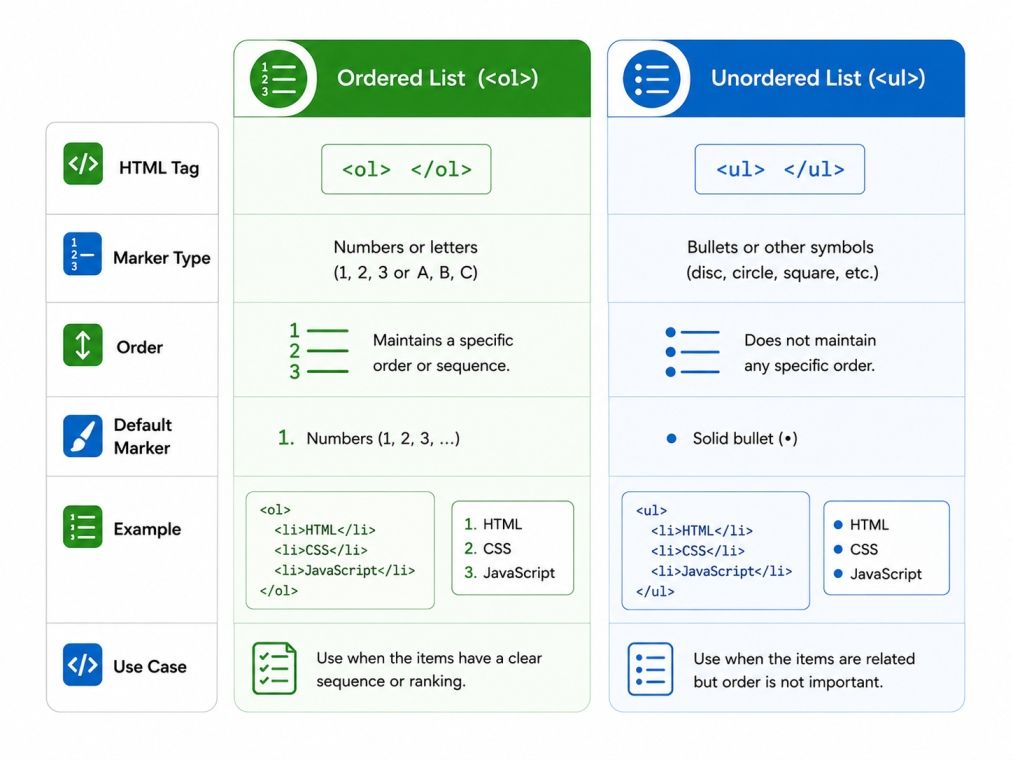
Feature |
Ordered List (<ol>) |
Unordered List (<ul>) |
| Purpose | Show steps or a sequence | Show a collection of items without order |
| HTML Tag | <ol> | <ul> |
| Item Marking | Numbers, letters, or Roman numerals | Bullets (dots, squares, or custom) |
| Use Case | Instructions, ranking, or procedures | Features list, shopping lists, points |
| Nesting | Can be nested inside <ol> or <ul> | Can be nested inside <ul> or <ol> |
| Accessibility | Indicates order to screen readers | Screen readers understand as a list of items |
| Styling Flexibility | Number style can be customized with CSS | Bullet style can be customized with CSS |
Also Read: Front-End Developer Salary in India in 2026 [For Freshers & Experienced] | Open Loop and Closed Loop Control System
Here’s a closer look at the difference between ordered and unordered list in practice:
Sequence vs Non-Sequence
Semantic Meaning
Use Cases
Styling Options
Nesting
Impact on Readability and SEO
Using the right type of list improves readability, accessibility, and overall user experience. Knowing the difference between ordered and unordered list in HTML ensures your content is clear, structured, and user-friendly.
Also Read: Top 15 Frontend Frameworks for 2026 & Tips to Pick the Right One
Free Courses
An ordered list is a type of HTML list used to display items in a specific sequence. It’s ideal when the order of items matters, such as in instructions, steps, or ranked information. Understanding how to use an ordered list helps you structure content clearly and makes it easy for readers to follow.
Before looking at examples, it's helpful to understand an ordered list in HTML and how it differs from other list types. This ol tag in HTML explained section covers the basic structure before exploring the difference between ordered list and unordered list in HTML.
Example Syntax:
<ol>
 <li>Step one: Preheat the oven.</li>
 <li>Step two: Mix the ingredients.</li>
 <li>Step three: Bake for 30 minutes.</li>
</ol>
Here’s an overview of the main features of an ordered list:
Feature |
Description |
| Tag Used | <ol> |
| Item Tag | <li> |
| Numbering | Automatically sequential (1, 2, 3...) |
| Use Case | Steps, rankings, sequences |
| Custom Numbering | Can use letters, Roman numerals, or start from a specific number using CSS or HTML attributes |
Understanding when to use an ordered list makes your content more readable:
Also Read: Top 10 Front-End Developer Project Ideas & Topics For Beginners [2026]
Here’s a quick idea of how you can style ordered lists:
Example:
<ol start="5">
 <li>Item five</li>
 <li>Item six</li>
</ol>
Using an ordered list properly ensures that your instructions, steps, or rankings are clear, easy to follow, and accessible to all users. Understanding the difference between ordered and unordered list becomes easier when you can see how ordered lists structure sequential content.
You may also Read: CSS Selectors
AI Courses to upskill
Explore Artificial Intelligence Courses for Career Progression
An unordered list is a type of HTML list used to display items without any specific sequence. Unlike ordered lists, the order of items does not matter. Unordered lists are ideal for grouping related points, highlighting features, or making content easier to scan. Understanding how to use them helps you structure information clearly.
Before looking at examples, it's helpful to understand an unordered list in HTML and how it differs from numbered lists. This ul tag in HTML explained section covers the basics before exploring the difference between ordered list and unordered list in HTML.
Example Syntax:
<ul>
 <li>Milk</li>
 <li>Bread</li>
 <li>Eggs</li>
</ul>
Here’s a simple table summarizing the main features of an unordered list:
Feature |
Description |
| Tag Used | <ul> |
| Item Tag | <li> |
| Bullet Style | Default bullets, customizable with CSS |
| Use Case | Features, lists of items, highlights |
| Nesting | Can include nested <ul> or <ol> lists |
| Styling Flexibility | Bullets can be changed to squares, circles, or custom images |
Before creating a list, consider why an unordered list is appropriate:
Also Read: Top Front-End Developer Interview Questions for 2026
To make unordered lists visually appealing, CSS offers several options. Here’s a quick overview:
Example:
<ul style="list-style-type:circle;">
 <li>Milk</li>
 <li>Bread</li>
 <li>Eggs</li>
</ul>
Using an unordered list correctly makes your content organized and easy to read. When combined with ordered lists, you can create structured HTML content that is both user-friendly and accessible. Understanding the difference between ordered and unordered list helps you choose the right list type for your content.
Also Read: Front-End Developer Job Description: Salary, Top Companies, and Future
Advance your tech career with the IIT Kharagpur Executive Post Graduate Certificate in AI-Native Software Engineering. Build practical skills in AI-driven software development through hands-on projects and industry-focused learning.
Choosing the right type of list depends on whether the order of items matters. Understanding when to use ordered lists vs unordered lists helps you structure content that is clear, readable, and accessible for users.
Before creating a list, consider the purpose of your content. Here’s a simple guide:
Also Read: Front-end Developer Resume: Complete Guide & Samples [2026]
Here’s a table summarizing scenarios for using ordered and unordered lists:
Scenario / Purpose |
Use Ordered List (<ol>) |
Use Unordered List (<ul>) |
| Step-by-step Instructions | Cooking recipes, installation guides | Not applicable |
| Rankings or Priority | Top 10 movies, task priorities | Not applicable |
| Checklist Without Sequence | Not necessary | Packing lists, shopping items |
| Feature Lists | Optional | Product features, benefits, highlights |
| Procedure with Notes | Main steps numbered, tips in sub-bullets | Not applicable |
Here are some real-life examples showing when to use ordered lists vs unordered lists:
Ordered List:
Unordered List:
Knowing when to use ordered lists vs unordered lists ensures your content is structured, easy to follow, and visually clear. This choice impacts user experience and makes your HTML content more accessible and readable. For which the understanding of Difference Between Ordered and Unordered List in HTML matters.
Also Read: Difference Between HTML and JavaScript: HTML vs JavaScript, Key Contrasts, and More
Creating lists in HTML is simple once you understand which tag to use. Ordered lists display items in a numbered sequence, while unordered lists use bullets. Knowing the Difference Between Ordered and Unordered List in HTML helps you choose the right list type based on your content. The difference between unordered and ordered list in HTML mainly depends on whether the order of items matters.
Use the <ol> tag to create an ordered list in HTML. Each list item is enclosed within an <li> tag, and the browser automatically numbers the items in sequence.
<ol>
  <li>Install Python</li>
  <li>Write the Code</li>
  <li>Run the Program</li>
</ol>
Output:
Use the <ul> tag to create an unordered list in HTML. Each item is placed inside an <li> tag, and browsers display bullet points by default.
<ul>
  <li>HTML</li>
  <li>CSS</li>
  <li>JavaScript</li>
</ul>
Output:
Subscribe to upGrad's Newsletter
Join thousands of learners who receive useful tips
You can combine ordered and unordered lists to organize information with multiple levels. This approach is useful for outlines, menus, documentation, and project hierarchies. Understanding nested lists also makes the Difference Between Ordered and Unordered List in HTML easier to understand, since both list types can be used together within the same structure.
<ol>
  <li>Frontend
    <ul>
      <li>HTML</li>
      <li>CSS</li>
      <li>JavaScript</li>
    </ul>
  </li>
  <li>Backend
    <ul>
      <li>Python</li>
      <li>Java</li>
    </ul>
  </li>
</ol>
Output:
HTML provides several attributes that help customize ordered lists and improve content presentation. These attributes allow you to control numbering styles, starting values, and list direction without relying on CSS.
| Attribute | Used With | Purpose | Example |
|---|---|---|---|
| start | <ol> | Starts numbering from a specific value | <ol start="5"> |
| type | <ol> | Changes numbering style | <ol type="A"> |
| reversed | <ol> | Displays numbers in descending order | <ol reversed> |
The start attribute lets you begin numbering from a value other than 1.
<ol start="5">
  <li>HTML</li>
  <li>CSS</li>
  <li>JavaScript</li>
</ol>
Output:
The type attribute changes how list items are numbered.
<ol type="A">
  <li>Introduction</li>
  <li>Methods</li>
  <li>Results</li>
</ol>
Output:
A. Introduction
B. Methods
C. Results
Common values:
| Value | Output Style |
|---|---|
| 1 | 1, 2, 3 |
| A | A, B, C |
| a | a, b, c |
| I | I, II, III |
| i | i, ii, iii |
The reversed attribute displays items in reverse order.
<ol reversed>
  <li>Task 1</li>
  <li>Task 2</li>
  <li>Task 3</li>
</ol>
Output:
These attributes provide greater control over list presentation and help create more structured and user-friendly HTML content.
Using lists in HTML is simple, but beginners often make mistakes that affect readability, structure, and accessibility. Understanding these errors helps you create cleaner and more effective content. This section covers the common mistakes when using ordered and unordered lists and how to avoid them.
Here’s a table showing typical mistakes and how to fix them:
Mistake |
Problem |
Correct Approach |
| Using <ul> for steps | Confuses users and screen readers | Use <ol> for sequences |
| Skipping <li> tags | List items merge into regular text | Wrap each item in <li> |
| Too many nested lists | Difficult to read | Limit nesting to 1–2 levels |
| Forgetting to close tags | HTML structure breaks | Always close <ul>, <ol>, and <li> |
| Using lists for layout purposes | Misrepresents content | Use CSS for styling, not lists |
| Ignoring accessibility | Screen readers can’t interpret the list | Use semantic <ol> or <ul> correctly |
Before finalizing your lists, follow these practical tips:
Also Read: Top 25+ HTML Project Ideas for Beginners in 2026: Source Code, Career Insights, and More
Understanding the difference between Ordered and Unordered List in HTML helps you create well-structured and readable web pages. Use ordered lists when the sequence matters and unordered lists when the order is not important.
Once you understand the difference between order list and unordered list in HTML, you can confidently use the right list type for tutorials, navigation menus, checklists, documentation, and other web content.
Want personalized guidance on AI and upskilling? Speak with an expert for a free 1:1 counselling session today.
Ordered lists are ideal when the sequence or order of items matters, such as step-by-step instructions, rankings, or lists with hierarchical data. Unordered lists should be used when the order doesn’t impact the meaning or purpose of the content.
Yes, you can nest an unordered list inside an ordered list. This is often done to display sub-items within an ordered sequence. HTML allows you to use the <ul> tag inside the <li> tags of an ordered list.
Yes, both ordered and unordered lists can be customized using CSS. You can change the type of numbering (for ordered lists) or modify bullet styles (for unordered lists), such as switching from circles to squares or customizing the color and size of list markers.
Ordered lists provide additional clarity for users who rely on screen readers, as the numbered items imply sequence. Unordered lists, without numbers, focus solely on content without suggesting any particular order, making ordered lists more suitable for steps or instructions.
Mixing ordered and unordered lists in the same document doesn’t affect the functionality. You can place an ordered list inside an unordered list or vice versa, which can be useful for displaying complex data or nested content while preserving both structure and organization.
Use an ordered list when the sequence of items is important, such as instructions, recipes, rankings, or workflows. Understanding the difference between Ordered and Unordered List in HTML helps you decide when numbering adds meaning and improves readability for users.
An unordered list is the right choice when the order of items does not matter, such as feature lists, navigation menus, or product benefits. Knowing the difference between ordered list and unordered list in HTML helps you choose the correct structure for your content.
The choice depends on your content. Use an ordered list for sequential information and an unordered list for grouped items without priority. Understanding the difference between unordered and ordered list in HTML ensures your lists remain both meaningful and semantically correct.
Unordered lists can pose challenges for accessibility if they are used improperly to imply a sequence or hierarchy. Since unordered lists don’t indicate order, it’s important to use them only when the sequence doesn’t matter. For ordered items, use an ordered list instead for better clarity.
Yes, you can add links inside both ordered and unordered lists. Each list item can contain a hyperlink wrapped in an <a> tag, allowing users to click on them regardless of the list type. This flexibility makes both list formats versatile for various purposes.
When you nest an ordered list inside another ordered list, the numbering usually resets to 1 for the inner list. However, you can customize this behavior using the start attribute to specify a different starting number for the nested list, offering flexibility in how numbers are displayed.
Yes, CSS allows you to style unordered lists to visually resemble ordered lists. While the visual appearance can be similar, the underlying structure remains different. It’s important to ensure the list remains semantically correct to avoid confusion for readers and accessibility tools.
Yes, the <ol> tag supports the start attribute, allowing you to begin numbering from any desired value. This is particularly useful when continuing a numbered sequence across sections or when you want to highlight priority items starting from a specific number.
Absolutely. Both ordered and unordered lists can be included inside table cells to organize content more clearly. This helps present multiple points within a single cell, making data easier to read and visually structured for the audience.
You can use CSS properties like list-style-type or list-style-image to modify bullets in unordered lists. For example, you can replace standard discs with squares, circles, or even custom images to align with your website design. This adds a visual distinction while keeping content structured.
Yes, screen readers announce the numbered items in an ordered list as sequential steps, giving context about the progression. Unordered lists are read as simple lists without implying any order, which can help readers focus on grouping rather than sequence.
Yes, using the type attribute or CSS, you can combine numbers, letters, or Roman numerals in an ordered list. This allows for creative structuring of steps, sections, or sub-points while keeping the main list organized and understandable.
Use the appropriate list type based on your content, avoid unnecessary nesting, keep list items concise, and style lists with CSS instead of changing their HTML meaning. Following these practices also reinforces the difference between order list and unordered list in HTML, making your pages easier to read and maintain.
Yes, you can use list-style-image to replace default bullets with images or icons. This technique works well for visual lists, checklists, or feature highlights while maintaining the integrity of unordered list structure.
Nesting unordered lists is possible, but excessive nesting can make content harder to read. Keeping the structure simple and using only one or two levels of nesting ensures clarity and prevents visual clutter. Using this method strategically enhances content comprehension.
1141 articles published
We are an online education platform providing industry-relevant programs for professionals, designed and delivered in collaboration with world-class faculty and businesses. Merging the latest technolo...
Speak with AI & ML expert
By submitting, I accept the T&C and
Privacy Policy
Top Resources
Master's Degree
18 Months
Executive Diploma
12 Months
IIIT Bangalore
Executive Programme in Generative AI & Agentic AI for LeadersIndia’s #1 Tech University
Dual Certification
5 Months