How to Check NPM Version? Explore Challenges and Tips to Troubleshoot Them
Updated on Jul 07, 2026 | 17 min read | 48.6K+ views
Share:

All courses
Certifications
More
Updated on Jul 07, 2026 | 17 min read | 48.6K+ views
Share:
Checking NPM Version is a natural step when you debug installs, verify configs, or align your setup with project rules. You can check it through npm -v, npm --version, or by viewing Node and NPM details together with node -v. These quick checks help you spot mismatches and fix environment issues fast.
In this guide, you’ll read more about How to check NPM version, common version-related problems, natural conflict patterns, troubleshooting steps, and practical fixes that help you maintain a smooth and stable workflow.
Shape your future with upGrad’s Data Science Course. Gain hands-on expertise in AI, Machine Learning, and Data Analytics to become a next-generation tech leader. Enroll today and accelerate your career growth.
Popular upGrad Programs
Before running any commands, it helps to know which option serves which purpose. The table below gives a quick overview of the most common NPM version-related commands, from checking your installed version to updating packages and auditing dependencies.
| Task | Command |
|---|---|
| Check NPM Version | npm -v or npm --version |
| Check Node.js Version | node -v |
| Check Installed Package Version | npm list <package-name> |
| Check Latest Package Version on NPM Registry | npm view <package-name> version |
| View Outdated Packages | npm outdated |
| Update NPM | npm install -g npm |
| Run Security Audit | npm audit |
| Fix Security Issues | npm audit fix |
| View Installed Packages | npm list --depth=0 |
| Remove a Package | npm uninstall <package-name> |
Best for: Developers who want to verify their NPM setup, troubleshoot version conflicts, update packages, or manage dependencies more effectively.
Free Courses
You might prefer this approach if you want a quick way to confirm your NPM version. A single NPM version command often does the job, and you can learn immediately whether you need to update anything.
Different operating systems have slight variations in how you open the prompt, but the commands themselves stay consistent. It’s also smart to confirm that your Node.js release is compatible with your overall setup, especially if you plan to switch versions.
Take a look at these steps that detail how you can run the right commands on any platform:
You can run either of the following two commands to see your NPM current version:
npm -vOr,
npm --versionHere’s how the output might look like when you run these commands:
8.15.0On Windows, open Command Prompt or PowerShell.
On macOS or Linux, open the Terminal.
Then enter either of the two commands from above:
npm -vOr,
npm --versionYour version number will appear in the console.
If you are using Ubuntu, you may want to confirm your Node.js release alongside NPM by running the following command:
node -vIf you notice that you’re on version 6 and need version 4 (or any other release), you can switch versions through Node Version Manager (NVM).
For example:
nvm install 4
nvm use 4
You’ll then have immediate access to the desired Node.js version as well as the matching NPM release.
Also Read: How to Install Node.js and NPM on Windows? [Step-by-Step]
Recommended Courses to upskill
Explore Our Popular Courses for Career Progression
IIIT Bangalore
Executive Diploma in Machine Learning and AI360° Career Support
O.P.Jindal Global University
MBA from O.P.Jindal Global UniversityLive Case Studies and Projects
You can rely on CMD (Command Prompt) to handle your Node.js tasks in a familiar Windows environment. This method gives you a direct view of the npm version check results without needing complex terminal setups.
Many developers find that knowing how to check npm version in CMD is the quickest way to confirm that their local environment is correctly configured.
Here’s how you can do it step-by-step:
Step 1: Open CMD
Click the Start button, type “cmd,” and select the Command Prompt from the results. You may choose “Run as administrator” if your system permissions require it.
Step 2: Run the Command
You need to type in either of the following two commands and press Enter:
npm -vOr,
npm --versionStep 3: View the Output
The window will display a number, such as:
8.15.0This tells you exactly which NPM current version is currently installed on your system.
When you download Node.js from its official website, it arrives with NPM included. This allows you to handle both installations in one step and confirm that everything is ready. It might be convenient if you prefer not to rely on extra tools or packages. Once the Node.js installer completes its work, you can confirm which NPM release you have without reconfiguring any settings.
Below are the steps that show you how to confirm your NPM current version after installing Node.js:
Step 1: Download the Installer
Head to nodejs official website. Choose the setup file for your operating system and save it to your computer.
Step 2: Run the Setup
Double-click the downloaded file, then follow each prompt. Select any add-ons you need, and proceed until the installation completes.
Step 3: Check Your NPM Version
Open your terminal or command prompt once again. Enter either of the following two commands and press Enter.
npm -vOr,
npm --versionStep 4: Scrutinize Sample output
You might see something like this:
8.5.5This confirms the NPM release that was installed together with Node.js.
For large teams or CI/CD pipelines, relying on manual checks isn't enough. You need to know how to check npm version programmatically to ensure every developer and build server is using the exact same tools.
Automating your npm version check prevents "it works on my machine" errors caused by mismatched environments.
Below are some ways you can verify your NPM version inside scripts:
1. Checking NPM Version Using child_process
You can call NPM from within a Node.js file.
For example, you can run:
const { execSync } = require('child_process');

const npmVersion = execSync('npm --version').toString().trim();
console.log(`Current NPM version: ${npmVersion}`);
This script executes npm --version behind the scenes and returns something like this:
8.15.0This output confirms your installed NPM release.
2. Checking NPM Using npm pkg Get Version
If your script runs in the same folder that contains your package.json, you can use the following command:
npm pkg get versionIt reads details from the local configuration and prints the version field found in your package.json.
3. Checking NPM Version by Creating a Custom Script
You can add a script in package.json that runs npm -v by defining something like this:
{
  "scripts": {
    "check-npm": "npm -v"
  }
}
Then, you can execute this command:
npm run check-npmYou’ll see the output, such as:
8.15.0Such an output will clarify that your system is set up correctly.
While terminal commands tell you what is installed globally, they don't always tell you what a specific project needs. Learning how to check npm version requirements inside the package.json file is essential for maintaining consistency across a development team.
Here are the required steps:
Step 1: Open the package.json file in your project directory
Step 2: Look for the engines section.
Here’s a sample code of the engines section:
{
  "engines": {
    "npm": ">=8.0.0"
  }
}
Step 3: The number mentioned in the section is the minimum NPM version required for the project.
Also Read: package.json vs package-lock.json: Major Differences
Subscribe to upGrad's Newsletter
Join thousands of learners who receive useful tips
Modern developers rarely switch between multiple windows. Knowing how to check npm version directly within your code editor (IDE) streamlines your workflow and keeps your focus on the code.
Here are the steps you can follow:
Step 1: Open VS Code and create a new .js file.
Step 2: Use the following code:
const { execSync } = require('child_process');

const npmVersion = execSync('npm -v').toString().trim();
console.log(`NPM version: ${npmVersion}`);
Step 3: Save the file and run it using the terminal in VS Code.
node filename.jsStep 4: The terminal will show the NPM version.
Example of Output
NPM version: 8.15.0Sometimes, knowing the global NPM version isn't enough. You need to know how to check npm version numbers for specific libraries (like React or Lodash) to debug compatibility issues. Additionally, checking the latest available version on the public registry helps you decide if an upgrade is necessary.
Below are the precise commands for a granular npm version check of your dependencies.
To see exactly what version of a package is currently sitting in your node_modules folder, use the list command.
Command:
Bash
npm list <package-name>
Example Output:
Bash
project-name@1.0.0
└── react@18.2.0
This output confirms the specific version installed locally. If you want to see all installed top-level packages at once, run npm list --depth=0.
Before updating, you should check what the latest version on the NPM registry actually is. This differs from a standard local npm version check.
Command:
Bash
npm view <package-name> version
Example Output:
Bash
18.3.1
This command pings the remote registry and returns the most recent stable release.
To see a full report of which packages in your project need updating, run:
Bash
npm outdatedThis is the most efficient way to perform a bulk npm version check. It displays a table showing your Current version, the Wanted version (based on your package.json range), and the Latest version available globally.
Also Read: How to Install Specific Versions of NPM Package?
Even a perfect setup can break if you ignore ongoing maintenance. Adopting a routine for your npm version check prevents "dependency hell," where conflicting libraries crash your application.
Knowing how to check npm version is just the start; maintaining a healthy environment requires following these industry-standard practices.
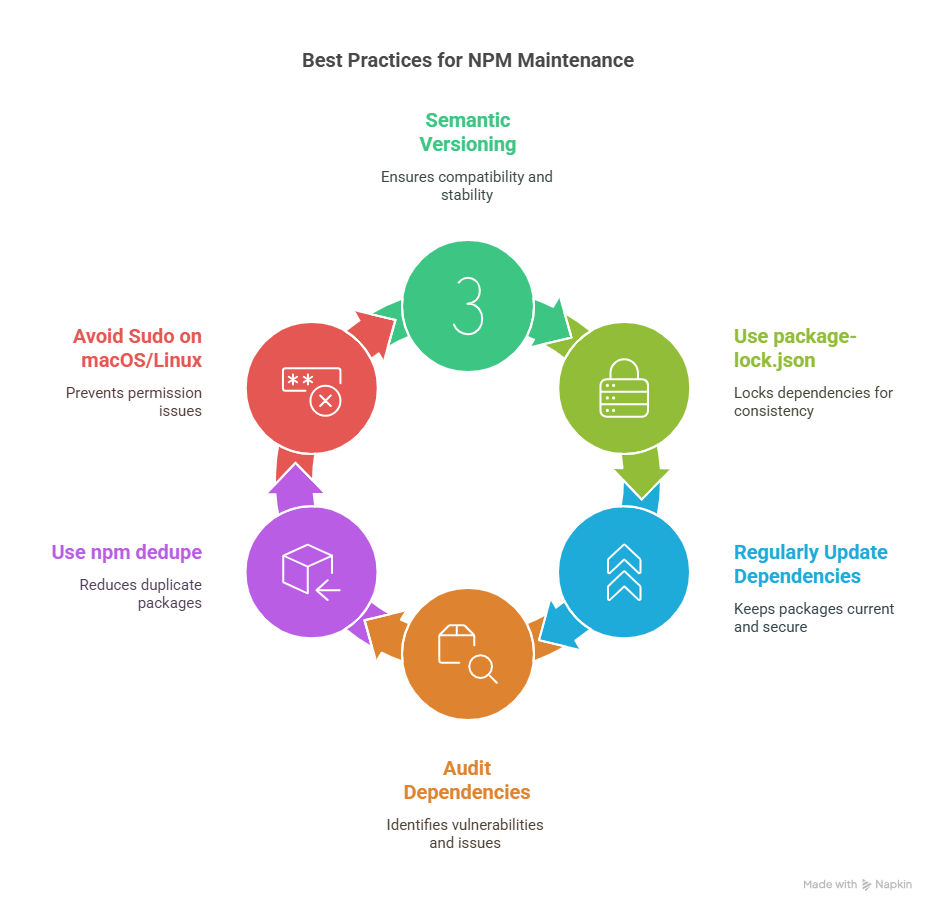
Semantic Versioning (SemVer): You’ll notice most packages follow Major.Minor.Patch numbers (for example, 1.2.3). A caret symbol, like ^1.2.3, signals that any 1.x.x version is acceptable for installation.
This method makes it easier to see which releases will break existing features and which are safe to install.
Using package-lock.json: You’ll find a file named package-lock.json in your project’s root folder. It captures the exact versions of every dependency in use.
This file ensures that each person on your team installs the same releases, preventing unexpected behavior when packages change.
npm outdatedThen, the following command installs newer releases as long as they fit the constraints in your package.json.
npm updateThis practice keeps you current with vital patches and fresh improvements.
npm auditThen, by running another command – listed below – you automatically patch issues that have a recognized solution:
npm audit fixThis minimizes vulnerabilities that could endanger your projects.
npm dedupeThis reduces overall disk space and keeps your dependency tree less cluttered.
mkdir ~/.npm-global
npm config set prefix '~/.npm-global'
export PATH=~/.npm-global/bin:$PATH
This setup lets you install and manage global packages under your username rather than system-wide directories.
Also Read: Installing Dev Dependencies with NPM: A Complete Guide
Learn NPM version control effectively with a Full Stack Development course. Enroll in upGrad’s Full Stack Development Bootcamp to fast-track your learning.
Even if you know how to check npm version commands perfectly, you may still run into errors where the terminal doesn't respond as expected.
Below are the most frequent issues developers face during an npm version check or installation, along with their solutions.
1. Addressing Broken NPM Installations
If the NPM installation is broken, it can prevent basic commands from running. This issue mainly arises due to corrupted files during an update or installation.
Here’s how you can address this issue:
Step 1: Reinstall NPM
Use the following common to reinstall NPM version:
npm install -g npm@latestStep 2: Clear NPM Cache
If the problem continues, clear the NPM cache using the following command:
npm cache clean --forceStep 3: Reinstall Node.js
If you want to get a fresh version of NPM, reinstall Node.js
2. Resolving Random Errors
Misconfigured dependencies or network issues can cause random errors such as npm ERR! code ELIFECYCLE or ENOTFOUND.
Here’s the solution to this issue:
3. Fixing Permissions Errors
You may encounter permission errors when NPM tries to access restricted directories, especially on LINUX systems.
Here’s how you can overcome this problem:
Step 1: While installing packages globally, do not use sudo. Instead, configure a local package directory.
mkdir ~/.npm-global
npm config set prefix '~/.npm-global'
Step 2: You must update your PATH variable to include the local directory.
export PATH=~/.npm-global/bin:$PATH4. Handling Insufficient Disk Space
Large projects with many dependencies may fail due to insufficient disk space.
Here’s how you can address this problem:
Solution 1: Remove unused global packages to make space using this command:
npm uninstall -g <package-name>Solution 2: Remove old package versions using this command:
npm pruneSolution 3: Make sure your disk has enough space for node_modules.
5. Dealing with Dependency Conflicts
You may face this problem when multiple dependencies need incompatible versions of the same package.
Here are the possible solutions:
Way 1: Eliminate redundant versions using the npm dedupe command.
npm dedupeWay 2: You can update package.json to resolve version conflicts.
"dependencies": {
"react": "^17.0.0",
 "react-dom": "^17.0.0"
}
Way 3: Reinstall the dependencies using this simple command:
npm installOnce you perform an npm version check, you might discover that your installation is outdated. Running an old version can lead to security vulnerabilities and compatibility issues with modern packages.
Knowing how to check npm version is step one; step two is keeping it current. Here is the safest way to upgrade.
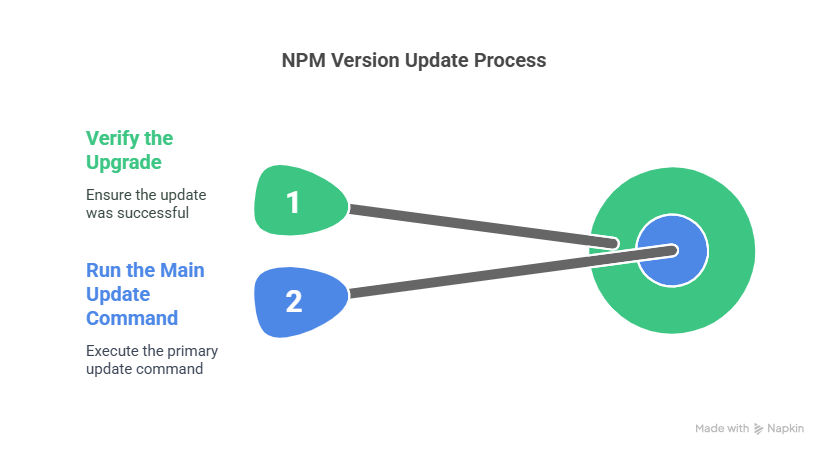
Step 1: Run the Main Update Command
npm install -g npmThis fetches the latest global NPM release. On macOS or Linux, you might need extra privileges, so run:
sudo npm install -g npmStep 2: Verify the Upgrade
Type and Enter this command:
npm -vYou’ll see a number, such as:
9.1.0Such a number confirms that the process worked. If it hasn’t changed, you can retry the command or check for permission issues.
When you work on JavaScript projects and applications, you rely on specific tools to keep everything running smoothly. One of those tools is NPM (Node Package Manager), which ensures that the libraries and modules you install remain organized and consistent with your project’s requirements. Because it’s such a key component of your workflow, you want to be certain that you’re using the right NPM version from the start.
Verifying your NPM current version helps you stay on top of modern features, reduces conflicts with dependencies, and acts as a safeguard against security risks.
Whether you're installing packages, checking versions, or fixing dependency issues, a few NPM commands come up repeatedly in day-to-day development. The table below gives a quick reference to the most commonly used commands and what they do.
| Command | Purpose |
|---|---|
| npm -v | Check the installed NPM version |
| node -v | Check the installed Node.js version |
| npm install | Install all project dependencies |
| npm install <package-name> | Install a specific package |
| npm update | Update installed packages |
| npm outdated | View packages with available updates |
| npm list --depth=0 | Display installed top-level packages |
| npm audit | Scan dependencies for security issues |
| npm audit fix | Fix known security vulnerabilities |
| npm uninstall <package-name> | Remove an installed package |
| npm cache clean --force | Clear the NPM cache |
| npm dedupe | Remove duplicate dependencies |
| npm view <package-name> version | Check the latest package version on the NPM registry |
| npm run <script-name> | Execute a script from package.json |
| npm init | Create a new package.json file |
If you’re looking to build a solid foundation in version control and development practices, upGrad offers comprehensive courses in JavaScript, Node.js, and related technologies to help you gain hands-on experience and expertise.
Here are some of the courses offered by upGrad in related technologies:
Need further assistance in deciding which courses can help you understand NPM versions? Contact upGrad for personalized counseling and valuable insights. For more details, you can also visit your nearest upGrad offline center.
Related Blogs You Might Find Useful:
Open the integrated terminal and run npm -v. The number you see is the installed release. This quick step helps during setup or debugging when you want to confirm the environment before running tasks or installing dependencies.
Run npm -v in any terminal. If a number appears, the tool is installed and active. If nothing returns or an error appears, reinstall Node, since NPM ships with it. This simple test confirms the environment state.
Use git --version in your terminal. The output shows the installed release. This check helps you confirm compatibility with workflows, branches, or automation tools that rely on specific Git behavior in your project.
Run node -v in the terminal. The response shows which release you’re using. This helps you verify if your setup matches project needs, especially when working with frameworks or packages sensitive to Node updates.
It runs package binaries without installing them globally. This is useful for testing tools, executing one-time scripts, or running commands directly from packages. It keeps your system cleaner and avoids global clutter.
Check the project’s package.json and look for the engines field. It indicates the expected Node release. Use that version to avoid errors with builds, tooling, or dependencies that rely on specific runtime behavior.
Look at the project’s package.json, .nvmrc, or README. These files often list the expected runtime. Matching that release avoids conflicts with older scripts or packages that may break under newer versions.
Set Azure to the Node release your app requires. After deployment, run node -v and npm -v in the Azure console. Matching values confirm a stable environment and reduce errors during builds or installs.
It downloads the packages listed in your package.json. This step prepares your project for builds, local testing, or deployments. Without it, required libraries won’t load, and many scripts may fail.
Run npm -v or try npm help. A valid response shows that the tool is active. If you see errors, reinstall Node or check your PATH so commands are detected correctly.
Run npm ls --depth=0 for local items. For global ones, use npm ls -g --depth=0. These commands help you track versions, remove unused tools, and keep your workspace clean.
Open Terminal and run npm -v. This simple step confirms that the setup is ready for installing packages, running scripts, or verifying updates. It also helps when you compare versions across devices.
Open Command Prompt or PowerShell and type npm -v. The number you see confirms the current setup. If it fails, update PATH or reinstall Node to restore access.
NPM itself is installed globally with Node. Running npm -v shows the global release. This helps you confirm which version applies across all projects on your machine.
Once you update Node, run npm -v to confirm the paired NPM release. This step ensures you know whether the update changed the package manager as well.
Run npm -v and compare it with the latest release listed on the Node or NPM site. If yours is older, update through Node installers or use npm install -g npm if supported on your system.
Open the project directory, run npm -v, and confirm the system-level release. This matters when you troubleshoot install issues or compare team environments.
Add a step in your pipeline that executes npm -v. Logging the output helps you confirm the build environment and catch failures caused by mismatched versions in automated workflows.
Open the terminal and run npm -v. Linux users often switch Node releases with tools like NVM, so this quick test helps you confirm the active version after switching.
You can run npm -v directly in any terminal. No script execution is needed. This is helpful during early debugging, environment checks, or when you compare setups across machines.
Reference Links:
https://github.com/npm/cli/releases
https://www.w3schools.com/whatis/whatis_npm.asp
https://docs.npmjs.com/cli/v8/configuring-npm/package-json
911 articles published
Pavan Vadapalli is the Director of Engineering , bringing over 18 years of experience in software engineering, technology leadership, and startup innovation. Holding a B.Tech and an MBA from the India...
Get Free Consultation
By submitting, I accept the T&C and
Privacy Policy
Top Resources
Certification
3 Months
Certification
6 Months
O.P. Jindal Global University
Masters in International Accounting and Finance (Accredited by ACCA, UK)Master's Degree
12 Months